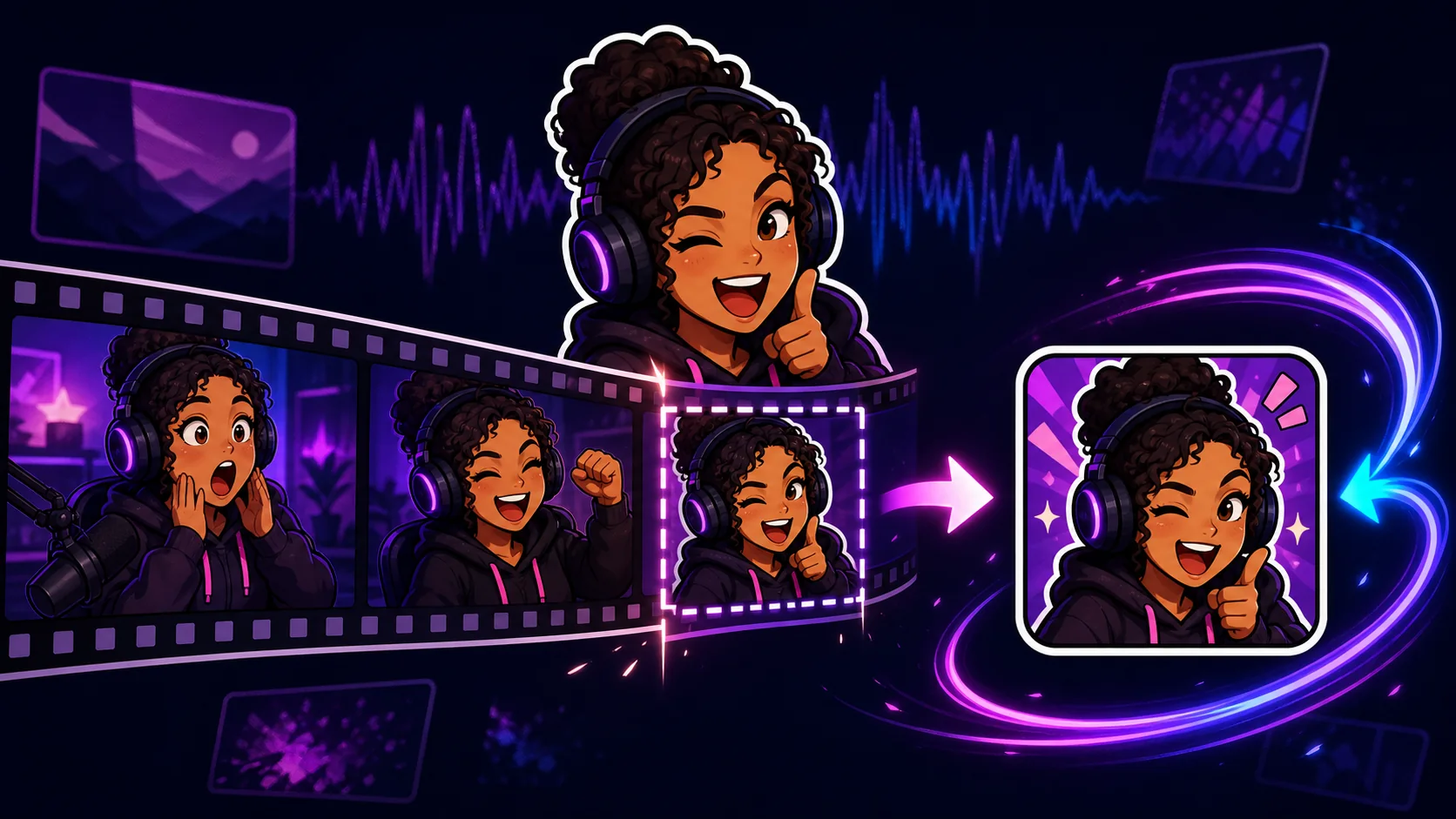
How to Turn a Stream Clip Into an Animated Twitch Emote
Choose one readable reaction from a stream clip, trim the motion, crop tightly, and export a loop that survives Twitch chat size.
Short answer
Choose a half-second to two-second reaction from a clip you own, crop around one readable subject, remove overlays, and turn that moment into a square looping GIF. Trim before compressing: fewer frames and one clear motion preserve more quality than shrinking a long clip. Preview the loop at 28×28 pixels, then export within Twitch's current GIF, frame-count, file-size, and flashing limits.
Last reviewed: 2026-08-02
The best clip emotes are not tiny highlight reels. They isolate one physical beat—a double take, fist pump, head drop, or delighted laugh—and loop it before the viewer has to search the frame. The shorter and simpler the source moment, the more image quality you can preserve under an emote file-size limit.
Start from footage you made or are authorized to repurpose. A clip can contain game footage, music, guest faces, sponsor graphics, or licensed overlays that were acceptable in a stream but are not automatically cleared for a reusable global emote. Crop and review rights before converting anything.
Find the one beat hiding inside the clip
Scrub frame by frame and mark the earliest frame that establishes the reaction and the first frame after it resolves. Most useful source ranges are roughly half a second to two seconds, although the right duration depends on the motion. A blink can be shorter; a head turn needs enough time to read without snapping.
Choose a section where the subject stays near one position. Fast camera cuts, scene changes, and full-body movement force the square crop to chase the action. That makes the face smaller and compression harder. If the clip contains several good beats, export them as separate candidates and test each as a silent loop.
- Prefer a large face, mascot, or hand gesture over a wide gameplay scene.
- Start after the previous action ends so the first frame is clean.
- End on a pose that can return naturally to the opening frame.
- Remove captions, alerts, usernames, and chat overlays from the crop.
- Ignore audio; animated Twitch emotes are GIFs and do not carry sound.
Crop first, then decide how the loop returns
Build a square crop around the subject before converting to GIF. Track the crop only when movement would otherwise leave the frame; excessive camera-following creates a second competing motion. Keep the face or main object large, with enough margin for a raised hand or head bounce.
A loop needs a deliberate return. Sometimes the original action already returns to its starting pose. When it does not, you can hold the reaction briefly and cut back, reverse the frames for a boomerang, or add a short eased return. Watch for unnatural backward speech, blinking, smoke, particles, or physics when reversing footage.
| Loop shape | Best for | Watch out for |
|---|---|---|
| Natural loop | Nods, bouncing, repeated gestures | A visible jump between last and first frame |
| Hold and cut | Shock, freeze, deadpan reactions | Holding so long that the emote feels stalled |
| Boomerang | Fist pumps, leans, simple hand motion | People or objects moving implausibly backward |
| Eased return | Head turns and controlled zooms | Extra frames that inflate the GIF without helping |
Clean the image before spending bytes on it
Every moving pixel costs compression budget. A static or removed background lets the encoder spend more of that budget on the face. If background removal produces flickering edges, use a simpler crop or a stable outline rather than accepting a noisy halo around every frame.
Correct exposure and contrast while the source is still video. Lift a face that is lost in shadow, reduce colored monitor spill, and make the important edges distinct. Do not sharpen every frame aggressively; crawling edge noise can look worse and compress less efficiently than a slightly softer but stable surface.
| Source problem | Why it hurts | Practical fix |
|---|---|---|
| Busy moving background | Consumes GIF colors and changes every frame | Remove it or crop tighter |
| Tiny subject | The reaction disappears at chat size | Choose a closer clip or crop around the face |
| Low light noise | Creates shimmering pixels and larger files | Use a cleaner source and modest denoising |
| Overlay text | Becomes unreadable and may expose names | Reframe, mask, or choose another moment |
| Camera cut | Breaks the visual loop | Trim to one side of the cut |
Compress in the order viewers notice least
If the GIF is too large, shorten the duration first. Then remove redundant frames or lower the frame rate while preserving the pose changes that communicate the reaction. Reduce colors after timing works, and only then consider more aggressive spatial simplification. This order protects the idea instead of preserving a long but muddy animation.
Compare every revision at actual size and normal playback speed. A 28-pixel emote rarely benefits from subtle hair movement at 30 frames per second, but it does benefit from a crisp eye shape and a clean beat. Keep an uncompressed master so a failed optimization pass never becomes the new source.
- Cut idle frames before lowering visual quality.
- Use fewer distinct colors in backgrounds and shadows.
- Avoid transparency chatter along hair, fingers, and headset edges.
- Keep the most expressive frame sharp because it may also become the thumbnail.
- Re-export from the master instead of repeatedly compressing a GIF.
Meet Twitch's animated-emote requirements
Twitch currently requires animated emotes to be square GIF files. In auto-resize mode, upload one GIF between 112×112 and 4096×4096 pixels with a maximum size of 1 MB. In manual mode, prepare matching 28×28, 56×56, and 112×112 GIFs, each no larger than 512 KB.
The GIF can contain no more than 60 frames and must not flash or flicker more than three times within one second. Twitch uses the first GIF frame as the default static thumbnail unless you provide a qualifying custom static image. Treat the opening frame as part of the design, not as disposable setup footage.
| Requirement | Auto-resize | Manual upload |
|---|---|---|
| Dimensions | One square GIF, 112–4096 px | Three square GIFs: 28, 56, and 112 px |
| Maximum file size | 1 MB | 512 KB per GIF |
| Maximum frames | 60 | 60 per GIF |
| Flashing limit | No more than 3 flashes or flickers in 1 second | Same rule |
| Default thumbnail | First frame | First frame |
Rules change
Use these values as the August 2, 2026 review snapshot, then check Twitch's official formatting page before the final upload. The dashboard validator and current policy pages control—not an old export preset or blog post.
Check permissions and global-emote context
Only convert footage you own or have the necessary rights to reuse. Crop out guests who did not agree to become an emote, and avoid third-party characters, sports footage, films, music visuals, sponsor marks, or game art when you do not have permission for that use. Twitch says users may not share content they do not own or otherwise have rights to share.
Also review the reaction without the original stream context. Subscriber emotes can travel across Twitch, so an inside joke can be interpreted differently elsewhere. A clean, self-contained expression is both easier to understand and easier to evaluate against Twitch's current emote and community guidelines.
Clip-to-emote workflow
Step 1
Confirm the source rights
Use your own clip or footage you are authorized to repurpose, and identify any guest, overlay, licensed character, or third-party media in the frame.
Step 2
Mark one reaction beat
Trim from the first readable setup frame to the end of the reaction. Keep only the motion necessary to understand the emote.
Step 3
Crop square around the subject
Fill the frame with the face, mascot, or gesture. Track the crop sparingly and remove overlays from the visible area.
Step 4
Choose the loop shape
Test a natural loop, hold-and-cut, boomerang, or short eased return. Reject any version that looks strange when silent.
Step 5
Clean unstable pixels
Simplify or remove the background, stabilize edges, and correct exposure before converting the sequence into a GIF.
Step 6
Compress deliberately
Shorten first, remove redundant frames second, and simplify colors third. Preserve a clean master outside the optimization loop.
Step 7
Preview all actual sizes
Watch the loop at 28, 56, and 112 pixels on dark and light backgrounds. Check the first frame as a static thumbnail.
Step 8
Validate against current Twitch rules
Confirm dimensions, GIF size, frame count, flashing, content, and your account's available animated-emote upload path before submitting.
Make your first version free
Animate your stream reaction for free
Trim one clip you own down to one readable beat, make the square crop, and test a free loop before paying for a larger editing workflow or animation pack.
Animate your stream reaction for freeRelated MakeEmoji guides and tools
Sources checked
- Twitch Animated Emotes Guide
- Twitch Emote Formatting and Upload Requirements
- Twitch Community Guidelines
Frequently asked questions
How long should a stream clip be for an animated emote?
Use only the readable reaction, often roughly half a second to two seconds. There is no single ideal duration, but shorter loops usually preserve more clarity under the file-size and frame-count limits.
Can I upload MP4 or WebM as a Twitch emote?
Twitch's current animated-emote requirements call for GIF. Keep the video master for editing, then export a square GIF that fits the applicable auto-resize or manual limits.
Why does my converted clip look blurry?
The source may be too wide, dark, noisy, or long. Crop closer, shorten the loop, remove moving background detail, and allocate the available colors and frames to the face or main gesture.
Should I remove the clip background?
Remove or simplify it when it competes with the subject or inflates the GIF. Keep it if removal causes unstable hair or hand edges that flicker more than the original background.
Can I use a clip containing a game or another person?
Do not assume the original stream gives you every reuse right. Review the footage, game or media rights, guest permission, and Twitch policies for the intended emote. When unclear, use a clean clip of yourself or get appropriate permission.
What frame should be first in the GIF?
Choose a clean, recognizable frame because Twitch uses the first frame as the default static thumbnail. Avoid starting with motion blur, an empty crop, or an awkward transition pose.


