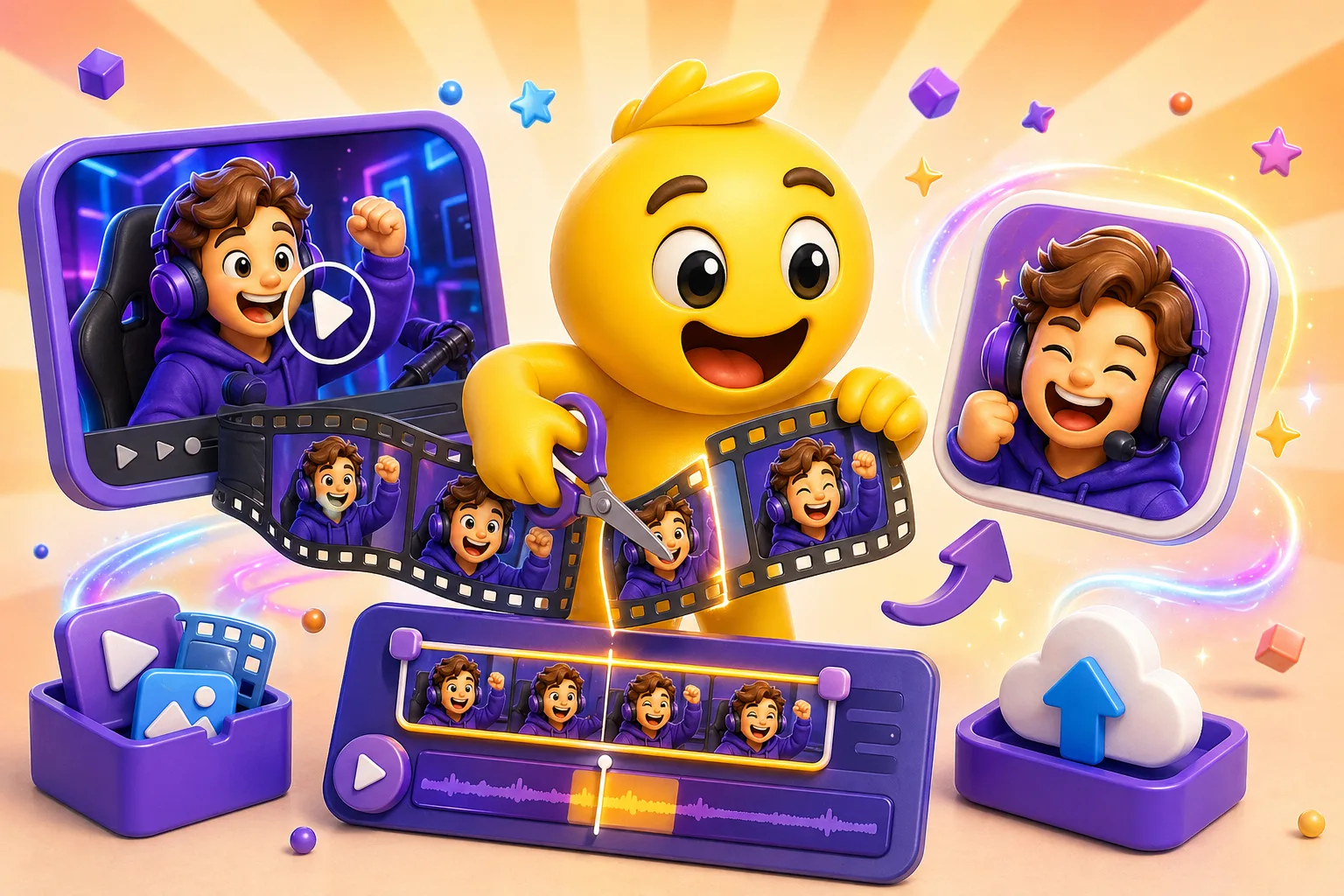
Converting Video Clips into Animated Emojis
How to extract perfect frames from video clips and turn them into smooth animated emojis.
That perfect reaction from a movie scene. The exact moment from a game stream. A celebrity's expression from an interview. Video captures authentic motion and timing that's difficult to recreate by animating from scratch. Converting video clips to animated emojis lets you harness that authenticity—if you can navigate frame extraction, optimization, and file size limits without destroying quality.
Why video sources work better than manual animation
Real video captures natural motion and timing automatically. When someone makes a surprised face, the sequence of micro-expressions happens in specific order with precise timing. Manually animating that requires understanding facial anatomy and motion principles. Extracting it from video? You just captured it perfectly without needing to understand why it works.
Reaction videos are goldmines for emoji content. Someone laughing, shocked, confused, angry—these authentic reactions translate directly into emoji material. The internet already surfaces the best reactions through memes and viral clips. You're not hunting for content, you're converting content that already proved its emotional impact.
Movie and TV clips carry cultural weight that drawings can't match. When you use the actual footage from a recognizable scene, people immediately understand the reference. A drawing inspired by the scene requires explanation. The real clip is self-documenting—people know what it means because they've seen it.
Game footage works for gaming communities better than generic game emojis. That specific victory animation from your main game, the exact defeat screen everyone knows, the signature move of a character—these resonate with your audience because they've experienced them. Generic gaming emojis lack that shared context.
Finding clips worth converting
Short clips work best—one to three seconds maximum. Longer clips either create massive file sizes or require dropping so many frames that motion becomes choppy. The constraint forces you to find the essence of the moment. The peak of the expression, the critical part of the action, the punchline without setup.
Clear subjects with minimal background clutter translate better to small sizes. A close-up face fills the emoji frame. A character in a busy environment becomes visual noise when shrunk to 32 pixels. When evaluating clips, mentally remove 80% of the frame—does the remaining 20% still communicate clearly? That's your subject.
High contrast and good lighting survive compression better than dark or muddy footage. When you reduce to 64 colors for GIF optimization, subtle shading disappears. Clips with strong lights and darks, clear color separation, and defined edges maintain clarity through the conversion process. Dark, atmospheric footage becomes an illegible blob.
Test whether the moment is recognizable at small sizes before committing to conversion. Screenshot the video, shrink it to 64×64 pixels, and see if you can still tell what's happening. If it's unclear at 64, it'll be worse at 32. This saves hours of conversion work on clips that were never going to work as emojis.
Tools that actually work for video conversion
Photoshop handles the full workflow if you have it. Import video frames to layers, edit individual frames, control timing on the timeline, and export optimized GIFs with precise settings. The learning curve is steep but the control is unmatched. For people already proficient in Photoshop, it's the obvious choice. For beginners, it's overkill.
Ezgif.com is the free online solution that handles 90% of use cases. Upload video, trim to the section you want, convert to GIF, crop and resize, optimize colors, and download. No software installation, works on any device, reasonably intuitive. The tradeoffs are less control over individual frames and compression artifacts you can't fine-tune. But for most emoji conversions, it's sufficient.
GIMP provides free desktop software alternative with video frame import. More control than online tools, steeper learning curve than Ezgif, but not as refined as Photoshop. Good middle ground if you want desktop capabilities without paying Adobe's subscription. The interface feels dated but functionality is solid once you learn where everything is.
After Effects is for advanced motion work—stabilization, effects, precise timing control. Using After Effects for basic video-to-emoji conversion is like using a flamethrower to light a candle. It works but it's massive overkill. Reserve this for complex projects where you need professional-grade motion control.
Ezgif workflow for quick conversions
Start by uploading your video file to Ezgif's video to GIF converter. The file size limit is 100MB, which handles most clips. If your source video is larger, trim it in your video player before uploading or use desktop software instead. Don't waste time uploading a 500MB file when you only need three seconds of it.
Set start and end time to extract exactly the frames you want. Ezgif shows you a preview with timestamps. Find the moment where your desired action or expression begins and where it ends. Precision matters—one extra second doubles your file size. Trim tight. You can always convert again if you cut too much, but you can't save an overweight GIF without reconverting.
Convert to GIF with reasonable frame rate settings. Default is often 10-15 frames per second, which works for emojis. Higher frame rates create smoother motion but massive file sizes. Lower frame rates save space but look choppy. Start with 12 fps as baseline and adjust if needed. Fast actions need higher fps. Subtle expressions can go lower.
Crop to square aspect ratio immediately after conversion. Emojis are square. Your video probably isn't. Crop to the important part—usually centering on the face or main subject. Use Ezgif's crop tool to select a square region. This dramatically reduces file size by eliminating unnecessary pixels and makes your subject larger within the frame.
Resize to emoji dimensions next—128×128 or 256×256 pixels depending on your needs. Larger sizes give you more detail but bigger files. For Discord emojis under 256KB, start with 128×128. You can always remake at higher resolution if you have space. Shrinking reveals whether your clip works at emoji size. If it's illegible at 128, it won't work.
Optimize with color reduction to meet file size requirements. Ezgif's optimize tool lets you reduce colors from 256 down to 32 or even 16. Each reduction cuts file size but reduces quality. Start aggressive—try 64 colors first. If that looks okay, try 32. If it looks bad, go back to 128. Visual inspection at actual size determines acceptable quality threshold.
Test your GIF at actual emoji size before finalizing. Download it, upload to a test Discord server or Slack workspace, and view it in real chat. Design tools and browsers display GIFs larger than 32 pixels. What looks fine in your browser might be an incomprehensible blur when someone uses it as an emoji. Catch this before you commit to the final version.
Photoshop workflow for precise control
Import your video into Photoshop by going to File → Import → Video Frames to Layers. Select your clip and choose whether to import the entire video or a limited range. For emoji work, import a limited range—the specific seconds you need. Photoshop creates one layer per frame, which for even a 3-second clip at 30fps means 90 layers. That's why you trim first.
Delete unnecessary frames immediately. Open the Timeline panel and you'll see all your imported frames. Scrub through and delete frames that don't contribute to the action—the wind-up before the expression, the hold after the peak moment. Emojis communicate in the fewest frames possible. If your action happens in 15 frames, delete everything else.
Crop to square and resize to your target resolution. Image → Canvas Size to make it square if needed, then Image → Image Size to resize to 128×128 or your target dimensions. Do this after deleting frames so you're not processing unnecessary layers. If your source is high resolution, consider resizing to 256×256 first, then optimize down to 128 if file size allows.
Adjust colors and contrast for clarity at small sizes. Create an adjustment layer affecting all frames—Curves, Levels, or Vibrance work well. Boost contrast so subjects pop. Increase saturation slightly so colors remain distinct through compression. Subtle adjustments at full size become necessary adjustments at emoji size.
Set frame timing in the Timeline panel. Each frame can have custom duration. Most emojis use 0.04-0.08 seconds per frame (25-12 fps). Faster for quick actions, slower for subtle expressions. You can vary timing—hold on the peak expression longer, speed through transitional frames. This human timing makes animations feel more natural than mechanical consistent spacing.
Export for Web (Legacy) with GIF optimization settings. File → Export → Save for Web (Legacy) opens the classic GIF export dialog. Choose Adaptive palette, set colors to 128 or 256, adjust dither if needed. Watch the file size preview in the bottom left. Reduce colors until you hit your target. Preview at 100% zoom to see actual quality. Export when satisfied.
Solving common conversion problems
File size too large is the most frequent issue. Solutions in order of impact: reduce dimensions (256→128 often cuts size by 75%), reduce number of frames (every frame you cut saves space), reduce colors (256→128→64→32), shorten duration (trim more aggressively), increase lossy compression (if your tool supports it). Try these sequentially until you hit your target.
Blurry results usually mean your source video was too low quality or you shrunk too much. Go back to the source and find the highest quality version available. YouTube downloads max at 1080p but that's plenty for emoji conversion. Screen recordings at native resolution work better than compressed video. Start from the best source possible—you can't add detail that wasn't there.
Subject unclear after conversion means you need to crop tighter or the clip fundamentally doesn't work at emoji size. Crop closer on the face or important element. Increase contrast to separate subject from background. If the subject is small in frame, the clip probably won't work—find a different angle or moment where the subject is larger.
Choppy motion from dropping too many frames looks bad for continuous actions. Keep more frames for things that need smooth motion—running, dancing, throwing. You can drop more frames for expressions that happen in stages—neutral to surprised has clear steps. Test different frame counts to find minimum viable smoothness for your specific clip.
Distracting backgrounds pull focus from your subject. Solutions: crop them out entirely if possible, blur them in your editor before conversion, or adjust colors to desaturate background while leaving subject vibrant. Photoshop and GIMP allow selective editing. Online tools don't. If background is unfixable, find different source footage.
Advanced optimization techniques
Lossy GIF compression reduces file size beyond color reduction. Ezgif offers "lossy GIF" option with compression level slider. This introduces minor artifacts but can cut file size significantly. Try level 30-50 first. The artifacts are barely visible at emoji size but the file size savings are substantial. This often makes the difference between 280KB (too large) and 240KB (fits).
Selective frame delays create natural timing. Not all frames need the same duration. Hold on the peak expression for 0.1 seconds, move through transitional frames at 0.04 seconds. This emphasis creates better pacing and communication. Your subject's face fully expressing surprise? Hold it so people register the emotion. The in-between frames as they transition? Fly through them.
Dithering helps or hurts depending on content. Dithering adds noise to simulate colors you removed. For gradients and smooth transitions, it helps. For clear subjects with defined edges, it adds unwanted noise. Try both dithered and non-dithered exports at same color count. Pick whichever looks better at 32 pixels. Don't just follow defaults.
Frame differencing in GIF compression stores only what changed between frames. Most tools do this automatically but verify. If your entire frame changes each time, you won't benefit. If only the subject moves against static background, frame differencing dramatically reduces file size. This is why reaction clips with stable camera work better than handheld shaky footage.
Content-specific conversion strategies
Reaction clips focus entirely on the face. Crop tight—the face should fill 80% of the frame. Half-second to one-second duration captures most expressions. You want the transition from neutral to emotion plus a brief hold. Too short and it's over before people register it. Too long and file size balloons for no benefit. 10-15 frames usually suffices.
Action clips need enough frames to show what happened. A character jumping requires showing the crouch, the launch, the peak, and the land. Cutting frames makes it unclear what occurred. These require 1-2 seconds and 20-30 frames. Accept the higher file size or find a simpler action. Complex actions don't always translate to emoji-sized animations.
Text or subtitle clips can be nearly static. If you're converting a clip where text appears on screen, you don't need smooth animation. Show the text appearing (2-3 frames), hold on the text readable (10+ frames), maybe show it disappearing. The text is the content, not the motion. Static frames with text showing = tiny file size.
Looping clips require careful start and end frame selection. The last frame should transition smoothly back to the first. This often means finding a motion that naturally loops—character spinning, object bouncing, pattern repeating. Or cutting before the motion completes so the restart isn't jarring. Test your loop several times to verify it feels continuous not stuttery.
Legal and ethical considerations
Fair use covers memes and commentary but doesn't give blanket permission to use any video. Transformative use—creating an emoji that comments on or parodies the source—has stronger fair use argument than just copying a moment you liked. The more you transform, the safer you are. Direct rips with minimal change have weaker protection.
Get explicit permission for original content from creators when possible. If you're converting clips from a streamer's video, ask them. Most are happy to have community-made emojis of their content. Written permission protects you if they change their mind later. No permission = risk they demand removal.
Platform terms of service often have clauses about user content. Discord, Slack, and Twitch generally allow custom emojis but reserve right to remove infringing content. Using copyrighted clips doesn't violate these terms until someone files a complaint. Then platforms remove the emoji to avoid liability. Your emoji disappears without warning.
Original footage you captured yourself is safest. Record game footage, film reactions with friends, create your own clips. You own the copyright and can do whatever you want. No permission needed, no legal risks, no platform concerns. This is the clearest path if you're worried about legal issues.
Quality control checklist before finalizing
View at actual size—32 pixels—on both light and dark backgrounds. What's clear at 256 pixels might be illegible at 32. What works on white might vanish on dark gray. Test in the environment where it'll actually be used. Discord dark mode is different from Slack light mode. Verify both.
Check file size meets platform limits. Discord standard: 256KB. Discord Nitro: 512KB. Slack: 128KB. Twitch: 1MB. Know your target platform's limits and stay under them. A 260KB emoji is useless for Discord standard users—they can't upload it. Build in buffer—aim for 230KB to be safe.
Test the loop if applicable. Does it restart smoothly or jump jarringly? Watch it loop 10 times in a row. The jarring moment you didn't notice on first view becomes obvious on tenth loop. If the loop bothers you after 10 repetitions, it'll bother users who see it hundreds of times.
Verify the emotion or action is recognizable without context. Show it to someone who doesn't know the source clip. Can they tell what emotion it expresses or what action it shows? If they're confused, your emoji failed its primary job. Clarity trumps faithfulness to source material.
Upload to test environment and use it in actual conversation. Put it in a message. React with it. See how it feels in context. Some emojis look good in isolation but weird in chat. Others work perfectly. You won't know until you test in the real environment where it'll live.
Converting video to animated emojis captures authentic motion and expressions that manual animation struggles to match. Use Ezgif for quick conversions or Photoshop for precise control. Crop tight, optimize aggressively, and always test at actual emoji size before finalizing. The best source material makes the difference—find clips where the subject is clear, contrast is high, and the moment is recognizable even at 32 pixels. Or skip the conversion process and generate emojis directly →