chronark
@chronark
"this is the best website ever"
Steps
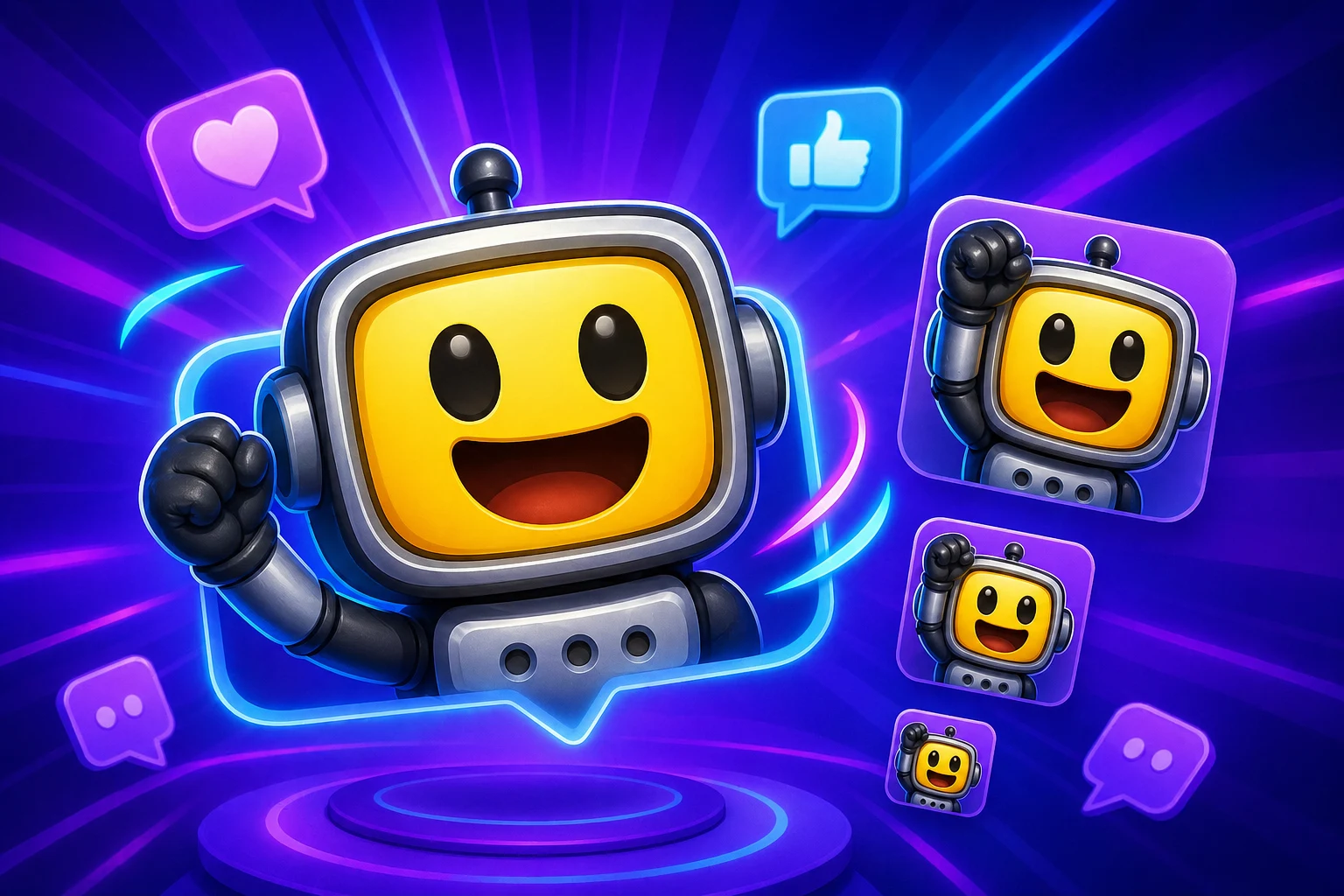
Create a readable Twitch-sized AI animation from one uploaded image.
FAQ
Yes. Upload your existing emote art or mascot image, choose a Super Animation mode, and export an animated version.
Big expressions, thick outlines, simple silhouettes, and one clear subject matter more than detail. Always check the result at Twitch's smallest display size.
Cheering, laughing, shocked, angry, panicking, dancing, and thumbs-up are strong because viewers can understand them instantly.
Not always. Standard gives you 3 frames, High gives you 6, and Ultra gives you 12. Use the lowest frame count that captures the motion.
Classic animation
Upload your image first, then run Super Animation when you need a more expressive reaction.
Next
Continue with the closest chat app, file format, or how-to guide.
Next
More guides for emojis, emotes, AI animation, and chat uploads.
Categories
Jump into broader emoji-maker categories when you are starting from a theme instead of a platform.
Trusted by creators
Used by over two million creators worldwide, including streamers, developers, teams, and community builders.
Start