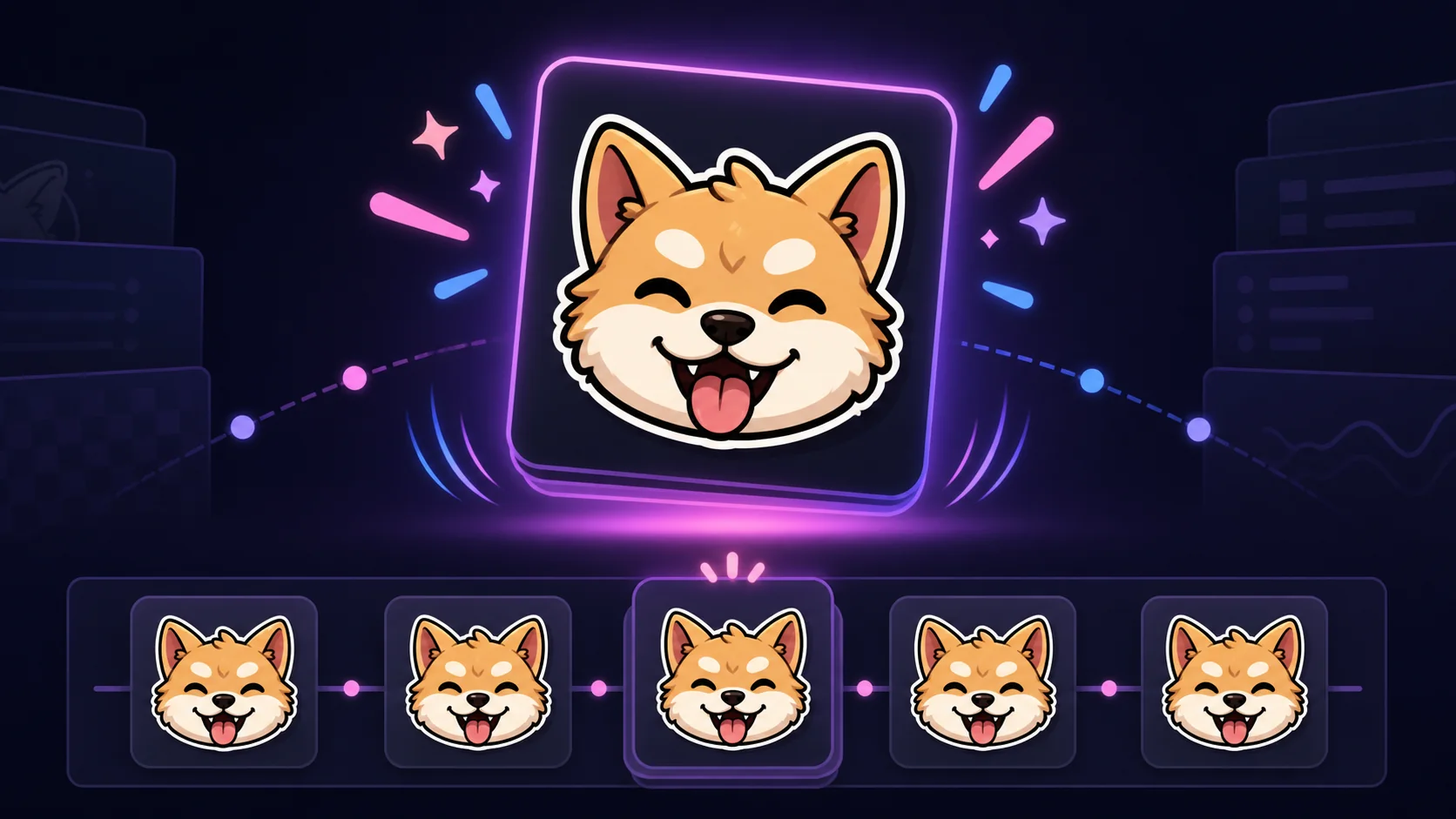
How to Animate a Commissioned Twitch Emote Without Redrawing It
Confirm modification rights, preserve the artist's design, choose restrained motion, and test the animated emote at actual chat size.
Short answer
First get written permission from the artist that specifically covers modifying and animating the commissioned art for your intended platform use. Then preserve the original file, animate the whole emote with a small bounce, tilt, pulse, shake, or surrounding effect, and export a square GIF. Preview at 28×28 pixels and verify Twitch's current limits. A commission receipt alone is not a legal guarantee of animation rights.
Last reviewed: 2026-08-02
You can make commissioned art feel alive without repainting the face, separating every limb, or imitating the artist's drawing style. Whole-layer motion and effects around the artwork preserve the approved illustration while adding a clear chat reaction.
The non-negotiable first step is rights, not software. Ask the artist in writing whether your agreement permits modification, animation, derivative versions, and the intended Twitch or commercial use. This guide is a practical production checklist, not legal advice, and it cannot determine what your contract or local law allows.
Get written modification and animation rights first
Paying for a commission gives you the delivered file and whatever rights the agreement actually grants; it does not safely answer every ownership or modification question by itself. Before uploading the art to any animation tool or sending it to another editor, ask the original artist for written confirmation that covers the specific artwork and intended uses.
The clearest request names the actions: animate and modify the art, create GIF and resized derivatives, display those derivatives as channel emotes on Twitch, and use an outside service or animator if applicable. Also confirm whether commercial use, credit, exclusivity, portfolio display, AI processing, or source-file sharing has separate terms. Save the artist's response with the invoice and original brief.
- Identify the commissioned files and character by name or invoice reference.
- Ask explicitly for permission to modify, animate, resize, compress, and make derivative emote files.
- Name Twitch and any other intended platforms rather than requesting vague 'full rights.'
- Clarify whether you may upload the art to a third-party animation service or hire another animator.
- Record any required credit, usage limit, extra fee, or prohibition in the production notes.
- If the answer is unclear or disputed, pause and ask the artist or a qualified lawyer—not an export tool.
No legal guarantee
Written permission is a practical requirement for this workflow, but this article and MakeEmoji do not guarantee ownership, license scope, Twitch approval, or legal compliance. Copyright rules and contracts vary. Resolve uncertainty with the rights holder and, when needed, qualified legal counsel before animating or publishing.
Choose motion that leaves the drawing intact
Treat the commissioned PNG as one protected layer. Position its anchor near the visual center, duplicate the original into a non-editable master, and animate transforms on a working copy. Translation, rotation, and scale can create a strong loop without altering a single painted pixel.
Effects placed behind or around the art are similarly conservative. A glow pulse, burst rays, small hearts, or a shadow bounce can amplify the reaction while the commissioned illustration remains unchanged. Keep those additions stylistically simple so they support rather than impersonate the artist's rendering.
| Motion | What changes | Good use | Main risk |
|---|---|---|---|
| Bounce | Whole image moves up and settles | Hype, hello, celebration | Cropping the outline at the top |
| Tilt | Whole image rotates a few degrees | Confusion, sass, curiosity | Wobbly or off-center framing |
| Pulse | Scale increases and returns | Love, emphasis, approval | Soft edges from repeated resampling |
| Shake | Small rapid position offsets | Panic, rage, disbelief | Unreadable face or uncomfortable flicker |
| Surrounding burst | New accents animate behind the art | Win, alert, milestone | Effects overpowering the original emote |
Prepare a safe animation master
Keep the artist's original delivery untouched. Make a working copy at the largest clean square size available, ideally with transparency and enough empty margin for the planned movement. If you received layered source files and have permission to use them, preserve their color profiles, masks, and naming rather than flattening the only copy.
A flattened transparent PNG is enough for whole-layer effects. Inspect it on black, white, and saturated backgrounds for semitransparent halos, stray pixels, clipped accessories, or an outline that changes color unexpectedly. Fix only technical export defects you are authorized to fix; do not redraw stylistic details under the label of cleanup.
- Archive the original delivery separately from all animation working files.
- Use lossless source copies until the final GIF export.
- Add canvas padding before a bounce, tilt, or pulse so no outline gets clipped.
- Keep the first frame recognizable because Twitch uses it as the default thumbnail.
- Document which effects were added and who created them for future revisions.
Build a small loop without redrawing
Begin with the original approved pose. Move into the peak action quickly, hold it just long enough to register, then return to the starting transform. Use eased spacing so a bounce has weight and a tilt does not look like mechanical jitter. Two or three key poses can be enough; additional frames should smooth meaningful motion, not hide an unclear idea.
Preview the loop after every major timing change. If the expression disappears during a scale-down or the outline smears during a fast shake, reduce the distance rather than adding sharpening. When surrounding particles are used, keep their count low and make their loop end cleanly so the animation does not pop.
| Loop phase | Purpose | Example timing decision |
|---|---|---|
| Recognizable start | Shows the commissioned art clearly | Brief clean hold on the original pose |
| Anticipation | Signals incoming motion | Tiny dip before a bounce |
| Peak reaction | Delivers the emotional beat | Fast rise, tilt, or scale pulse |
| Settle | Adds weight without a redraw | One small overshoot |
| Return | Reconnects to frame one | Match position, rotation, scale, and effects |
Export within Twitch's current animated-emote limits
Twitch currently accepts animated emotes as square GIFs. Auto-resize mode takes one GIF between 112×112 and 4096×4096 pixels up to 1 MB. Manual mode uses three matching GIFs at 28×28, 56×56, and 112×112 pixels, with each file no larger than 512 KB.
Animated GIFs cannot exceed 60 frames and must not flash or flicker more than three times within one second. The first frame becomes the default static thumbnail unless you upload a qualifying custom static image. Check Twitch's official page immediately before delivery because platform requirements can change after this article's review date.
| Check | Current requirement | Production implication |
|---|---|---|
| Format | Square GIF | Export video or keyframes to GIF for upload |
| Auto-resize | 112–4096 px, up to 1 MB | One larger master is the simplest route |
| Manual mode | 28, 56, and 112 px; up to 512 KB each | Tune small renderings separately |
| Frame count | 60 frames maximum | Use a short loop and remove redundant frames |
| Flashing | No more than 3 flashes or flickers per second | Avoid strobes and rapid contrast reversals |
Review the art, motion, and permission trail
Compare the animated first frame with the original commission at the same size. Confirm that color, proportions, transparency, and line work remain intact. Then watch at 28 pixels on dark and light chat backgrounds. The animation should add one readable verb without making the character harder to recognize.
Before publishing, retain the source agreement, written animation permission, original file, working master, and final exports. Check the emote against Twitch's current formatting and community rules. This record does not guarantee a dispute-free outcome, but it prevents the production team from guessing later about what was approved and changed.
Rights-first no-redraw workflow
Step 1
Read the commission agreement
Locate the invoice, brief, license, and artist messages. Do not infer animation permission from payment or possession of the PNG.
Step 2
Get specific written permission
Ask the artist to confirm modification, animation, derivative GIFs, intended platform use, and any third-party tool or animator involvement.
Step 3
Archive the original
Preserve the delivered files unchanged, then create a separate lossless animation master with enough transparent padding for motion.
Step 4
Select one whole-layer effect
Choose a bounce, tilt, pulse, shake, or surrounding accent that matches the existing expression without repainting it.
Step 5
Build a short clean loop
Start on a recognizable frame, reach one peak action, settle, and return exactly to the opening transform.
Step 6
Inspect actual-size previews
Check 28, 56, and 112 pixels on contrasting backgrounds. Compare frame one with the original commissioned art.
Step 7
Export and verify
Meet Twitch's current GIF, dimension, file-size, frame-count, flashing, and content rules, then retain the permission and production records.
Make your first version free
Test one commissioned emote animation for free
After the artist gives specific written modification and animation permission, preserve the original and try one restrained whole-layer loop before commissioning a larger animation package.
Test one commissioned emote animation for freeRelated MakeEmoji guides and tools
Sources checked
- Twitch Animated Emotes Guide
- Twitch Emote Formatting and Upload Requirements
- Twitch Community Guidelines
- U.S. Copyright Office: What Visual and Graphic Artists Should Know
Frequently asked questions
Does paying for commissioned emote art mean I can animate it?
Do not assume so. The artist may retain copyright or grant only specified uses. Read the agreement and get written permission that specifically covers modification, animation, derivative files, intended platforms, and any third-party processing. This is not legal advice.
What should the artist's written permission say?
It should identify the artwork and clearly address the actions you plan to take: modify, animate, resize, compress, create derivative GIFs, publish on Twitch, and use another service or animator if relevant. Ask about fees, credit, commercial use, and limits.
Can I animate a flattened PNG without layered source files?
Technically, yes. Whole-image bounce, tilt, pulse, shake, glow, and surrounding effects can work on a transparent PNG. You still need the appropriate written rights before modifying or uploading the art.
Which animation changes the original art the least?
A small whole-layer bounce or tilt usually preserves every painted pixel. Surrounding glow or burst effects can also leave the source untouched. Keep the movement inside the canvas and compare the first frame with the original.
Can AI animate commissioned emote art?
Only if your rights and the artist's written permission cover that processing and intended output. Some agreements or artists prohibit AI tools or third-party uploads. Confirm first; this workflow provides no legal guarantee.
Does MakeEmoji guarantee Twitch will approve the animation?
No. You are responsible for rights, content, and current platform compliance, and Twitch controls review and enforcement. Use MakeEmoji to create and test the file, then verify Twitch's official requirements before uploading.


