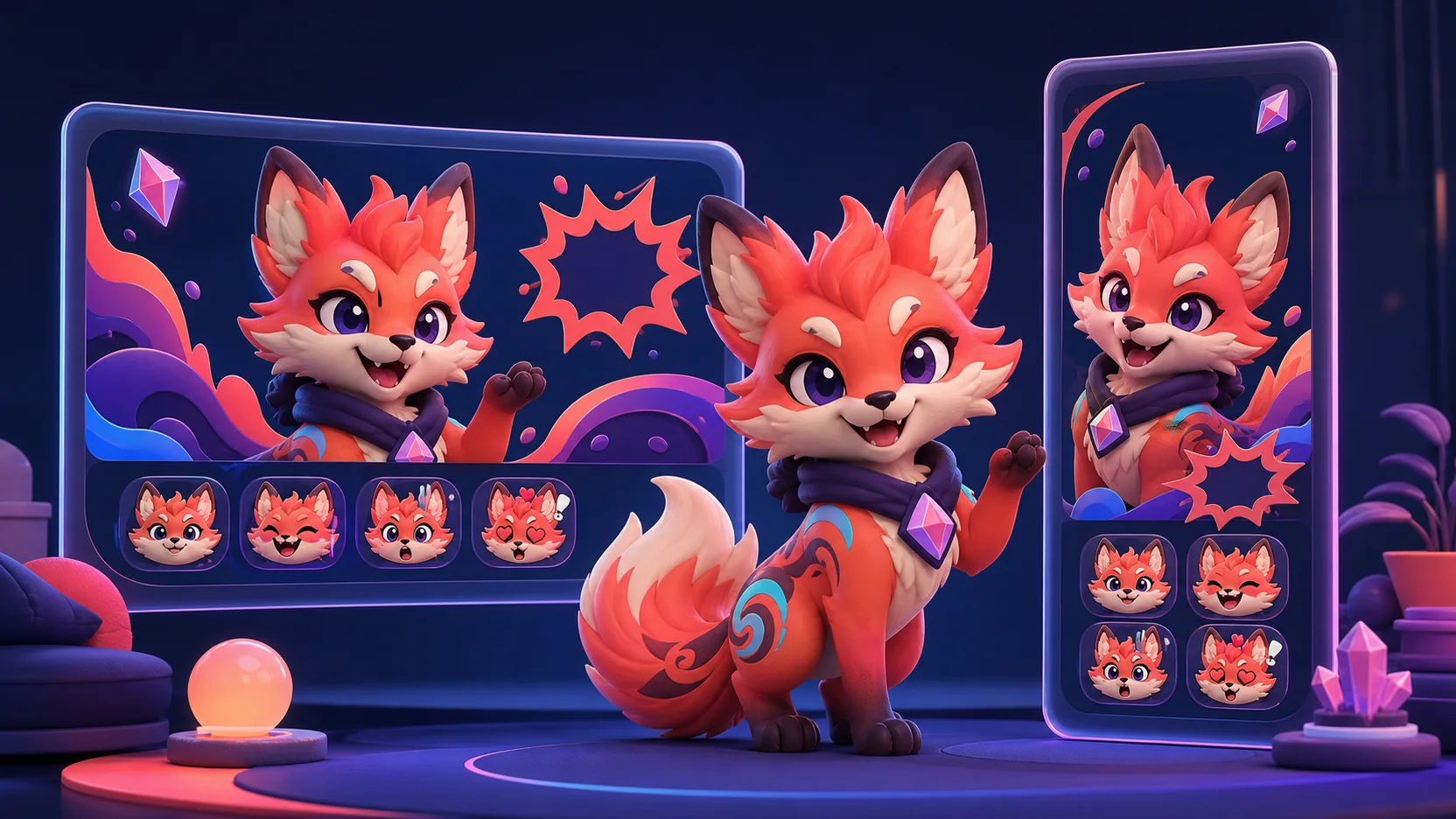
Twitch Dual Format Branding: Emotes, Alerts, and Mascots That Work Vertically and Horizontally
Plan reusable creator artwork for Twitch's vertical and horizontal layouts while keeping scene setup, alert placement, and asset creation separate.
Short answer
Build one modular brand kit, then compose it separately for Twitch’s horizontal and vertical canvases. Keep emotes square and legible at 28 pixels, save mascot art as clean reusable subjects, and make alerts compact enough to relocate without covering gameplay or mobile chat. MakeEmoji creates animated emote and mascot assets; use OBS plus a supported vertical workflow or other broadcast software to build scenes, observe Twitch’s safe zones, place alerts, and send both formats.
Last reviewed: 2026-08-03
Twitch made Dual Format streaming available to all streamers in June 2026. The system lets a creator send a traditional horizontal version and a mobile-optimized vertical version at the same time. Twitch reports that 70 percent of new viewers arrive on mobile, so portrait composition is now a primary viewing experience rather than an afterthought.
That does not mean creating two unrelated brands. Your mascot, emote faces, palette, and alert motion should stay recognizable in both versions. What changes is composition: a wide scene can distribute information across the lower third, while a portrait scene needs a narrow stack, a centered focal area, and room for Twitch’s mobile interface.
The practical solution is a modular asset kit. Create reusable subjects first, then place them into independent landscape and portrait scene layouts. This guide separates those asset decisions from the streaming tools that actually arrange, trigger, and broadcast the scenes.
Know what changes between the two formats
Dual Format sends two custom layouts, not one horizontal canvas automatically cropped down the middle. Desktop and TV viewers continue to see the landscape stream, while viewers holding a phone vertically can see the portrait version. A mobile viewer can rotate the phone to return to a horizontal view.
Your emote file does not need a portrait edition: Twitch chat emotes remain square reactions. Broadcast elements such as a webcam frame, mascot corner bug, sponsor panel, and alert animation do need deliberate placement in each scene.
| Asset | Same source art? | Needs a second composition? | Primary test |
|---|---|---|---|
| Chat emote | Yes | No; keep it square | Readable at 28px in chat |
| Mascot cutout | Yes | Usually reposition or rescale | Clear silhouette in both canvases |
| Alert animation | Yes | Often; change anchor and footprint | Does not cover gameplay, face, or interface |
| Overlay frame | Shared visual language | Yes | Fits each canvas instead of stretching |
| Starting or BRB scene | Shared ingredients | Yes | Balanced 16:9 and 9:16 versions |
Do not center-crop and hope
A center crop may cut off a game HUD, facecam, captions, alert copy, or the mascot itself. Treat portrait as a composed scene with the same brand ingredients—not as an automatic derivative.
Design the portrait scene around Twitch’s safe area
Twitch’s current setup guide documents a 1080 × 1920 vertical canvas and shows safe-zone guidance for mobile controls. Keep the camera, primary gameplay action, mascot face, and important alert information centered inside the recommended content area rather than touching the outer edges.
Twitch also says you do not need to add a chat overlay to the vertical canvas because mobile chat is overlaid automatically. Adding a second baked-in chat can duplicate messages and consume the exact space your subject needs. Always confirm the latest template in Twitch’s official guide before rebuilding scenes.
| Wide 16:9 decision | Portrait 9:16 adaptation | Reason |
|---|---|---|
| Facecam in a side corner | Move into a centered upper or lower zone | Outer edges compete with the mobile interface |
| Wide lower-third alert | Use a compact card or short centered burst | Long horizontal copy shrinks too far |
| Mascot beside the gameplay | Use a smaller cutout near the focal stack | Protects the playable or visible action |
| Chat widget inside the scene | Usually omit it | Twitch supplies mobile chat over the vertical video |
| Full-width decorative border | Use corner accents or a slim vertical frame | Avoids squeezing the content column |
Create a modular brand kit before building scenes
A modular kit makes iteration cheaper. Keep the mascot, background shapes, alert burst, and emote reactions as separate transparent assets. If the portrait placement fails, you can move or remove one piece without rebuilding a flattened illustration.
Give every asset one dominant job. The mascot creates recognition, the emote communicates a chat reaction, the alert announces an event, and the overlay organizes the live video. Using every element at once creates clutter in both orientations.
- One clean mascot bust and one full-body cutout with generous transparent padding.
- Four square reaction emotes with different silhouettes: Hello, Hype, Shock, and BRB.
- One short alert motion that resolves to a still frame instead of looping forever.
- A wide overlay frame and a separate portrait frame that share color, edge radius, and texture.
- Dark and light variants only when contrast testing proves the alternate is necessary.
Separate the MakeEmoji workflow from the broadcast workflow
MakeEmoji can turn original source art into static or animated reactions and downloadable GIF or image assets. That makes it useful for prototyping the mascot expressions shared by chat emotes, alerts, and scene decoration. Export the clean asset before arranging it inside either canvas.
MakeEmoji does not build OBS scenes, define Twitch safe zones, install the Aitum Vertical plugin, link horizontal and vertical scenes, trigger alerts, or start a Dual Format broadcast. Twitch’s current guide points streamers to supported broadcast-software workflows and explains that Dual Format uses Enhanced Broadcasting. Configure those systems separately.
| Job | Use MakeEmoji | Use broadcast or alert tools |
|---|---|---|
| Prototype mascot reaction motion | Yes | Preview the imported result |
| Export an emote or GIF asset | Yes | Store and display the file |
| Compose 16:9 and 9:16 scenes | No | Yes |
| Place an alert inside the safe area | No | Yes |
| Link scene transitions | No | Yes |
| Send both canvases to Twitch | No | Yes, with Twitch’s supported setup |
Plain-language boundary
Make the reaction asset in MakeEmoji. Make it appear at the right time and place with your streaming or alert software.
Test recognition, obstruction, and performance separately
Recognition testing asks whether the mascot and emotes still look like the same channel across wide, portrait, dark chat, and light chat. Obstruction testing asks whether an alert covers the game HUD, captions, creator face, or Twitch mobile controls. These are visual problems and should be checked with still screenshots before going live.
Performance is a different problem. Twitch says Dual Format uses Enhanced Broadcasting and requires additional system and upload capacity. Its help page recommends a test stream, a mobile-device preview, and Twitch Inspector. A lightweight mascot GIF does not prove the complete dual-encode setup is stable, so test the actual scenes and broadcast configuration.
A five-step dual-format branding workflow
Step 1
Inventory the repeated brand assets
Collect the mascot, reaction faces, palette, type treatment, alert shape, and scene decorations you already use. Keep only the pieces viewers actually associate with the channel.
Step 2
Prototype the square reactions
Create or animate four original mascot reactions in MakeEmoji. Test each at 28 pixels on dark and light chat before borrowing the same expression for larger alert art.
Step 3
Build the landscape scene
Arrange gameplay, camera, alerts, and mascot for the normal 16:9 stream. Keep each brand asset separate so it can be relocated rather than cropped for portrait.
Step 4
Compose the portrait scene independently
Create the 9:16 canvas in supported broadcast software, follow Twitch’s current safe-zone template, omit a redundant chat overlay, and link the appropriate scene transitions.
Step 5
Run a device and load test
Record or test stream both versions, inspect the vertical feed on a phone, check alerts in every scene, and monitor stream health and system load before announcing the new layout.
Make your first version free
Prototype a format-flexible mascot reaction free
Start with one original mascot image, create a clean square reaction, and test its identity at chat size before reusing the exported art in your separately composed landscape and portrait scenes.
Prototype a format-flexible mascot reaction freeRelated MakeEmoji guides and tools
Sources checked
- Twitch Blog: Introducing Dual Format and 2k Streaming
- Twitch Help: Dual Format Streaming on Twitch
- Twitch Help: Enhanced Broadcasting with Multiple Encodes
- Twitch: Emote Formatting & Instant Emote Upload Requirements
Frequently asked questions
Do Twitch emotes need vertical and horizontal versions?
No. Twitch chat emotes remain square. Create separate compositions for broadcast elements such as camera frames, mascot placements, alerts, and overlays, but keep one compliant square emote export.
What size is Twitch’s Dual Format vertical canvas?
Twitch’s guide currently documents a 1080 × 1920 vertical canvas. Follow its current safe-zone template and your broadcast software’s setup instructions because technical requirements can change.
Should I add my own chat overlay to the vertical scene?
Usually no. Twitch says mobile chat is automatically overlaid on the vertical video, so a baked-in second chat wastes space and can duplicate the experience.
Can MakeEmoji set up Twitch Dual Format scenes and alerts?
No. MakeEmoji creates downloadable emote and mascot animation assets. Use supported broadcast and alert tools to compose both canvases, place assets, link scenes, trigger alerts, and send the stream.


