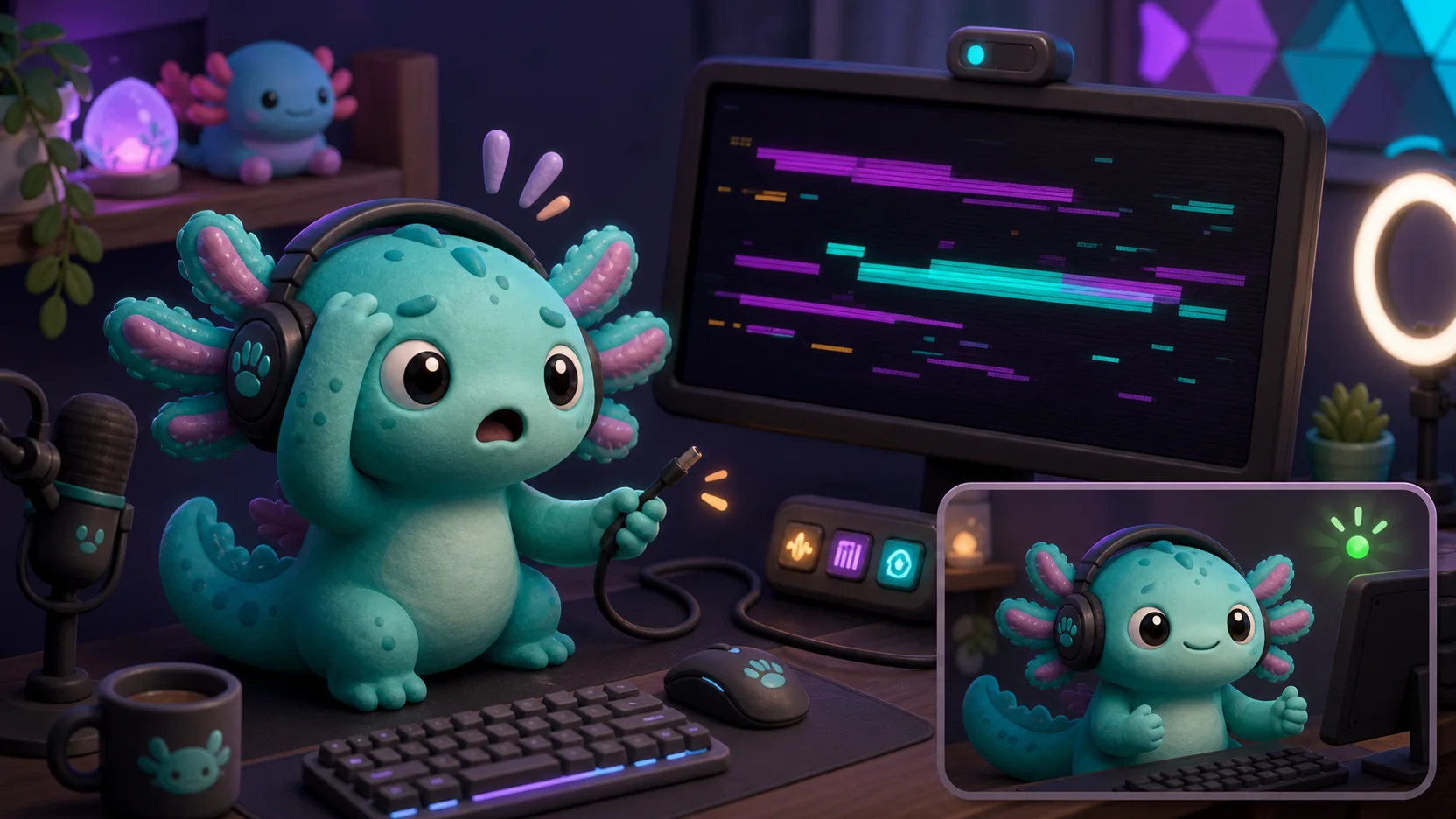
How to Make a ‘Technical Difficulties’ Emote for BRB and Stream Fails
Turn disconnects, muted microphones, crashes, and recovery moments into one readable branded reaction without confusing an emote with an overlay.
Short answer
Make a Technical Difficulties emote from one recognizable channel subject, one obvious failure cue, and a short loop that returns to a readable resting frame. Build it as part of a three-state set—BRB, Fixing, and Back—then preview every export at 28 pixels on dark and light chat. MakeEmoji can animate and export the emote asset; your broadcast software still controls the BRB scene, alerts, and when those assets appear on stream.
Last reviewed: 2026-08-03
Every live channel eventually gets the frozen game, silent microphone, dropped connection, or accidental scene switch. The useful emote is not a miniature error dialog. It is a fast visual signal that lets chat acknowledge the mishap, stay playful while you troubleshoot, and celebrate when the stream is stable again.
A good Technical Difficulties emote therefore needs two jobs: it must read as a reaction in 28-pixel chat, and it must still feel like your channel rather than a generic warning icon. Start with your face, avatar, pet, or original mascot. Add one exaggerated failure cue—glitch bars, a loose cable, or a single warning spark—and remove everything that does not survive the tiny-size test.
The tutorial below treats the emote as one part of a recovery system. It shows what MakeEmoji can create, where a dedicated BRB scene fits, and how to avoid promising that an emote maker can configure broadcast scenes or alerts for you.
Build a three-state recovery set, not one vague error image
One generic glitch face can become ambiguous: is the streamer gone, actively fixing the problem, or already back? Three related reactions give moderators and regulars a useful sequence while keeping the art direction consistent.
Reuse the same subject, outline weight, and two or three channel colors. Change the pose and silhouette enough that viewers can distinguish the states before reading their emote codes.
| State | When chat uses it | Visual direction | Useful code |
|---|---|---|---|
| BRB | A planned break, doorbell, pet interruption, or quick reset | Mascot stepping away with one raised paw or a large pause gesture | BRB |
| Technical Difficulties | Dropped audio, frozen capture, disconnected device, or crash | Surprised mascot plus one loose cable or bold glitch band | Tech |
| Fixing | The streamer is troubleshooting and chat is waiting | Determined face with one oversized wrench, cable, or loading arc | Fixing |
| Back | Audio, video, or connection has recovered | Confident smile, thumbs-up, and one clean green status spark | Back |
Fastest useful version
If you only make two assets, choose Tech and Back. They communicate the state change clearly and avoid leaving chat with an outage reaction but no recovery reaction.
Design the failure cue to survive at 28 pixels
The face or mascot should occupy most of the square. A detailed desk, tiny monitor text, keyboard keys, and several status icons will collapse into noise. Use the expression to carry the emotion and one prop to explain the failure.
Make the failure cue visually separate from the subject. A cyan cable against a teal body may disappear, while a warm cable tip or pale spark creates a clean focal point. Check the transparent export on near-black and near-white backgrounds because a contour that works on one Twitch theme can vanish on the other.
| Element | Prefer | Avoid |
|---|---|---|
| Expression | Large eyes, one clear mouth shape, and a strong brow angle | Subtle embarrassment that only reads at full resolution |
| Failure cue | One cable, glitch band, warning spark, or loading arc | A complete error window with unreadable text |
| Composition | Face or upper body filling the square | A full streaming room rendered as a thumbnail |
| Color | Three separated value groups plus one accent | Several neon hues of equal brightness competing for attention |
Animate the malfunction once, then let the pose breathe
Motion should explain the joke: a cable disconnects, one glitch passes over the face, or the subject shakes and settles. Hold the readable pose before the motion repeats. Constant high-speed noise looks energetic at full size but can become an indistinct flicker in chat.
Make the first frame useful because Twitch uses the first GIF frame as the default thumbnail unless you supply a custom static thumbnail. As reviewed on August 3, 2026, Twitch documents square animated-emote GIFs, a maximum of 60 frames, and a rule against flashing or flickering more than three times in one second. Recheck the official page before uploading because limits can change.
- Glitch pass: one horizontal distortion crosses the mascot and resolves to the clean pose.
- Cable pop: the connector slips out, the mascot reacts, and the loop resets with a visible pause.
- Soft shake: the subject jolts briefly while the face remains recognizable.
- Recovery blink: use this on the Back variation, not inside the failure loop, so the two states stay distinct.
Know what MakeEmoji creates—and what your stream setup controls
MakeEmoji turns source artwork into downloadable static or animated emote assets. You can upload an original mascot or creator image, compare animation treatments, and export a result for platform preparation. The Technical Difficulties effect is a visual treatment for the asset; it does not monitor your connection or detect a failed microphone.
A BRB screen, scene transition, alert trigger, and automatic failover belong in your broadcasting or alert software. Import the finished image or GIF there if the tool accepts it, then configure placement and triggers in that tool. Keep these responsibilities separate so a useful emote tutorial does not become misleading broadcast-automation advice.
| Task | MakeEmoji | Broadcast or alert software |
|---|---|---|
| Animate an original mascot or reaction | Yes | May display the exported asset |
| Export a GIF or static image | Yes | Imports the finished file |
| Switch to a BRB scene | No | Yes, when configured by the streamer |
| Detect a dropped connection | No | Depends on the streaming setup and service |
| Trigger an on-stream alert | No | Yes, through the chosen alert system |
Give moderators a simple outage playbook
The art works better when the community knows what it means. Give moderators the intended codes and one approved status message. During a short interruption, they can use Tech or Fixing without speculating about your hardware, location, or return time.
When the stream returns, use Back once and resume the show. Repeated warning spam can make a minor interruption feel worse. A calm, recognizable recovery sequence protects the channel tone while still letting chat share the moment.
Operational boundary
Do not put a promised return time inside the emote. Use a separate status message when you actually know the estimate; the emote should remain reusable for both thirty-second hiccups and longer BRB moments.
A practical workflow for making the set
Step 1
Choose one recognizable subject
Use original art you own or have permission to transform: your mascot, simplified creator portrait, pet, or avatar. Crop around the face or upper body before adding a failure cue.
Step 2
Sketch Tech and Back first
Give Tech a surprised or determined expression and Back a clearly positive pose. Reduce both to 28 pixels before polishing so their silhouettes do not become interchangeable.
Step 3
Prototype one focused animation
Upload the source to MakeEmoji and compare the Technical Difficulties treatment with a restrained shake or glitch. Keep the version whose face remains identifiable throughout the loop.
Step 4
Preview the real export
Inspect the transparent file at 28, 56, and 112 pixels on dark and light backgrounds. Check the first frame, loop pause, file size, edge quality, and flashing frequency.
Step 5
Upload and configure separately
Prepare the emote for Twitch using the current official requirements. If you also want it on a BRB scene or alert, import the asset into your chosen broadcasting tool and test that setup in a private recording.
Make your first version free
Prototype a Technical Difficulties emote free
Start with your original mascot, face, or pet, compare a few readable animation treatments, and preview the exported reaction at chat size before building the rest of the recovery set.
Prototype a Technical Difficulties emote freeRelated MakeEmoji guides and tools
Sources checked
- Twitch: Emote Formatting & Instant Emote Upload Requirements
- Twitch: Animated Emotes
- Twitch: Subscriber Emote Guide
- Twitch Safety Center: Community Guidelines
Frequently asked questions
What should a Technical Difficulties Twitch emote show?
Use one recognizable channel subject, one exaggerated trouble expression, and one failure cue such as a disconnected cable or glitch band. Avoid tiny error text and detailed computer interfaces that disappear at 28 pixels.
Should the Technical Difficulties emote be animated?
It can be static, but one short glitch, cable pop, or shake can improve the meaning. Keep the first frame readable, include a resting hold, and follow Twitch’s current animated-emote limits.
Can MakeEmoji create my BRB screen or switch OBS scenes?
No. MakeEmoji creates downloadable emote and animation assets. Build and switch BRB scenes, place overlays, and configure alerts in your broadcast or alert software.
Do I need separate BRB, Fixing, and Back emotes?
No. Tech and Back are the smallest clear pair. Add BRB or Fixing only if those states happen often enough that viewers and moderators will use them distinctly.


