Turn a Hand-Drawn Sketch into a Custom Emoji
Prepare a clear drawing, clean its background, strengthen small details, and compare a transparent PNG with a simple authored animation.
To turn a drawing into an emoji, first make a clean, tightly framed image of the drawing. Remove the paper background, strengthen the features that carry the expression, and export a transparent PNG. Check it at 32 pixels before you add motion. A small, clear face is more useful in chat than a detailed sketch that only works when enlarged.
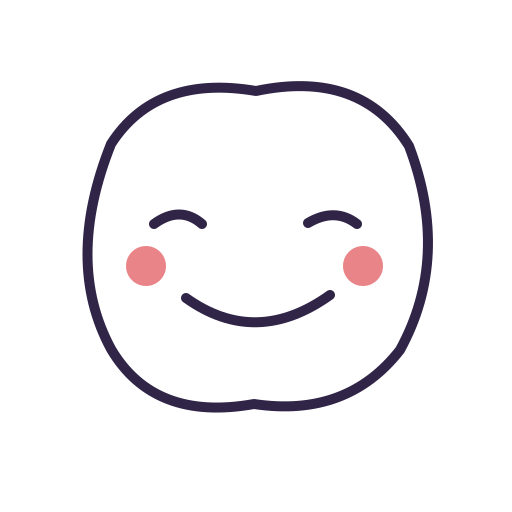
The example below starts with original digital line art drawn as SVG paths. It is not a photograph of a paper sketch, a human artist’s scanned work, or an AI cleanup result. The source and finished files are included so that you can inspect the actual changes and use the same checks on a drawing of your own.
Compare the drawing and the finished emoji
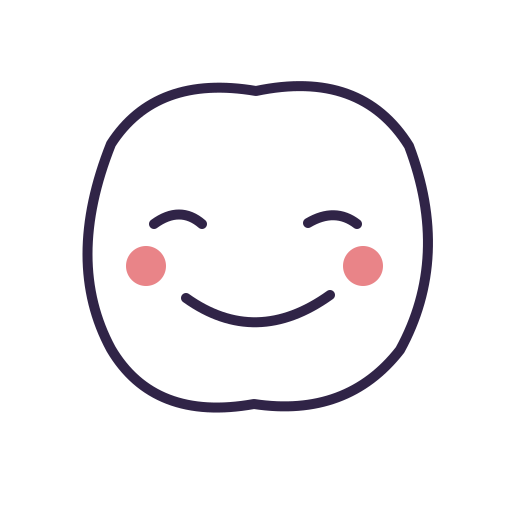
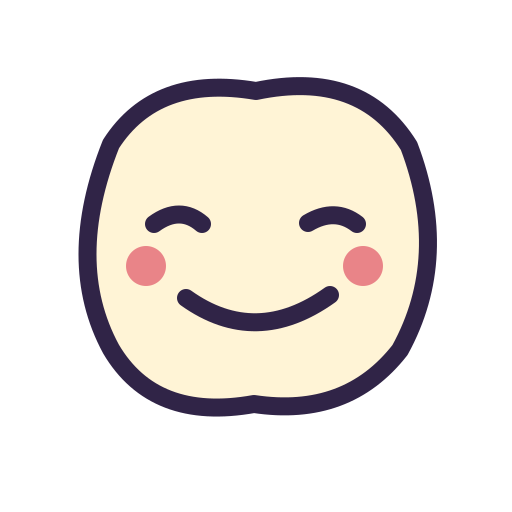
Download the editable line drawing, 128-pixel PNG, and file measurements. The source canvas is 512 pixels square. The outside remains transparent after the face receives its cream fill.
If your source is on paper
Put the page on a flat surface in even light. Keep the camera parallel to the page. Move closer until the drawing fills most of the photograph, but leave enough room to straighten it. A strong side shadow can look like part of the artwork and make background removal harder. Use the original camera file instead of a screenshot from a chat.
Crop away the table, page edges, and unrelated notes. Adjust the photograph so that the paper is even and the pencil or ink remains visible. Keep an untouched copy. If the drawing is faint, tracing its main lines on a new layer often gives you more control than a large contrast change that also keeps the paper texture.
Do not delete every white pixel without checking the subject. An eye highlight, a tooth, or a white shirt can be part of the drawing. Use a layer or mask that lets you restore a missed area. Inspect the edge against a dark background; a paper-colored fringe is much easier to see there. Our white-background guide shows the difference between an unwanted box and a soft edge.
Simplify the expression before export
In the worked example, the cleanup increases the outline width from 10 to 18 units on the 512-pixel source canvas. It adds a flat cream face fill and keeps the eyes, mouth, and cheeks in the same places. The process does not invent a new pose. These are explicit edits to the source drawing, so they are repeatable.
View the 32-pixel preview at its real size. Can you still see the smile? Do the eyes merge with the outline? Remove a small crease before you remove a feature that tells the emotion. A hat, badge, or extra hand should earn its space by making the reaction easier to understand.
Keep cleanup and new interpretation separate
Use Emoji AI Studio when you want to explore a new style or a new interpretation of your drawing. Keep the cleaned PNG as a reference. A prompt such as “keep the same round face, closed smiling eyes, and cream fill” gives the model concrete features to preserve, but it does not guarantee identical line work.
Compare the result with your original before you accept it. Check the number and placement of eyes, the shape of the mouth, and any feature that identifies the character. If the goal is to preserve exact lettering or a logo, an editable drawing workflow gives you more direct control. This article does not present an unrun AI prompt as a completed result.
Add a small motion after the still works
Start with a blink, a short nod, or a small bounce. Leave space for the highest and lowest position of the head. A movement that fills the whole canvas at its middle frame can clip at either end. Keep the background still and watch one full loop at the size people will see in chat.
The included bob animation moves the cleaned drawing through explicitly placed frames. It is an authored motion demonstration, not an AI animation or a photographed sketch. Compare it with the static PNG to decide whether the motion helps the reaction. See how to choose an animation source before you make a larger pack.


Finish by using the platform emote resizer for the destination you need. Save the source, cleaned PNG, and animated file separately. That gives you a clear still version, a reusable master, and a way to fix the motion without repeating the cleanup.