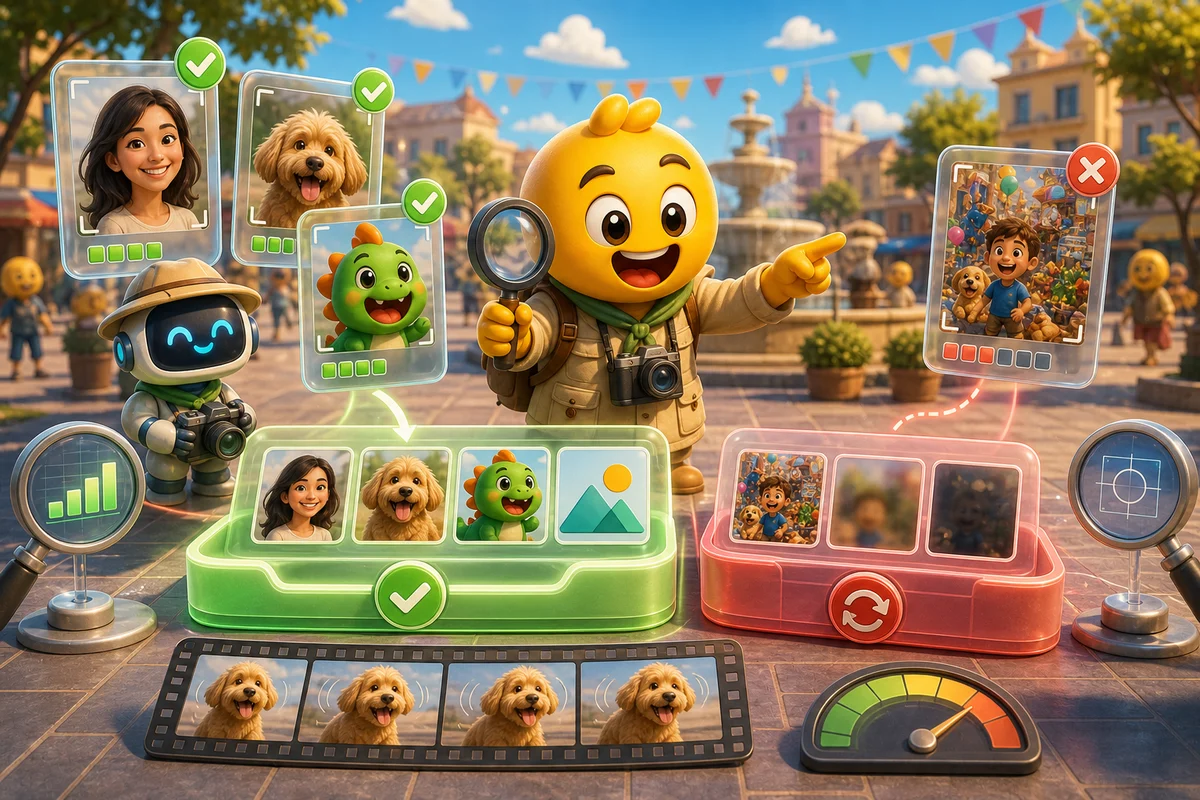
Best Source Images for Creating Emojis with AI
Choose uploaded images that work well for creating emojis with AI before spending credits on faces, pets, logos, mascots, or icons.
Short answer
Creating emojis with AI works best with clear, centered subjects on simple backgrounds: faces, pets, mascots, clean icons, and bold objects. It struggles when the source is tiny, blurry, crowded, or packed with small text.
Who this is for
This guide is for users deciding whether an uploaded image is worth spending AI emoji credits on.
Recommended starter set
Face photo with clear eyes.
Pet face with strong expression.
Mascot or character art.
Logo icon without small text.
Meme crop with one subject.
Bold object with clean silhouette.
Workflow
Step 1
Score the source
Ask whether the subject is obvious in one second. If not, crop or simplify before using credits.
Step 2
Choose a fitting motion
A calm source does not need chaotic movement. Match motion to the reaction the image already suggests.
Step 3
Preview before expanding
Run one Standard test before generating a full pack. If the source survives the first animation, then expand.
Quality checklist
- Subject fills the square.
- Edges are not muddy.
- Background is removable or quiet.
- Expression is readable without zooming.
- No important detail depends on tiny text.
Common mistakes
- Using group photos.
- Uploading screenshots with UI clutter.
- Choosing motion before cleaning the source.
- Trying to fix a bad source by increasing the frame count.
Next steps
FAQ
Can AI emoji creation work with logos?
Yes, if the logo is simple and icon-like. Text-heavy or detailed logos usually need cleanup first and may work better with classic animation.
Should I use Standard before High or Ultra?
For most exploratory jobs, yes. Standard gives you 3 frames. Move to High for 6 or Ultra for 12 only when the motion needs more frames.
What images you upload should I avoid?
Avoid dark photos, group shots, busy screenshots, tiny full-body subjects, and images where the important part is small text.