chronark
@chronark
"this is the best website ever"
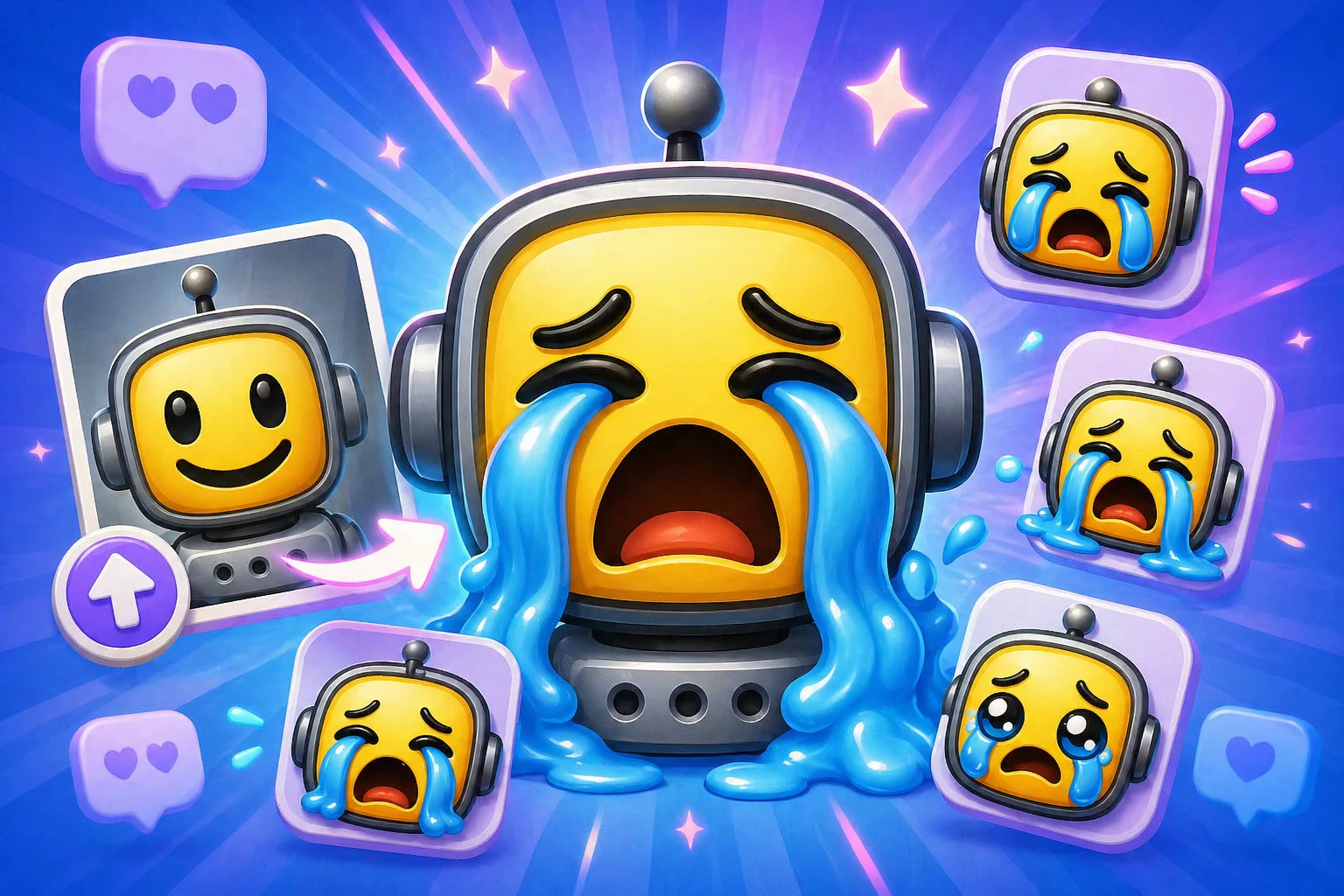
Steps
Turn one uploaded image into a dramatic crying animated reaction.
FAQ
Use one clear face, mascot, pet, or character. A simple shape and visible eyes help the crying expression read at emoji size.
Yes. Upload the image you upload, run crying mode, then export small enough for Discord's emoji upload limits.
Yes. Crying is a Super Animation mode. Use a credit pack for occasional 3-frame Standard runs or Pro for 6-frame High, 12-frame Ultra, Studio image creation, and monthly credits.
Crop tightly, use a high-contrast subject, remove distracting backgrounds, and test the animation at the size your chat app displays it.
Classic animation
Upload your image first, then run Super Animation when you need a more expressive reaction.
Next
Continue with the closest chat app, file format, or how-to guide.
Next
More guides for emojis, emotes, AI animation, and chat uploads.
Categories
Jump into broader emoji-maker categories when you are starting from a theme instead of a platform.
Trusted by creators
Used by over two million creators worldwide, including streamers, developers, teams, and community builders.
Start