chronark
@chronark
"this is the best website ever"
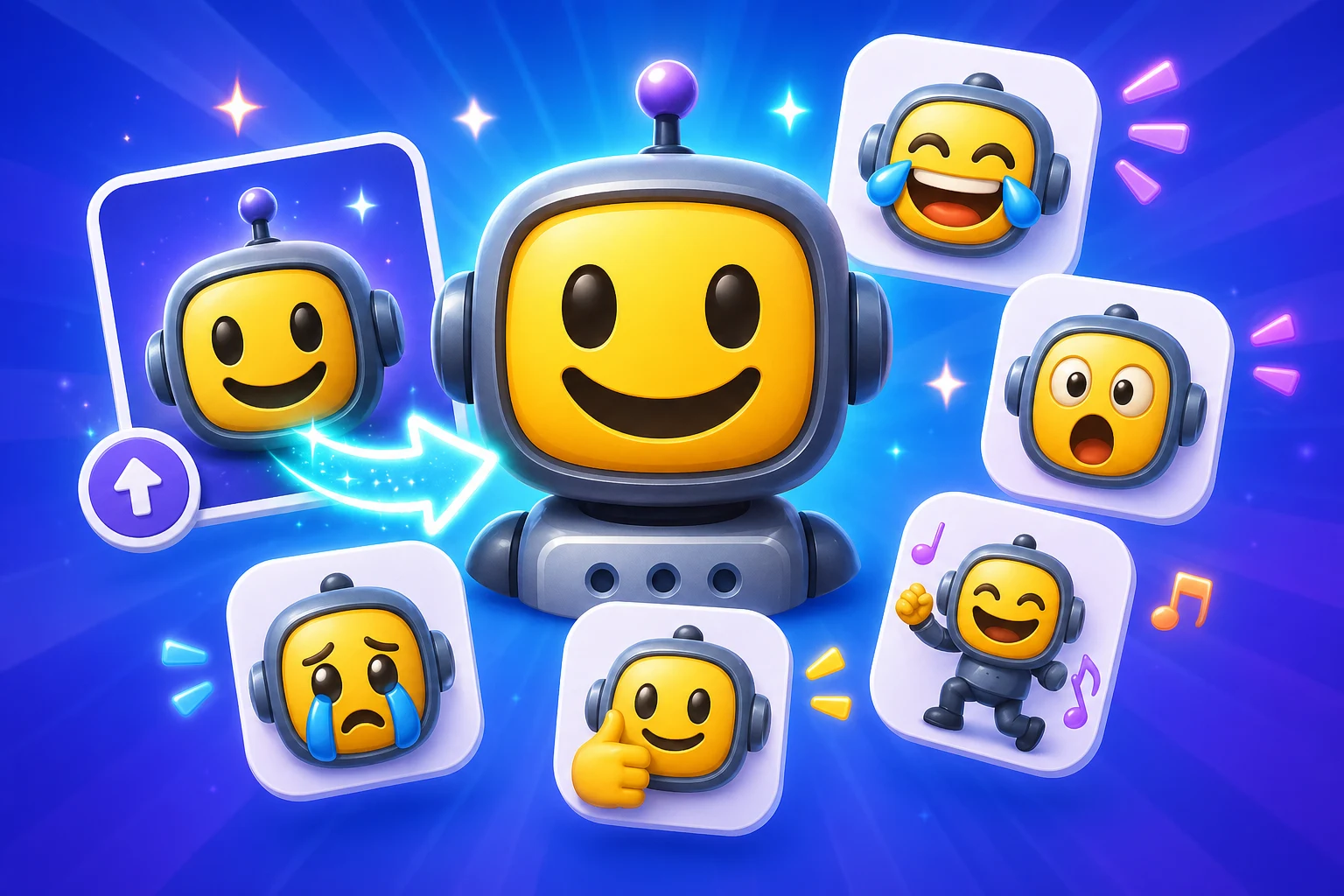
Steps
Upload an image and create a Discord-ready AI reaction emoji.
FAQ
Yes. Upload the emoji or image you upload, choose a Super Animation reaction, and export a new animated file for Discord.
Laughing, crying, shocked, angry, dancing, thumbs-up, and panicking are strong Discord reactions because they read quickly in chat.
Use a simple image you upload, keep the export near 112px or 128px, and avoid cluttered backgrounds or tiny lettering.
Buy a credit pack if 3-frame Standard animation is enough. Choose Pro for 6-frame High or 12-frame Ultra animation, Studio image creation, monthly credits, and no editor ads.
Classic animation
Upload your image first, then run Super Animation when you need a more expressive reaction.
Next
Continue with the closest chat app, file format, or how-to guide.
Next
More guides for emojis, emotes, AI animation, and chat uploads.
Categories
Jump into broader emoji-maker categories when you are starting from a theme instead of a platform.
Trusted by creators
Used by over two million creators worldwide, including streamers, developers, teams, and community builders.
Start