Switch 7TV Emote Sets for a Seasonal Stream
Prepare everyday and winter collections, select the active 7TV set, and check channel-specific emote names.
7TV emote sets let you keep separate collections and switch the collection used by your channel. For a seasonal stream, prepare the winter set first, record your everyday set, and then change the active set. Keep the old set so that returning to normal does not require rebuilding it.
The useful unit is the set, not a folder of downloaded pictures. MakeEmoji can help prepare artwork, but it does not install a 7TV set or choose the active one for you. Those steps happen in your 7TV account, with the appropriate channel permissions.
Plan a small seasonal change
Start with a short list of reactions your viewers already understand: hello, thanks, celebration, and a surprised response. Keep the everyday meanings clear. A winter mug can replace a greeting image, but replacing a familiar approval reaction with an unrelated snowflake can confuse the conversation.
Our set-planning CSV gives you an Everyday and a Winter example. It includes suggested codes, source filenames, a place for each actual 7TV emote URL, and a chat-verification column. The blank URL fields are intentional: this worksheet is a plan, not an exported or installed 7TV set.


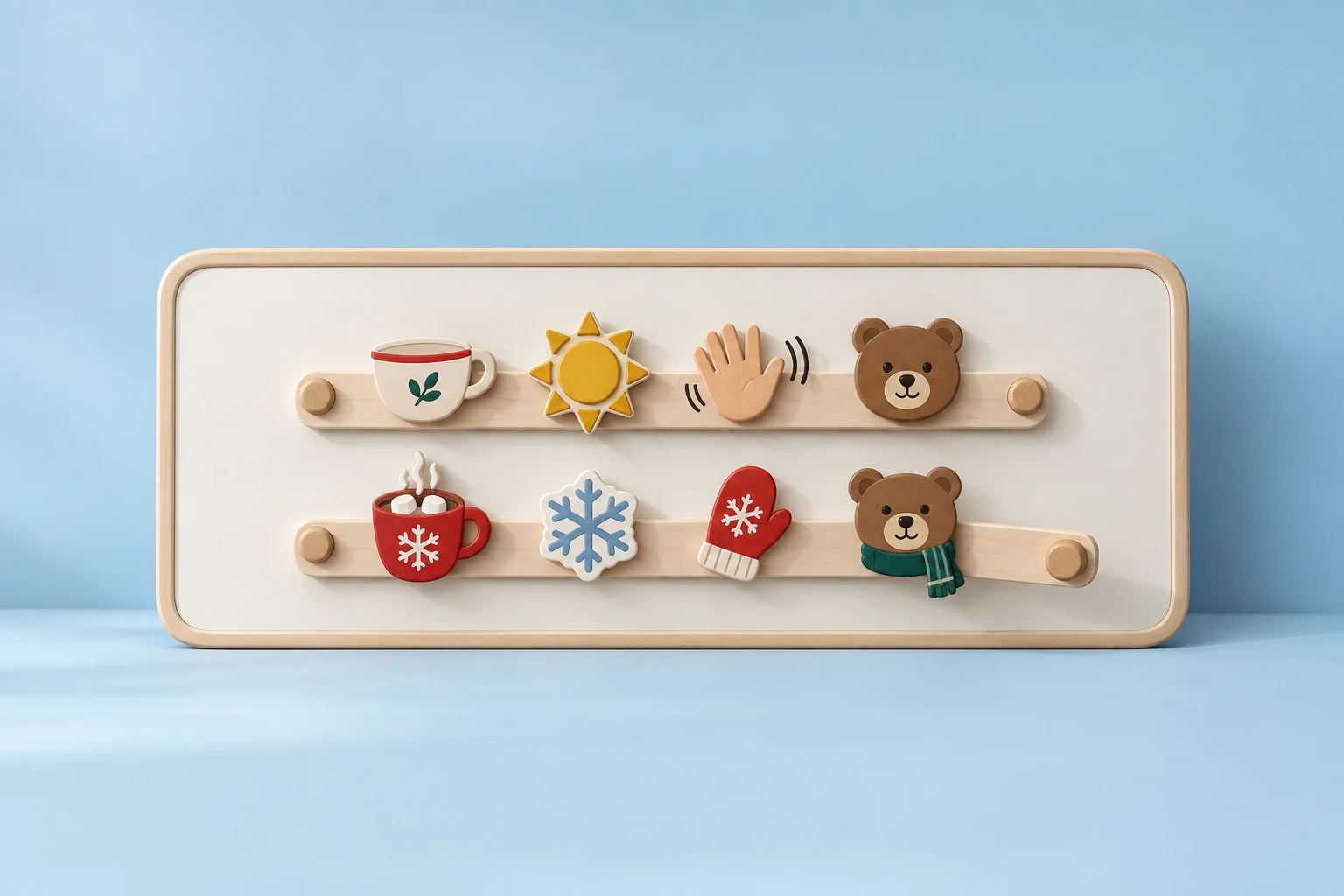
Download the everyday fox, everyday heart, winter mug, and winter snowflake. Each is 128 × 128 pixels. The measurement file and reuse terms accompany the artwork.
Create and fill the seasonal set
In your account's Emote Sets tab, choose Create New Set, enter a descriptive name, and save it. Add the seasonal emotes to that collection before you make it active. 7TV's set guide shows the current controls and the capacity indicator beside each set.
For each emote, open its page and select Add to. Choose the intended set, set the channel-specific name if needed, and select Confirm Change. These controls are documented in 7TV's channel-emote guide. Creating a set does not fill it, and filling it does not by itself make it active.
If you need original reactions first, use a pack maker or create a small matching set in your editor. Keep the source files outside the platform. For custom uploads, follow our 7TV upload guide and allow for any review state shown by 7TV.
Switch the active set
- Open your channel's Emote Sets tab and record the current set name and URL.
- Select the active-set control at the top left.
- In Active Emote Set, choose the prepared seasonal set.
- Confirm that the active label now identifies the intended collection.
- Open the channel chat and test a small sample of codes.
The set's own page also has an Enable control for eligible channels, as shown in the official guide. Check the channel carefully if you are an editor for other creators. Use the account or editor access you already have; a missing set or control can be a permission issue rather than missing artwork.
Keep names predictable across both sets
The worksheet uses FoxHi for both the everyday fox and the winter mug. This is a naming recommendation, not a promise that 7TV will rename your files automatically. Set the desired name in each collection and verify it in the target channel.
A shared code makes familiar commands easier to retain, but a new image can still change the meaning. Ask whether someone reading a plain chat transcript can infer the intended reaction. If the winter artwork is a new joke rather than a replacement, give it a separate name instead of borrowing a familiar approval code.
Verify the change and keep a return plan
Test a greeting, a regular reaction kept in both sets, and a seasonal-only reaction. Use a client with 7TV support enabled. If a code stays as text, check its spelling, the active set, and the viewer's extension state in that order. Do not delete and re-upload a working image to repair an inactive set.
For the return date, repeat the active-set procedure and select your saved Everyday collection. Keep the seasonal set for later use unless you intentionally want to remove it. Record any renamed codes before the next stream so moderators and bots use the same names.
This workflow is based on current 7TV documentation and original sample artwork. The screenshots in the linked help pages show the platform controls; the sample pictures here show the assets to prepare. They do not claim a live switch on a broadcaster's account.
Source documentation and example files checked September 20, 2026. Platform controls can change; check the linked official instructions if your screen differs.