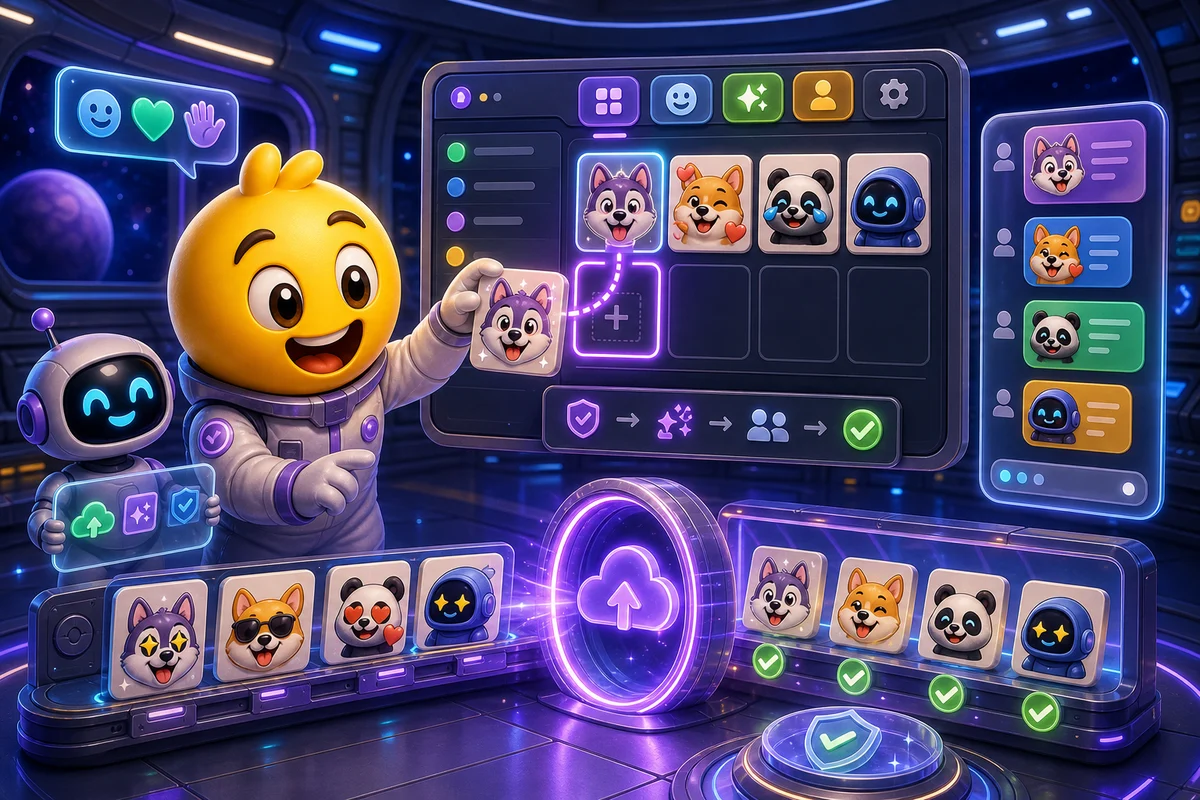
How to Upload Emotes to 7TV
Prepare, name, and upload custom emotes to 7TV, with cleanup tips for readable art and file-size checks.
Short answer
For 7TV, prepare emotes as clean, readable chat assets first, then upload them into the correct account and emote set. The most common issue is not the art itself, but set management, naming, or viewer extension setup.
Who this is for
This guide is for Twitch creators and editors adding MakeEmoji exports to a 7TV emote set.
Recommended starter set
One active 7TV account.
One channel emote set.
Readable PNG or animated file.
Short emote name.
Creator or editor permission.
Viewer extension expectations.
Workflow
Step 1
Prepare the emote
Use a square crop, transparent background when appropriate, and a subject that survives small chat display.
Step 2
Upload and assign it
Uploading the asset is only part of the job. Make sure it is added to the correct emote set and that the set is active for the channel.
Step 3
Test as a viewer
After upload, check the emote in chat with the extension enabled. If viewers cannot see it, troubleshoot extension, set, and alias state.
Quality checklist
- Check current 7TV upload rules before submission.
- Keep the emote name short and memorable.
- Confirm editor access.
- Confirm the active emote set.
- Test in chat, not only in the dashboard.
Common mistakes
- Uploading to the wrong set.
- Using a name that conflicts with another emote.
- Assuming every viewer has the extension.
- Exporting an animation that is visually noisy in chat.
Next steps
FAQ
Why is my 7TV emote not showing in chat?
Check whether the emote is assigned to the active set, whether the viewer has the extension, and whether the name or alias is correct.
Should 7TV emotes be animated?
They can be, but animation should add meaning. If the motion makes the emote harder to read, use a static version.
Can MakeEmoji create 7TV emotes?
MakeEmoji can create and export the source emote. Upload and set management still happen inside 7TV.