Why a GIF Jumps at the Loop—and What Timing Can Fix
Compare four downloadable GIFs to see the difference between a long final-frame delay and missing return poses, with measured frames and loop timing.
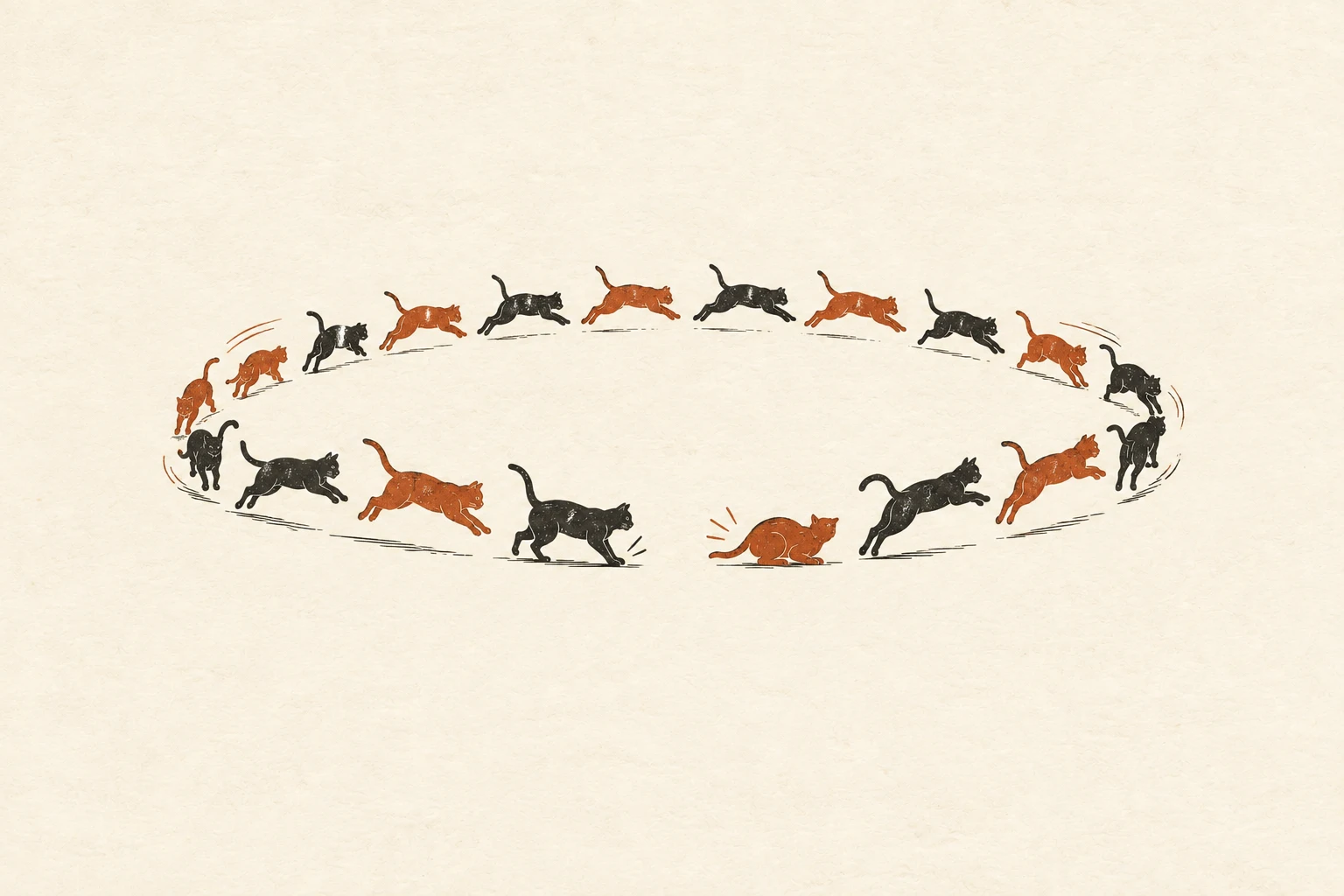
A GIF can hesitate at the loop because its last frame has a long delay. It can jump because the last pose is far from the first pose. A timing editor can change the first problem. It cannot create the missing movement in the second. Compare the boundary frames and their delays before you slow down the entire animation.
The four files below use an original geometric robot, with deliberately simple movement. This lets you see exactly what changes. The timing comparison uses identical decoded image frames. The pose comparison adds new authored positions; those positions are not generated by the timing tool.
A long final hold: change the delay


Both GIFs contain six 128 × 128 frames. The robot’s horizontal center follows 40, 48, 56, 64, 56, and 48 pixels. At the loop boundary, the movement from 48 back to 40 is the same eight-pixel step used elsewhere. The visible hesitation comes from a 500-millisecond final hold. Changing it to 80 milliseconds removes that extra pause.
We decoded every frame in both files and confirmed that the RGBA images match. Each file is 1,947 bytes. Only the timing needs to change for this example. Download the long-hold source, timing-corrected file, and comparison measurements.
A missing return: change the image sequence


The jumping version moves through centers 40, 48, 56, 64, 72, and 80. Its last-to-first movement is 40 pixels, while the other steps are eight. All delays are already 80 milliseconds. Making every frame slower leaves the same large jump; it only takes longer to reach it.
The corrected sequence adds positions at 72, 64, 56, and 48 after the far-right pose. It now has ten frames and an 800-millisecond duration. The return is a real change to the sequence, not a timing repair. Download the pose-jump source and version with a return.
Inspect the end beside the beginning
Pause your source near the last frame and compare it with the first. Check the head position, eye direction, hand position, scale, and background. A moving camera or changing light can make the boundary obvious even when the character’s pose is similar. Fix the cause in the source rather than adding a long pause to distract from it.
The first and last frames do not always need to be identical. A smooth loop can end one normal movement step before the starting pose, as our corrected robot does. Duplicating the same pose at both ends can add an unwanted hold because both frames are shown on each cycle. Judge the rhythm across the boundary, not only two still pictures.
Use timing controls for timing problems
Load a GIF in the GIF Frame Timing Editor. Move a frame’s point upward to shorten its hold or downward to lengthen it. Watch several loops, then save and reopen the exported file. The frame timing tutorial explains these controls in detail.
The editor preserves the existing frame sequence. It does not draw an in-between pose, reverse a sequence, or blend the last frame into the first. If your source lacks a return, edit the animation in its original editor or make a new loop. A deliberate cut after a readable reaction can also be a valid design choice; a loop does not have to imitate continuous physical movement.
Review the loop at the destination size
After a repair, watch at least three cycles at chat size. Check that the reaction remains readable, the loop is not flashing, and the subject stays inside the frame. Keep a still alternative if the motion is unnecessary for the meaning. Use the clipped-motion guide if a smooth return exposes a different problem at the canvas edge.
Keep the original and corrected files together with a note about what changed: final-frame delay, added return poses, or a different crop. That note prevents a later resize or format conversion from being mistaken for the step that repaired the loop.