Stop Animated Emoji from Cutting Off Ears, Hands, or Hats
Compare every frame of a tight and padded rabbit animation, then add only the space needed for the motion.
If an animated emoji cuts off ears, fingers, or a hat, inspect the whole movement before you change the export size. A still image can fit perfectly and still move outside the canvas on the next frame. Give the subject enough room for its largest movement, then check that it remains readable at chat size.
Adding empty space to an already clipped GIF cannot restore pixels that were never saved. Make the correction in the source or animation layout, then render the movement again. Padding is useful only when it protects the full subject before clipping occurs.
A controlled test with one rabbit
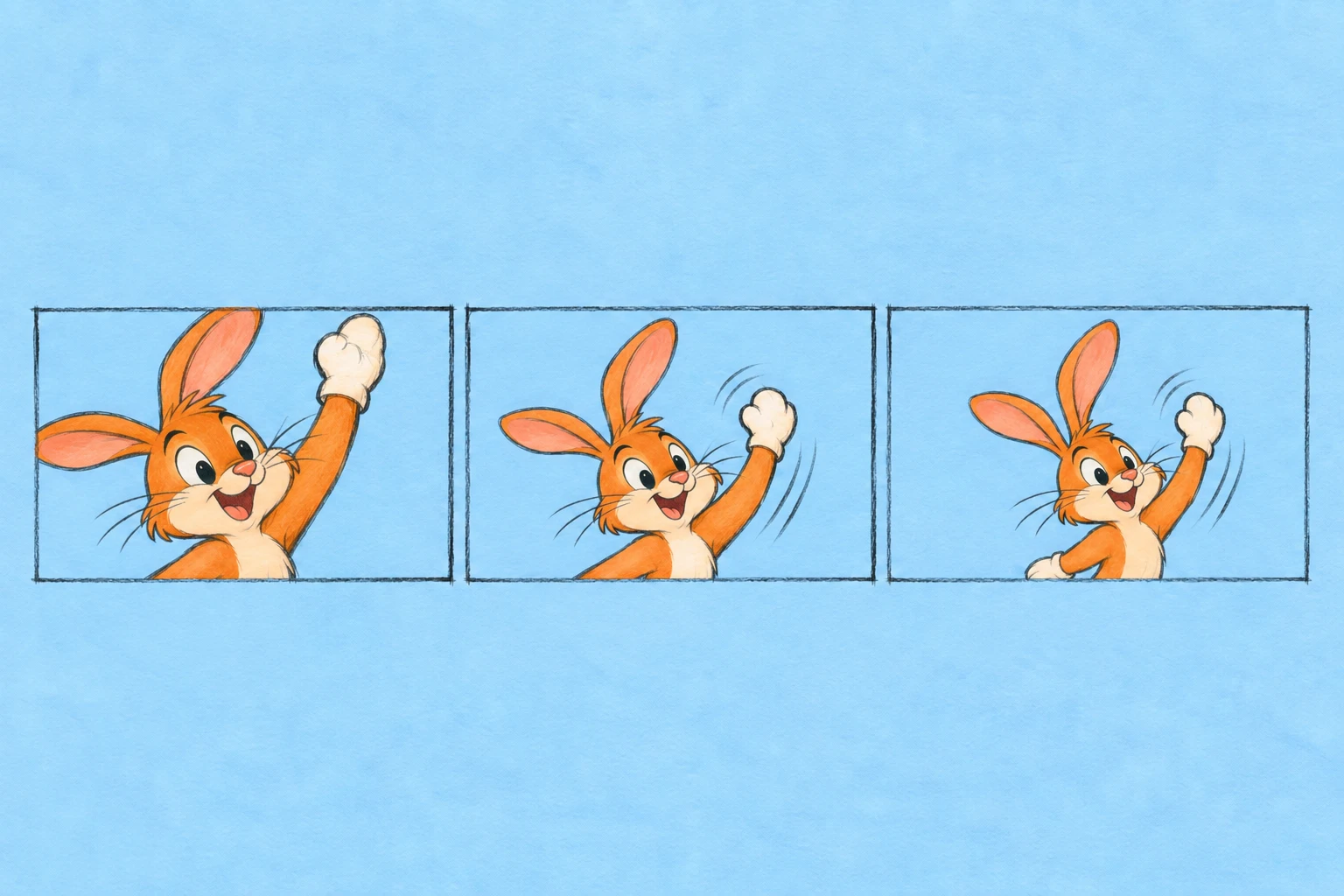
We drew an original rabbit with tall ears and rendered it twice using MakeEmoji's actual translation function and Bounce translation sequence. The tight version fills almost the entire 112-pixel canvas. The second places the same drawing at 75% scale, centered inside the same canvas.


Both GIFs are 112 × 112 pixels, contain ten frames, and use 100 milliseconds per frame. The tight GIF is 7,813 bytes; the safer version is 6,097 bytes. They use a small controlled palette. This is a rendering comparison with the production motion code, not an AI generation or a claim about every animation preset.
Download the tight animation, safer animation, and frame measurements. The measurements identify the source functions and record each frame separately.
Why the still preview misses the problem
The Bounce sequence moves this source up and down by as much as 6% of the output width. At 112 pixels, that is 6.72 pixels. The tight rabbit has very little clear space above its ears or below its chin, so those parts cross the canvas boundary during movement.
Frame nine has no offset. It fits in both examples. If you checked only that frame, you would miss the failure. In the tight version, frame eight loses pixels above the canvas, while the strongest downward positions lose pixels below it. The result looks like the character is being cut by an invisible edge.
We measured clipping by drawing each position on a larger transparent surface and counting opaque pixels outside the intended 112-pixel square. The safe version had zero such pixels in all ten positions. This verifies the example's movement, not a universal 25% padding recommendation.
Check every frame, including the extremes
Open the tight frame strip and the safe frame strip. Each strip contains all ten positions from left to right. Look for the highest ear tip, lowest chin, widest hand movement, and any shadow or prop that needs to remain visible.
For your own animation, inspect the saved output one frame at a time in an editor that provides frame navigation. A smooth preview can hide a one-frame cut. Also watch several complete loops at normal speed; the edge may be more noticeable as a repeated jump than as a still shape.
Correct the source before you export again
- Keep a copy of the original source and the failed animation.
- Place the full subject inside a transparent canvas in your image editor.
- Reduce the subject just enough to leave room in the direction of motion.
- Render the same movement again in the emoji maker.
- Compare all frames and then compare the normal small display.
For vertical movement, the main need is space above and below. For rotation, diagonal corners and wide props can need more room than expected. A swinging hand may travel farther than the face. Judge the whole visible drawing, not only the center of the head.
If the effect itself is intended to zoom beyond the frame, choose a less expansive effect when you want the whole character to remain visible. No amount of tiny padding will preserve a complete subject during an extreme close-up. Match the effect to the intended composition.
Avoid making the fixed emoji too small
Too much clear space solves clipping at the cost of a tiny face. Compare the smallest version your audience will see after each correction. If the safe face becomes hard to read, simplify the drawing or reduce the movement rather than adding more empty border.
Keep thick enough outlines and clear eyes. A large hat with a tiny face may need a different pose so that both fit. For more help with empty space and soft edges, use the tiny or blurry emoji checklist.
The successful version is the one that keeps the intended parts visible throughout the movement and still communicates at normal chat size. Check both conditions on the downloaded file before you upload it.
Source documentation and example files checked September 20, 2026. Platform controls can change; check the linked official instructions if your screen differs.