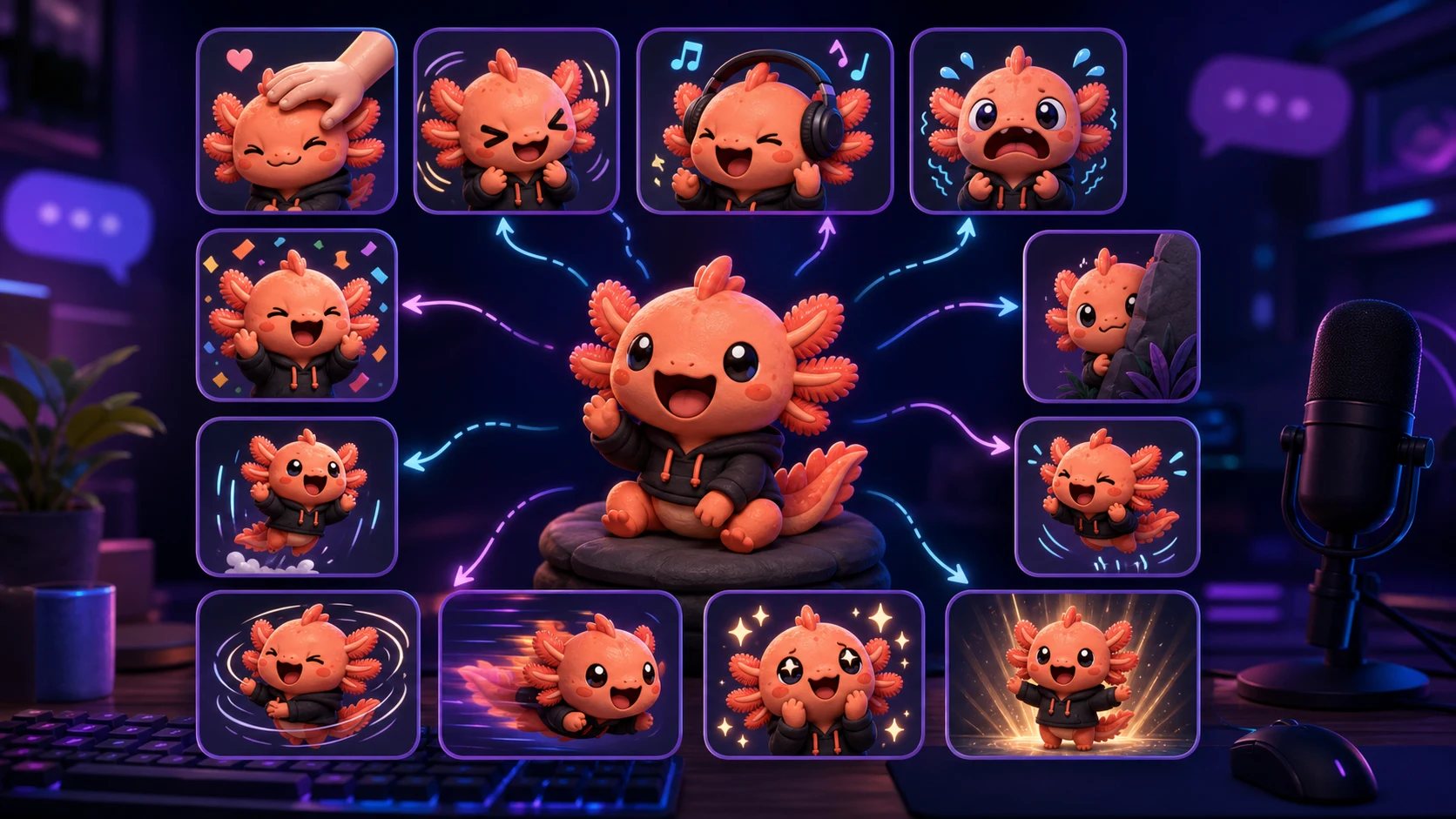
Free Twitch Emote Maker Demo: 12 Animations on the Same Streamer Photo
Compare 12 animation treatments on one source image and judge which reactions remain expressive, recognizable, and useful at chat size.
Short answer
Upload one clear streamer photo or original mascot to MakeEmoji, then compare Pet, Shake, Jam, Panic, Party, Lurk, Bounce, Spin, Zoom In, Sparkle, Enter, and Reveal without changing the source. Judge each preview at 28px, keep the two or three motions that communicate different chat jobs, and confirm Twitch's current GIF, square-size, transparency, and file-size requirements before uploading.
Last reviewed: 2026-08-03
The fastest way to choose an animation is to hold the subject constant. Use the same close-cropped photo for every preview and change only the motion. That makes it easier to see whether Pet adds warmth, Panic adds tension, or Enter creates a useful arrival cue instead of being distracted by twelve different pieces of art.
MakeEmoji's classic catalog currently includes all twelve effects compared below. The hero image is an original editorial illustration of the comparison method, not a screenshot or a promise that an uploaded photo will adopt that illustrated style. Your live previews and exported files come from the image you supply.
Use one source so the animation is the only variable
Choose a square-friendly source with one recognizable face or mascot, visible eyes, and separation from the background. A chest-up streamer photo usually tests better than a full-room screenshot because the expression remains visible after the image is reduced to chat size.
Do not retouch the source between effects during the first pass. If one test uses a transparent cutout and another uses the full webcam frame, you are comparing both crop and motion. Lock the crop first, then scan the same subject through the catalog.
- Center the eyes and mouth inside a square crop.
- Remove tiny room details that turn into noise at 28px.
- Keep a copy of the unedited source so every test starts from the same image.
- Use a photo, pet, mascot, or illustration you own or have permission to animate.
- Treat the generated hero artwork on this page as an idea map, not a product-output sample.
The 12-effect demo: what each motion is good at
These are real classic-style names in the current MakeEmoji catalog. The best choice depends on the source and the job you want the emote to perform, so preview before downloading rather than assuming the most dramatic motion will be the most readable.
| Effect | What changes | Strong chat job | Watch for |
|---|---|---|---|
| Pet | A hand pats the subject | Affection, comfort, approval | The hand covering small eyes |
| Shake | The subject vibrates rapidly | Disbelief, hype, frustration | A face becoming a blur |
| Jam | A rhythmic bob or groove | Music, vibes, a good moment | Movement that feels too subtle |
| Panic | A tense, frantic wobble | Timers, close calls, chaos | Too much detail around the face |
| Party | Celebratory movement and accents | Wins, subs, milestones | Particles overpowering the subject |
| Lurk | The subject peeks or hides | Quiet viewers and BRB moments | The key facial feature leaving frame |
| Bounce | The subject springs vertically | Cheer, greeting, playful agreement | An over-loose crop clipping the subject |
| Spin | The full source rotates | Absurdity and comic transitions | Faces that become hard to track |
| Zoom In | The subject pushes toward the viewer | Realization, emphasis, close reaction | A crop that becomes uncomfortably tight |
| Sparkle | Highlights shimmer around the source | Admiration, reveal, polished approval | Low contrast on a light background |
| Enter | The source arrives into frame | Hello, raid arrival, scene entrance | Too much empty time before arrival |
| Reveal | The subject is progressively uncovered | Announcements and surprise | The first frame communicating nothing |
Score the previews by chat usefulness
Do not pick twelve winners. Give every candidate a job, then keep the smallest set that covers distinct moments. Pet, Jam, and Panic can coexist because they communicate affection, rhythm, and tension. Shake and Panic may compete for the same slot if your community uses both as generic chaos.
Use a three-part test: identify the subject at 28px, identify the emotion without the code, and watch the loop several times without fatigue. A motion that only looks impressive in the large editor should not outrank a quieter effect that reads immediately in chat.
A fair demo rule
Preview the same crop on both a dark and a light chat background. Change the crop or outline for all candidates together; do not rescue one favorite with special treatment during the comparison.
Know when classic motion is enough
Classic animation moves or decorates the source you upload. That makes it useful for quick, free comparisons such as Shake, Bounce, Spin, Pet, and Party. MakeEmoji also offers Super Animation modes that can produce more expressive reactions from suitable subjects, but those are a different workflow and may use credits.
Start with classic motion when your original expression already communicates the idea. Explore a more expressive workflow only when you need the face itself to laugh, cry, cheer, or panic. Do not describe an AI result as guaranteed: source quality, subject visibility, and generation variability all affect the output.
- Use classic effects to preserve the supplied expression and add motion.
- Use a static version when movement does not add a separate meaning.
- Consider Super Animation when the facial reaction itself must change.
- Download one test before committing to a complete coordinated pack.
Prepare the winner for Twitch
Twitch's current formatting guide says animated emotes use square GIF files. Auto-resize accepts one square GIF from 112px through 4096px with a 1MB maximum; manual mode uses 28px, 56px, and 112px GIFs with a 512KB maximum for each file. Twitch also uses the first GIF frame as the animated emote thumbnail.
Because rules and account entitlements can change, treat those numbers as a reviewed snapshot and check the linked Twitch page when you upload. Inspect the first frame, confirm the loop remains understandable without rapid flashing, and make sure you own every visual element.
Run your own 12-animation comparison
Step 1
Choose one controlled source
Use a clear, owned streamer photo or original mascot and crop it once. Save that crop as the source for every effect.
Step 2
Open the classic previews
Upload the source to MakeEmoji and inspect Pet, Shake, Jam, Panic, Party, Lurk, Bounce, Spin, Zoom In, Sparkle, Enter, and Reveal.
Step 3
Shortlist three different jobs
Keep one welcoming or affectionate effect, one high-energy reaction, and one event or transition effect rather than three versions of generic hype.
Step 4
Test at actual chat size
Reduce each candidate to 28px on dark and light backgrounds. Reject any loop whose face, silhouette, or emotion becomes ambiguous.
Step 5
Export and verify
Download the strongest candidate, inspect its first frame and loop, then compare the file with Twitch's current format and content requirements before upload.
Make your first version free
Run the free 12-effect demo
Upload one photo or original mascot, lock the crop, and compare the twelve classic effects on the same source. Keep the animation that still communicates a distinct chat job at 28px.
Run the free 12-effect demoRelated MakeEmoji guides and tools
Sources checked
- Twitch: Emote Formatting and Instant Upload Requirements
- Twitch: Animated Emotes
- Twitch Safety Center: Community Guidelines
Frequently asked questions
Can I really test all 12 effects with one photo?
Yes. Keep the same uploaded source and crop while you inspect the named classic effects. Results depend on the source, so compare the live previews instead of assuming every effect will suit every face.
Which animation should I try first?
Start with Pet for affection, Shake for broad high energy, and Enter for an event cue. Those three reveal whether gentle, intense, or transitional motion fits your source.
Are classic animations the same as Super Animation?
No. Classic effects move or decorate the supplied image and are useful for fast free tests. Super Animation is a separate, credit-based expressive workflow that may change the subject's facial or body reaction.
What should I check before uploading the GIF to Twitch?
Check the square dimensions, file size, transparent presentation, first-frame thumbnail, loop readability, rights to the artwork, and Twitch's current emote and safety guidance.


