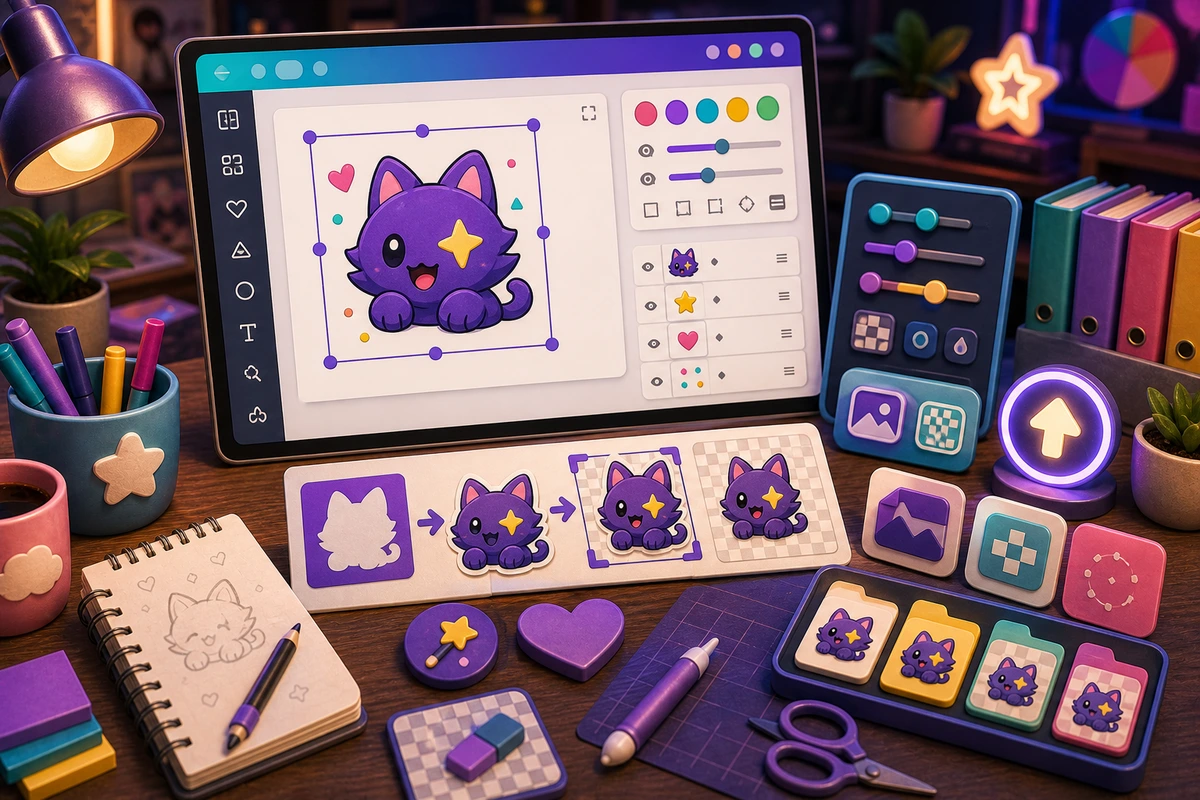
Canva to Discord Emote: Export Settings That Work
Export Canva designs as Discord emotes without white boxes, tiny text, oversized files, or unreadable chat previews.
Short answer
A Canva to Discord emote export workflow should be planned around repeatable chat moments, not decorative filler. Start with Square canvas., Transparent background export., Large subject crop., No tiny text., then add niche reactions only after the first set is getting used. Design one bold subject per square and remove tiny decorative text before exporting.
Who this is for
This guide is for community managers, streamers, creators, and beginner designers preparing Canva artwork for Discord.
Recommended starter set
Square canvas.
Transparent background export.
Large subject crop.
No tiny text.
PNG for static emoji.
GIF cleanup for animation.
Workflow
Step 1
Choose the real moments
Use Canva for simple composition, then use MakeEmoji to resize, animate, and test the result as an actual Discord emoji. A smaller set tied to repeated behavior will outperform a large set of pretty reactions that nobody remembers to use.
Step 2
Create a shared visual rule
Design one bold subject per square and remove tiny decorative text before exporting. Keep one crop, outline weight, palette, and background approach so the pack feels intentional.
Step 3
Launch with usable names
Export filenames can be descriptive, but Discord names should be short and lowercase. Upload a first set, announce the names, and watch what people actually use before expanding.
Quality checklist
- Choose reactions that map to real Discord moments.
- Keep the subject large enough to read at chat size.
- Use one naming convention across the whole pack.
- Export a static fallback for any important animated reaction.
- Check file size after every animation pass because design tools often export heavy files.
Common mistakes
- Making the pack too broad before the first Discord upload.
- Letting tiny details carry the meaning.
- Using names only the creator understands.
- Skipping a final grid review before upload.
- Exporting a full poster as an emote.
- Leaving a white background box.
- Relying on Canva text at emoji size.
Next steps
FAQ
What should be in a canva to discord emote export workflow?
Start with Square canvas., Transparent background export., Large subject crop., No tiny text.. Those cover the moments people are most likely to repeat. Add niche reactions only when the core set is already being used.
Should a canva to discord emote export workflow use animation?
Use animation for simple badges, alerts, hype, and announcement reactions. Keep status, moderation, and text-heavy reactions static unless motion makes the meaning clearer.
How do I get people to use the pack?
Export filenames can be descriptive, but Discord names should be short and lowercase. Announce the pack with the exact names, model the reactions in real conversations, and remove weak items after a usage review.