Why Your Custom Emoji Looks Tiny or Blurry—and How to Fix It
Fix tiny and blurry custom emoji with real crop, padding, and chat-size comparisons. Check the source image, transparent edges, and export format.
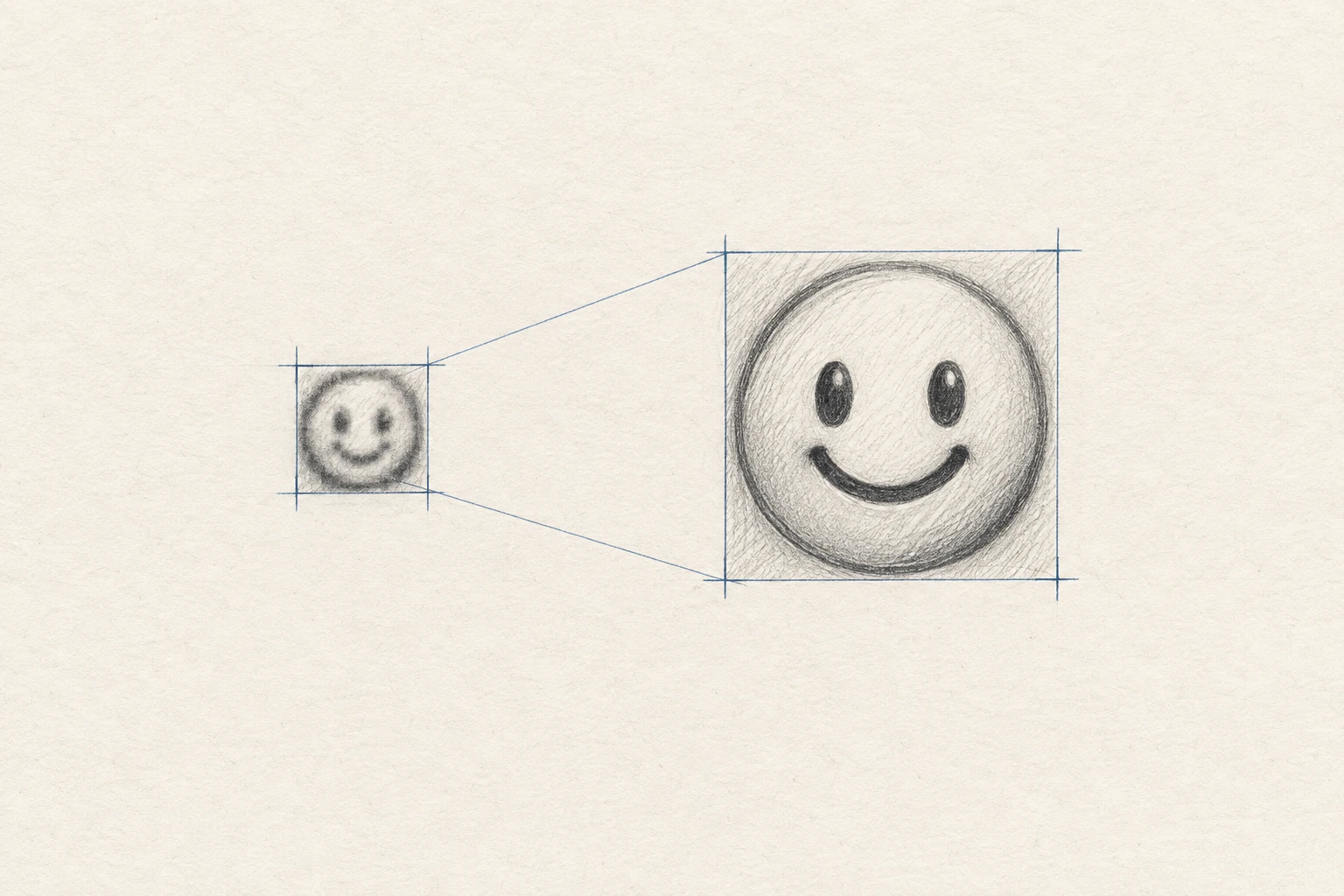
If a custom emoji looks tiny, check the empty space around the subject first. If it looks blurry, check the original image and the size at which you exported it. A larger file will not fix a face that occupies only a small part of the canvas.
Use the comparisons below to identify the problem before you change settings. They use one original robot drawing. The small previews are displayed at 32 CSS pixels as a useful design check; chat apps can show emoji at different sizes depending on the client and message.
First, separate these four problems
| What you see | Check this | First change |
|---|---|---|
| Small subject in a normal-size square | Transparent or solid padding | Crop closer to the face or symbol |
| Large square pixels | A very small source enlarged for export | Return to the larger original |
| Soft edges, even in the original | Blur, a screenshot, or repeated resizing | Use a clear source and export once |
| White square or pale outline | Background pixels and edge color | Correct transparency and inspect the edge |
1. Remove excess space before you resize
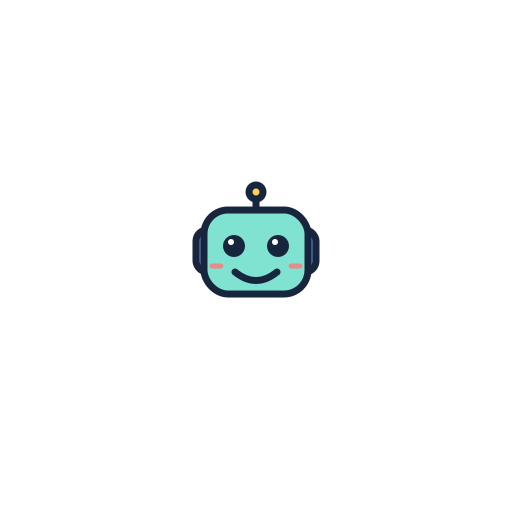
Both examples below come from a 512 × 512 vector drawing. The first keeps the whole canvas. The second uses a 160 × 160 crop around the robot. Each view is rendered separately at 128 and 32 pixels. The smaller crop gives the subject more of the available pixels.


The robot uses a small part of the square. At 32 pixels, its eyes and mouth almost disappear.


The same drawing fills more of the square. There are more pixels for the face, without changing the design.
In the MakeEmoji editor, select Upload, then Edit Image. Drag the image to center the subject. Drag a corner to zoom and rotate. Keep a small margin around the ears, hair, or outline, then select Save. If you add motion, keep enough room for the subject to move without hitting an edge.
Removing a background and cropping are different steps. A transparent border still occupies part of the image. If you remove a background but keep the same wide canvas, the face can remain tiny.
2. Use the original image, not a tiny copy

Download the original artwork or photo when possible. Avoid a screenshot of an emoji picker or a copy saved from a small chat preview. Keep the source unchanged, make the crop from that source, and export the final size once. Repeatedly shrinking and enlarging the same file can remove useful detail.
If the source is already small, simplify the design. Remove thin lines, small text, and background details. A stronger outline or a larger eye shape can help readability. Sharpening cannot recover letters or facial detail that the source does not contain.
3. Check transparency on two backgrounds
A white square is not blur. It is usually part of the image. PNG can store transparency, but a PNG can also contain an opaque background. Changing a filename from JPG to PNG does not remove that background.

Use Remove Background inside Edit Image, then check the outline before you save. Select Undoif a useful part disappears. If a pale edge remains after the square is gone, follow the logo background and edge guide.
4. Export for the destination
Use a transparent PNG for a static emoji and GIF for an animated example you want to use in both Discord and Slack. A format that opens in your browser is not automatically a supported custom emoji upload.
- Discord lists JPEG, PNG, GIF, and WebP and requires custom emoji files under 256 KB.
- Slack lists JPG, PNG, and GIF. It recommends square images under 128 KB with transparent backgrounds and supports GIFs with up to 50 frames. Its instructions do not list WebP as a custom emoji upload format.
Start with the platform preset in the editor. Inspect the saved file and upload it as an emoji for the final check. If an animated file is too large, use the measured GIF compression examples to choose what to reduce. A smaller crop, fewer frames, and a shorter loop can have different effects on the result.
Download the comparison files
These controlled examples are original illustrations, not platform screenshots or exports from the MakeEmoji editor. Each PNG was rendered directly from the same SVG geometry. The cropped 128-pixel file is 3,408 bytes; the padded version is 1,150 bytes. The smaller file is not the more readable design.
- Original padded PNG, 512 × 512
- Close crop, 128 × 128
- Close crop, 32 × 32
- Original SVG drawing
- File sizes and preparation notes
Before you finish, compare the source, downloaded file, and uploaded emoji. If only the uploaded version looks wrong, check the platform display size and the file you actually selected. If the downloaded file already looks wrong, return to the crop and export settings.