Make a Static Emoji from an Animated GIF
Use the static resizer path to save a GIF's first decoded frame as PNG. Compare a real download and learn when you need a separate frame picker.
To make a still emoji from an animated GIF, use a static output path and save PNG. MakeEmoji's YouTube resizer uses the first decoded frame when it makes a static image. It does not offer a timeline where you can choose any frame. That matters if the first frame is blank or shows the character between poses.
Keep the original GIF. A still export removes the movement by design. It is useful for a platform that needs a static emoji, a thumbnail, or a motion-free alternative, but it cannot replace the animated master when you need to edit the loop later.
Compare the actual source and output
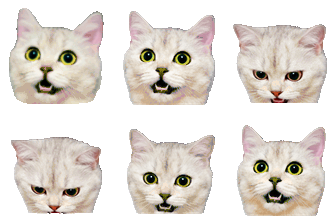
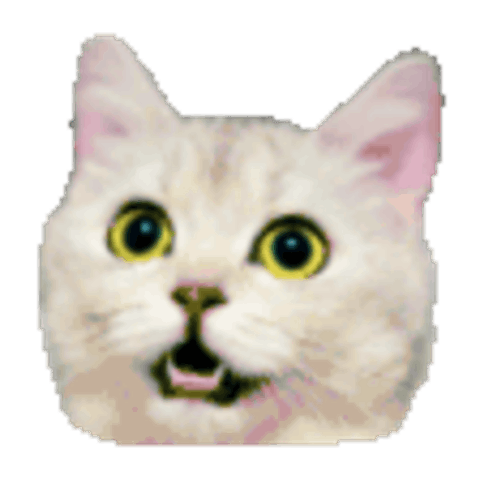
The source is from our own Cat Reactions pack. We uploaded the GIF to the YouTube Emote Resizer and saved the PNG it produced. We checked the source frames and inspected the downloaded 480 × 480 PNG, which is 52,765 bytes. The measurement file records both files, including their dimensions, bytes, and alpha values. The displayed size above does not change the downloadable file.
Make the static PNG
- Open the YouTube Emote Resizer.
- Upload the GIF and let the tool read it. Check the source summary so you know the original contains multiple frames.
- Keep PNG as the output format when you want a transparent image. Select the make-ready action and wait for verification.
- Download the PNG. Open it separately and inspect the pose, the canvas edges, and the transparent background.
- Save it with a name that identifies it as a still, such as cat-nod-static.png.
The source preview can still move because it shows the uploaded GIF. The output preview and downloaded file are what you must check for the final result. Do not conclude that export failed just because the input side continues playing.
Know which frame you receive
The static export path reads the first decoded image. It does not wait until the browser happens to display a later pose, and the moment you click Download does not select a frame. Repeating the same conversion cannot make it choose the eighth image instead.
If the opening frame is empty, use an animation editor or a frame extraction tool to save the pose you need first. Then upload that PNG for final resizing. For a Twitch thumbnail, the thumbnail comparison guide shows separate stills from the same animation and explains why a later frame is not automatically better.
Some GIFs store small frame changes instead of a complete picture in every frame. A proper decoder combines those changes with the earlier state. Avoid treating a raw frame patch as the whole image. If an extracted still has missing body parts, inspect the extraction method before trying to repair the character by hand.
Keep the still useful without motion
A nod communicates agreement through movement. A single neutral cat face may not carry the same meaning. Give the static emoji a clear name, or choose a pose that shows the reaction without requiring the loop. For a thank-you or approval image, a visible gesture can be more useful than a frame in the middle of a head movement.
Inspect the eyes, mouth, and any small prop at the size people will actually see. A larger PNG cannot restore detail that was absent from the 112-pixel source. It can meet an output dimension while still containing the same limited source information.
Check format and upload separately
A PNG can preserve transparent pixels. A JPEG must fill those pixels with a background, which can create a visible square around an emoji. Keep the PNG if the destination accepts it. Changing the filename alone does not change the actual format or its transparency.
A valid file does not create access to channel memberships or assign an emoji slot. Follow the platform's account setup and upload process after preparing the image. Our YouTube membership emoji guide covers that next step. Keep both the still and the animated source so you can use the right version for each destination.


