How to Use Discord Emoji Studio—and Why It May Be Missing
Upload, crop, rotate, name, and place a custom emoji with Discord Emoji Studio. Check desktop availability, server permissions, and upload limits.
Discord Emoji Studio lets you adjust an image before adding it as a server emoji. Open it from the emoji picker, choose your file, check the framing, and select the destination server. Use the worked cat example below to prepare your first upload.
Discord says Emoji Studio is rolling out gradually in its desktop app and browser version. It is not available on mobile. Check the current Discord custom emoji guide if your picker looks different.
Start with a real file: the sample cat
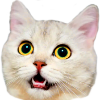
This is the sample cat used in MakeEmoji. The download is a static PNG with a transparent background. It measures 100 × 100 pixels and contains 20,902 bytes. The file is already square and small enough for this example, so there is no need to enlarge or compress it.
100 × 100 source
32 × 32 size check
Download the sample cat PNG. Save the actual image file to a folder you can find. Use demo_cat as the proposed emoji name. If your server already uses that name, choose a name such as demo_cat_2.
Open Discord Emoji Studio and upload
- Open Discord's emoji picker and select Add Emoji.
- Choose the sample PNG from your saved files.
- Use the size, rotation, and zoom controls to adjust the image.
- Enter the emoji name and select the destination server.
- Select Upload Emoji.
You must own the server or have Create Expressions permission. Discord accepts JPEG, PNG, GIF, and WebP files under 256 KB. Names must have at least two characters, using letters, numbers, and underscores. These requirements and controls are documented in Discord's upload instructions.
For this cat, keep the full square image and leave rotation unchanged. Check that both ears remain inside the preview. There is no need to fill every corner with the subject. A small amount of clear space protects the outline when the image is displayed at a smaller size.
Check the crop before you save a photo
With your own photo, start with the face upright. Then increase the zoom until the expression is easy to see. Check the top of the head, chin, and any hand or prop that explains the reaction. If one of those parts touches the edge, reduce the zoom slightly.
A crop decides what the emoji includes. For example, a surprised face may need the mouth and eyes only. A person giving a thumbs-up needs enough space for the hand. Choose the crop from the intended meaning, then look at the small preview again.
Rotating or enlarging a small source will not create new facial detail. If the eyes are already blurred in the source, choose a clearer image. Keep the original file so you can try a second crop without editing an already reduced export.
Finish the worked example in your server
After your upload completes, open a text channel in the selected server. Search for demo_cat in the emoji picker and add it to a message. Then try it as a reaction. Look for a complete ear outline and a recognizable face in both uses.
If the emoji is missing, check the destination server you selected. If the face is too small, return to the source and prepare a closer crop. If you see an upload error, record its exact text before changing the image. We checked the downloadable file's dimensions, format, and byte size; these steps describe the upload you perform in your own server.
If Emoji Studio is missing or your file is too large
The separate upload route is Server Settings → Emoji → Upload Emoji. If that control is unavailable too, check your server permission. This route is also covered in Discord's guide linked above.
For a large image or GIF, open the Discord emoji resizer. Select Browse image, choose your source, and use Make Discord-ready file. Check the result's dimensions and byte size, download it, then choose that saved file in Discord. The tool targets up to 128 × 128 pixels; that is a MakeEmoji export target, not a claim that Discord requires exactly 128 pixels.
Discord Emoji Studio and MakeEmoji Studio
Discord Emoji Studio prepares an uploaded image for a server. In MakeEmoji Studio, you can use text and reference images to create or change the artwork with AI. Those generation jobs use credits. MakeEmoji's free animation editor can apply existing motion effects to an image. Choose the tool for the step you need: create the art, export the file, then upload it.
Discord documentation and sample file reviewed September 20, 2026.


