How to Make a Speech Bubble Meme for Discord
Add a speech bubble to a photo, position its tail, and save a PNG for Discord replies. Follow a real example with top and bottom bubble layouts.
A speech bubble meme makes the character in an image appear to speak. You can add the bubble with the free Speech Bubble Image Generator. Upload a picture, move the two red handles, and select Save. The result opens as a static PNG in a new browser tab.
Start with an image that has space above or below the character. The bubble covers part of the existing picture; it does not add a new strip outside it. Our owl example has room near both edges, so we can compare the two layouts without hiding its eyes.
One picture, two bubble positions
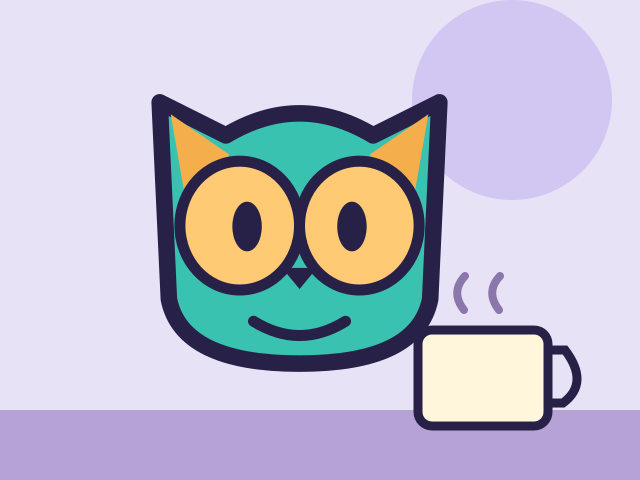
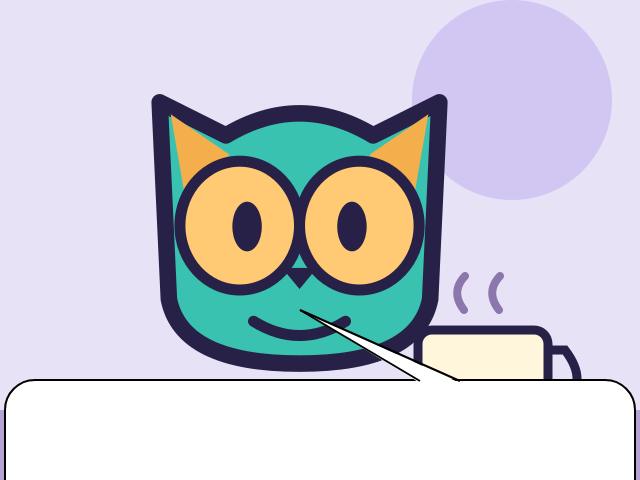
The source is an original illustration made for this guide. Both bubble images were saved from the MakeEmoji tool. The finished files have no red handles. Download the original if you want to follow the same steps.
Make the bottom bubble
- Open the generator. Select Click to upload or drag and drop, then choose the original owl PNG.
- Find the two red handles. One sits where the tail joins the bubble. The other marks the pointed end of the tail.
- Drag the handle on the bubble edge upward to give the bubble more height. Keep that handle in the bottom half of the picture for this layout. Move it sideways to change where the tail starts.
- Drag the pointed end toward the owl. Keep the tip close to the character, but leave the face clear.
- Adjust Radius to change the curved corners. Adjust Tail Width to change the width of the tail where it joins the bubble. Our examples use Radius 30 and Tail Width 40.
- Select Save. In the new tab, right-click the image and use your browser's save-image command. On a touch screen, press and hold the image to see the available save options.
Save opens the finished image; it does not always start a file download. If no tab opens, allow pop-ups for MakeEmoji and select Save again. Use Reset to restore the bubble controls if you want to start over.
Move the bubble to the top
Drag the handle at the base of the tail across the middle of the picture into the top half. The bubble changes to the top edge. Keep its edge above the owl's head, then drag the pointed end downward toward the character. Save this version as a second file.
The bubble can also change sides when you drag the pointed end across its edge. If it changes sides unexpectedly, move the base handle back into the half you want, then place the tip on the image side of the bubble. Make small changes and check the full picture after each move.
Choose the position that leaves the important part of the photo clear. A top bubble works well when the character sits low in the frame. A bottom bubble works well when the face is near the top. The tail should identify one speaker without crossing another face.
Check light and dark backgrounds
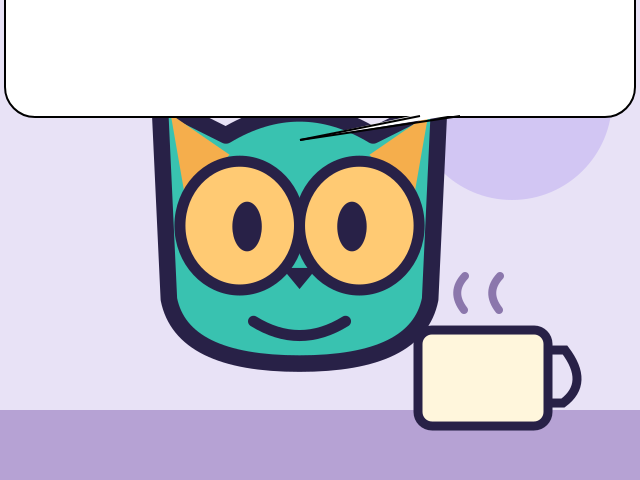
These are display previews, not Discord screenshots. The generator makes a white bubble with a black border. It does not offer a bubble color control. The white area remains white on a dark chat background; it will not blend into every theme. Our source is opaque, so its purple background remains visible too.
Add words and share the result
This generator positions the bubble and tail. It has no text field. You can post the image with a short message, or add words to the saved PNG in a text editor. MakeEmoji's Captioned Meme Builder is a separate tool for top and bottom captions. It does not place text automatically inside this bubble.
Attach the saved PNG to a Discord message and check the preview before you send it. Use a short sentence when adding a caption. A small image leaves little room for long text, and the joke should still make sense without opening a larger view.
Common problems
The tail hides the face. Move its pointed handle beside the face and narrow Tail Width. Leave the eyes and mouth visible.
The bubble covers too much. Move the base handle closer to the top or bottom edge. If there is no free space, start with a wider crop or another image.
The saved image does not move. Export is a single PNG. Uploading a GIF does not produce an animated speech bubble GIF.
The upload is rejected.Use an image below the tool's 5 MB limit. PNG or JPEG is a simple starting point. Keep your original file before making changes.
Use a photo you made or an image you have permission to share. For the simplest first attempt, download our owl, make one clear bubble, and save a top and bottom version. Compare them at the size your audience will see.


