How to Make Custom Animated Emojis with AI
Upload your image, run Super Animation, and export a custom animated emoji with AI.
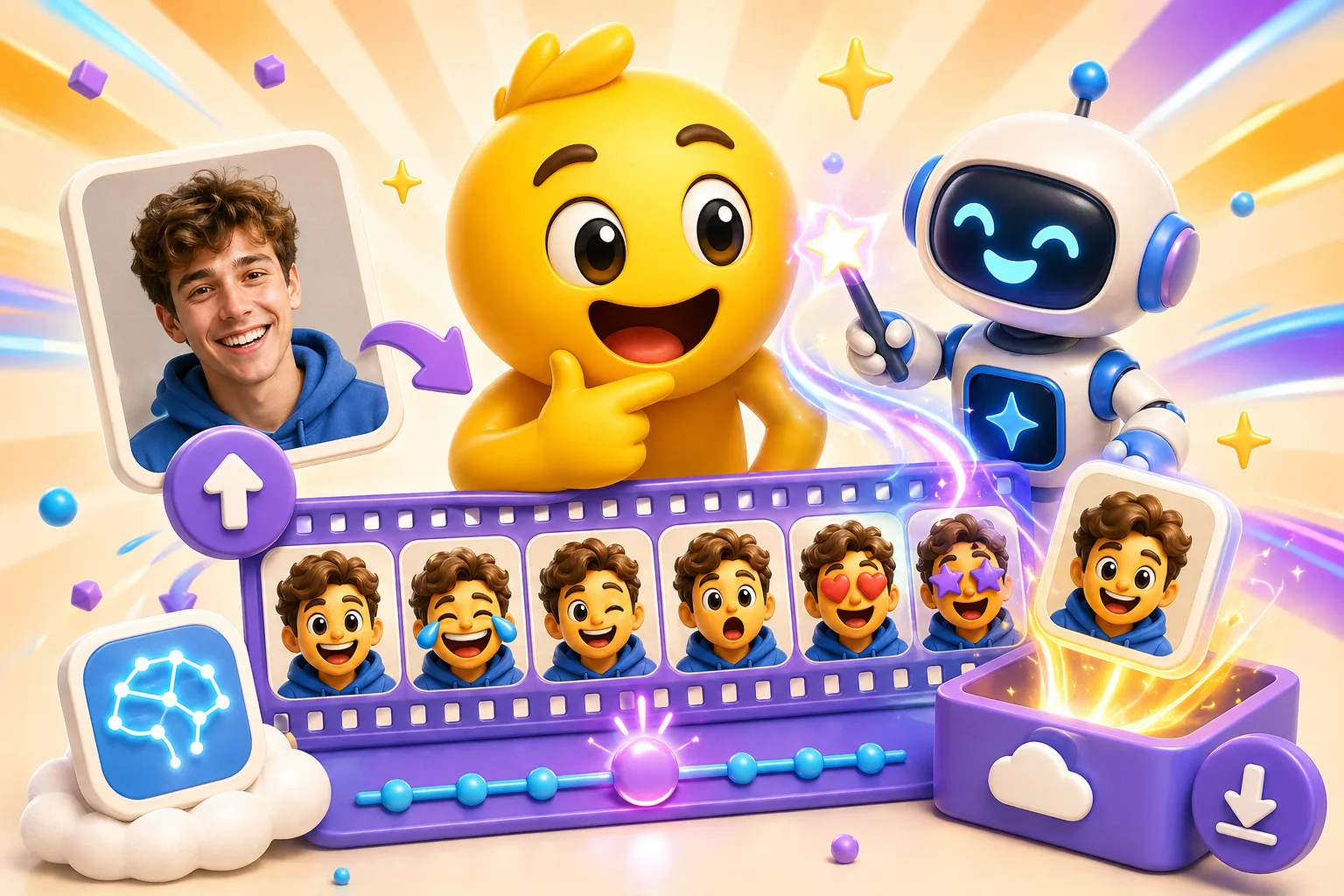
MakeEmoji's AI workflow starts with your image. Upload the image you want to animate, click Super Animation, wait for the result, and export it as a custom animated emoji or emote. The point is not to make a random new character. It is to take your image and turn it into a stronger reaction.
Start with the right source image
Super Animation works best on subjects with faces. Selfies, reaction photos, pets, mascot heads, and illustrated characters give it the clearest target because the whole feature is built around expression.
Images without a face can sometimes work, but they are less predictable. A logo, object, or landscape may come back with a cartoon face or character layered over the subject. You do not need a perfect file, but you do want one clear subject and a readable crop before you spend credits.
Transparent PNGs usually work well, with one catch
Transparent PNG source files are often the best starting point, especially for stickers, mascots, and cut-out reaction art. If the subject is already isolated, the finished emote usually needs less cleanup.
The harder cases are complex transparent outlines and holes inside the image. Wispy edges, gaps between fingers, and interior transparent spaces can come back partially filled or trimmed unevenly.
What the quality setting changes
Every Super Animation run requires enough credits. Standard starts at 1 credit, High at 3, and Ultra at 5. Credits from a pack or Pro work with every quality level.
Quality changes how many animation frames you get: Standard gives you 3 frames, High gives you 6, and Ultra gives you 12. Ultra can preserve up to 24 frames from a longer animated source.
The actual workflow
Upload the image, choose the mode, click Super Animation, and wait for the result. Once it is ready, reopen it and finish the export for the platform you care about. Use Low when 3 frames are enough, High when you need 6, or Ultra when you need 12 or more.
If you want the full walkthrough, start with the AI animated emoji maker. If you want to compare it directly with the free path, use AI Super Animation vs classic animation.
Polish and customize
But generating a Super Animation is not the end of the workflow. You still need to export the emoji at a size and file weight that works on Discord, Twitch, Slack, or wherever it will live. You can also use the Super Animation as a source image on the homepage to stack even more animations onto: just click the Super Animations button on the upload area.
If your source art came from another AI image generator and you only need the motion step, use Animate AI-Generated Emojis.