How to Create a Custom Microsoft Teams Branded Meeting Reaction for Free
Create Microsoft Teams branded meeting reactions from any GIF for free. Get the exact 100 × 100 static PNG and 51-frame animated sprite Teams requires.
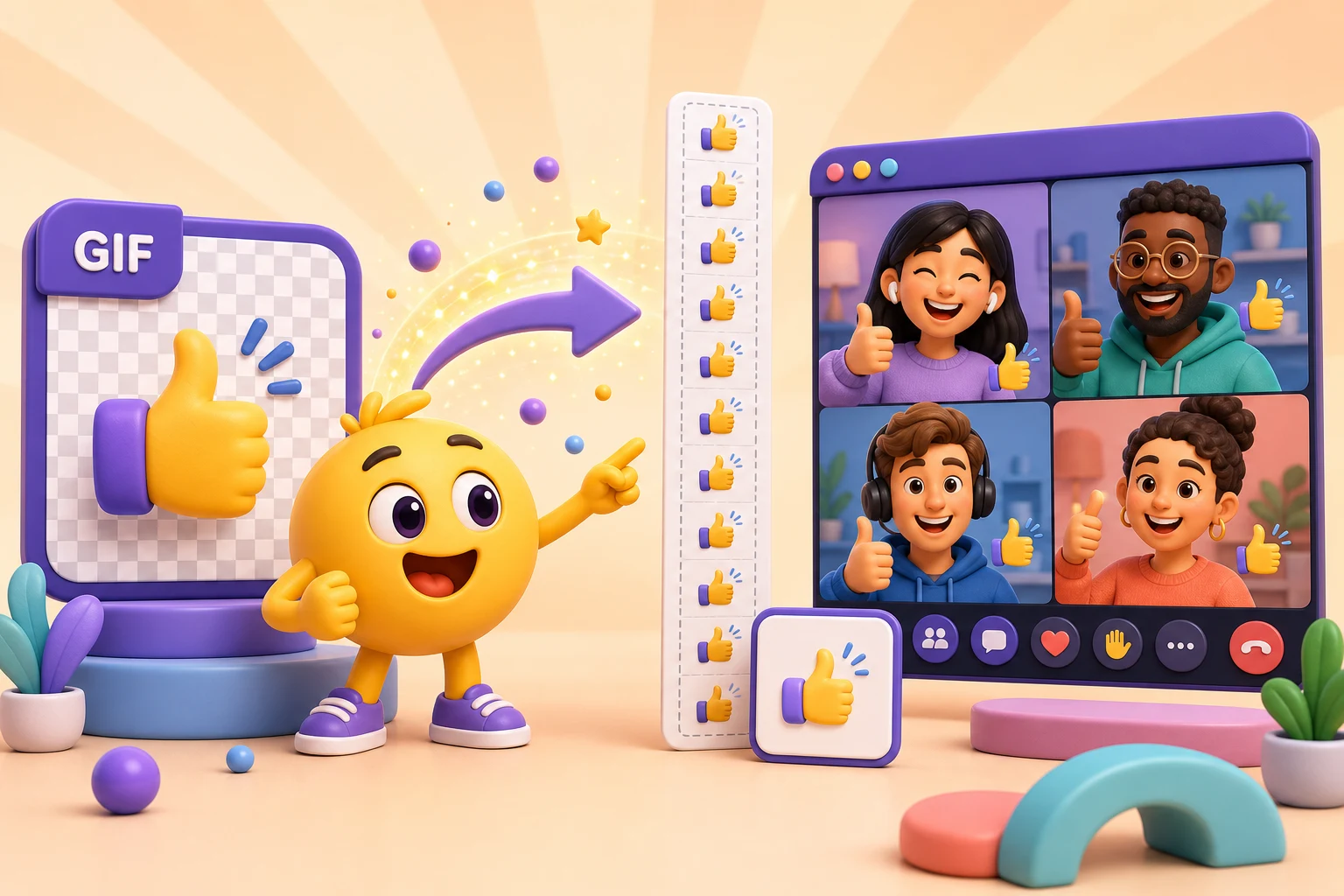
A Microsoft Teams branded meeting reaction needs two matching files: a 100 × 100 static PNG and a 51-frame animated PNG sprite that is 100 × 5,100 pixels. MakeEmoji's free converter builds both from one GIF, entirely in your browser.
Convert a GIF to a Teams branded reactionWhat is a Teams branded meeting reaction?
Branded meeting reactions are part of Microsoft Teams meeting themes. Instead of showing the ordinary Like, Heart, Applause, Laugh, and Surprised artwork, a themed meeting can show versions built from your company's logo, mascot, characters, or event visuals.
This is not the same thing as uploading a custom emoji for Teams chat. Chat emoji live in messages. Branded reactions live inside meetings and events, are attached to a meeting customization policy, and are managed by an administrator.
Important access detail: Microsoft says only organizers with the required Teams Premium meeting-theme access can create meetings and events that include themes. Once the theme is in use, everyone in the meeting can see it—including guests and anonymous attendees.
The exact Microsoft Teams reaction specifications
The format is unusually strict. An animated GIF cannot be uploaded as a branded reaction by itself. Microsoft expects a separate static image plus a tall PNG sprite containing every animation frame.
| Asset | Format | Dimensions | Requirement |
|---|---|---|---|
| Static reaction | Transparent PNG | 100 × 100 px | Use the animation’s key moment |
| Animated reaction | Transparent PNG sprite | 100 × 5,100 px | One vertical column with no gaps |
| Animation cells | 51 frames | 100 × 100 px each | Plays at 24 frames per second |
| Transitions | 20 frames total | 10 in + 10 out | Key moment appears at frame 23 |
The animation loops in place at 24 frames per second. Frames 1–10 fade in, frames 42–51 fade out, and the clearest expression or gesture should happen at frame 23. The static PNG should show that same key moment. Microsoft also recommends transparent backgrounds so the reaction works cleanly across the meeting interface.
You can compare these requirements with the current official Microsoft meeting-theme documentation.
Why making the sprite manually is so annoying
A normal animation editor does not naturally produce this shape. You would have to decode the GIF's timing, choose 51 correctly spaced moments, resize every frame without stretching it, build the fades, identify frame 23, and stack the frames into one perfectly contiguous 5,100-pixel image. Variable GIF delays and disposal methods make the job even easier to get wrong.
That is exactly the tedious part the MakeEmoji tool removes. It treats the GIF as a time-based animation—not just a pile of images—then creates the Microsoft-specific assets automatically.
How the free MakeEmoji converter works
- Upload one GIF. The file is decoded locally in your browser, including its frame timing, transparency, and GIF disposal behavior.
- Let the converter normalize the loop. One complete source loop is resampled into exactly 51 frames at 24 fps.
- Review the automatic key moment.The source GIF's time-based midpoint is aligned with output frame 23 and used for the static PNG.
- Check the preview and warnings. The tool shows the generated loop, the full sprite, dimensions, frame count, and warnings for opaque backgrounds or non-square GIFs.
- Download the ZIP. You receive the static PNG, animated sprite PNG, and a short upload README. Individual PNG downloads remain available too.
Free and private
Turn your GIF into Teams-ready reaction files now
There is no account, upload queue, watermark, or conversion limit. Your source image stays in the browser while the converter creates the two files Microsoft expects.
Create a Teams branded meeting reaction for freeHow to choose a GIF that works well
- Use one clear subject. A logo, mascot, icon, or bold gesture stays readable at 100 × 100 pixels.
- Prefer a transparent background. An opaque background will be preserved, which can make the reaction look like a square tile instead of an object floating naturally in the meeting UI.
- Keep the motion centered. Teams reactions animate in place, so large travel across the canvas is less effective than a bounce, pulse, clap, laugh, or expressive gesture.
- Make the midpoint meaningful. The converter uses the time-based midpoint as the automatic key moment. Choose a loop whose strongest pose lands around the middle.
- Match the reaction's meaning. A branded Like should still communicate approval; a branded Laugh should still read as laughter. Recognition matters more than decoration.
How an admin uploads the finished files
In the Teams admin center, open Meetings, then Customization policies. Create or edit a policy, open the meeting theme, and find Custom reactions. Choose the reaction you want to replace, upload the static PNG first, then upload its matching animated sprite PNG.
Preview the custom reactions, apply the theme, switch it active, and assign the customization policy to the appropriate licensed users or groups. Microsoft currently allows the five standard reaction meanings to be customized: Like, Heart, Applause, Laugh, and Surprised.
Common problems to check before upload
The sprite is rejected
Confirm it is a PNG exactly 100 pixels wide and 5,100 pixels tall, with 51 cells and no gaps.
The animation jumps
Start with a GIF that loops cleanly. The converter preserves one complete time-based source loop.
The artwork looks tiny
A very wide or tall source needs transparent padding to fit without cropping. Use a tighter, more square composition.
The background looks boxed in
The source GIF likely has an opaque background. Remove it before conversion if you want a floating reaction.
Frequently asked questions
Can I create a Microsoft Teams branded meeting reaction for free?
Yes. MakeEmoji’s converter creates the static PNG and animated sprite PNG for free in your browser. Your organization still needs access to Microsoft’s meeting-theme feature to upload and use the assets.
Are branded meeting reactions the same as custom Teams emojis?
No. Branded meeting reactions replace the five standard reactions inside themed meetings. Custom Teams chat emojis are uploaded and used in messages through a different feature.
Who can upload branded meeting reactions?
An administrator with access to the Teams admin center or an assigned customization policy manages meeting themes and uploads the reaction assets.
Why does the animated PNG need to be 100 by 5,100 pixels?
Microsoft expects 51 contiguous 100 by 100 animation frames stacked in one vertical column. Fifty-one cells multiplied by 100 pixels produces a 5,100-pixel-tall sprite.
Does MakeEmoji upload or store my GIF?
No. The converter decodes the GIF and creates the PNG files locally in your browser. The image contents never need to leave your device.


