
How to Add Custom Emoji to Google Chat
Prepare a custom emoji for Google Chat, upload it from your computer, and check work or school account requirements and administrator settings.
To add a custom emoji to Google Chat, open a conversation on your computer, select Add emoji, then select Create. Upload an image and save it. This feature is for work and school accounts. Your administrator controls access, and custom emojis stay within your organization.
Start with one clear reaction, such as a cat giving a thumbs-up. The example below includes an actual GIF download, measured file details, and a way to prepare your own image. Check that Create is available before you spend time on the artwork.
Add the emoji from a computer
- Open Google Chat or the Chat area in Gmail with your work or school account.
- Open a conversation with someone in your organization.
- Select Add emoji beside the message box.
- Select Create next to the emoji search field, then select Upload image.
- Choose your file, complete the form, and select Save.
- Open Custom emojis in the picker to find your image.
These controls are described in Google's custom emoji instructions. A personal Gmail account does not qualify. Use the account switcher to check the active address if you keep personal and work accounts open in the same browser.
Worked example: an animated cat approval emoji
Here is the cat thumbs-up GIF from our free Cat Reactions pack. We measured the saved file itself. It has 13 frames, each displayed for 80 milliseconds, so one animation cycle lasts 1.04 seconds. The preview uses that same file.
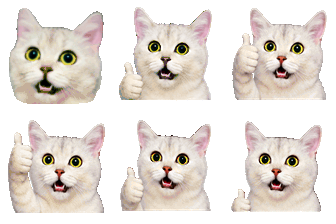
Download the cat thumbs-up GIF. If the link opens the animation, save the image from your browser. Keep the GIF extension. A screenshot saves only one frame and loses the animation. You can also find the full set on our free Cat Reactions pack page.
| Check | Our sample | Published image requirement |
|---|---|---|
| Format | GIF | PNG, JPG, or GIF |
| Dimensions | 112 × 112 pixels | Square, 64 to 500 pixels per side |
| File size | 76,293 bytes, about 76.3 KB | Under 256 KB |
The requirements come from Google's custom emoji image specification. The sample meets those published file constraints without resizing. These measurements do not confirm an upload to a Google Workspace account. Your account permissions and the upload result still need a check in Chat.
For this example, choose a short, useful name such as cat-approved. Use it for an informal acknowledgment after a teammate completes a task. Keep a plain-text reply when the approval needs a clear record. Before adding several similar cats, see whether your team can tell their meanings apart at normal chat size.
Prepare a photo or logo for Google Chat
For your own design, start with one face, object, or simple symbol. Crop out empty space in your image editor. Small text and a full office photo will be difficult to read once the result appears beside a message. Keep the original file so you can change the crop later.
- Open the Google Chat emoji resizer.
- Select Browse image and choose your source file.
- Keep PNG for a static image with transparency. An animated source uses GIF output. The Google Chat preset starts at 128 × 128 pixels.
- Select Make Google Chat-ready file. Check the result preview, dimensions, format, and file size.
- Select Download PNG or Download GIF, then choose that downloaded file in Chat.
The resizer processes the image in your browser and adjusts the output to fit the selected platform's limits. Inspect the final animation before using it: file reduction can change the colors or number of frames. If the expression becomes unclear, simplify the source image instead of adding more detail.
Fix a missing Create button
If existing custom emojis work but Create is absent, ask your administrator to check creation permission. Google allows an organization to disable new uploads while keeping its existing emojis available. The setting can differ between organizational units, so a colleague's access does not establish your own access.
The administrator can open Apps → Google Workspace → Google Chat → Emoji Options, select your organizational unit, and check Allow users to create custom emojis. Send them Google's custom emoji permissions guide. A different GIF cannot change an account permission.
If Create works but your file fails, record the error text and compare its format, dimensions, and bytes with the table above. Try the sample GIF to check whether the issue is specific to your artwork. Report both results to your administrator, together with your browser and active account. This gives them a repeatable problem to investigate.
Keep the shared emoji list useful
Upload a small set first: approval, thanks, and celebration can cover many routine replies. Use names that explain the reaction. Avoid several nearly identical versions with names such as final, final2, and new. Follow any instructions your organization shows during creation.
To review your uploads, open Custom emojis, then Manage. Deleting an emoji affects the organization and its earlier messages or reactions. Check with your team before removing a familiar one. Google's management instructions explain who can remove their own uploads and who can manage the full collection.
Google documentation and sample file reviewed September 20, 2026.


