GIF Export Failed or Froze? Diagnose the Browser Download
Separate source-reading failures, export generation, and browser downloads with real rejected-input examples, a working control GIF, and a diagnosis worksheet.
When a GIF does not download, identify where the process stopped: reading the source, generating the new file, saving the download, or uploading it to a chat app. These are separate steps. A visible result preview means something different from an empty editor, and an app’s upload rejection happens after the browser has already made a file.
Keep the source file before you reload the page. Record the last message you can see. Then test one small, known-good GIF in the same tool. This gives you a useful comparison without repeatedly exporting a large project or changing several settings at once.
Use a real control file
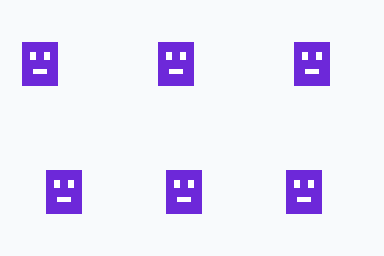
The control GIF is a 128-pixel square geometric robot with six frames and a 480-millisecond loop. We loaded a valid source in the GIF Frame Timing Editor and saved its browser export after testing rejected inputs. The test record gives the browser and method.
Try this control in the tool that failed. If it works, return to the original source and compare its dimensions, frame count, and format. If both files fail at the same step, the browser session or tool environment deserves attention. A control result narrows the problem; it does not identify every possible cause.
Two rejected inputs, with a working recovery
For this guide, we tested a real PNG against the timing editor’s GIF input and a deliberately incomplete six-byte GIF header. The PNG was a valid 128 × 128 still image, but it was the wrong input type. The truncated file did not contain a readable animation. Both problems occurred before export generation. We did not reproduce memory exhaustion or a blocked browser download, and we do not label these input checks as those failures.
The PNG produced “Upload an animated GIF file.” The damaged file produced a decoding error. Replacing either source with the complete control GIF allowed the normal export flow to run. See the recorded failure details for exact input sizes and messages. This is why changing a file name from .png to .gif is not a conversion.
If no preview appears
Open the source in a separate image viewer. Confirm that it is a complete file, that it actually moves, and that the tool accepts its format. A file copied before a download finishes can have the right extension and still be incomplete. Download a fresh copy from its source rather than passing the damaged file through several converters.
Different MakeEmoji tools accept different inputs. The timing editor needs GIF data because it edits the existing frame delays. The platform resizer has its own supported formats and destination rules. The static image converter creates still images. Choose a workflow that matches the desired result before treating an unchanged or static preview as a failed animation export.
If generation stops after a preview
Record the progress label and whether it changes. Decoding frames, building a GIF palette, and writing the output can take different amounts of time. Avoid starting several exports while one is still running. Keep the browser tab open, close unused heavy tabs, and test a smaller source copy if the same operation repeatedly fails.
File size on disk is not the whole workload. A 1,000 × 1,000 RGBA frame needs roughly four million bytes of pixel storage before extra working buffers. Many such frames can consume much more memory than the compressed GIF suggests. This arithmetic explains why reducing canvas dimensions or shortening the source can help. It is not evidence that your particular failure was caused by memory.
For a collage, first export one source without a background or overlay. Add the other inputs one at a time. If one addition changes the result from success to failure, keep that source and its metadata for a useful report. The collage guide explains the tool’s layout and timeline limits.
If the result exists but no file appears
Check the browser’s download list and your selected download folder. If the tool shows a Download or Download again link, use it before you generate the animation again. A saved result preview can outlast a missed automatic download. Keep the page open until the file is saved because a page-local result link may stop working after a reload.
If the browser reports a blocked download, read that browser message and check its permissions for the current page. Do not turn off broad browser protections as a first troubleshooting step. Test a direct result download and record what happened. This guide does not claim that a security setting caused a failure that we did not observe.
Once the file is saved, reopen it and check motion, dimensions, and bytes. If the chat app rejects it, switch to that platform’s file and permission checks. Download the editable diagnosis worksheet to keep the source, error, stage, and next check together.