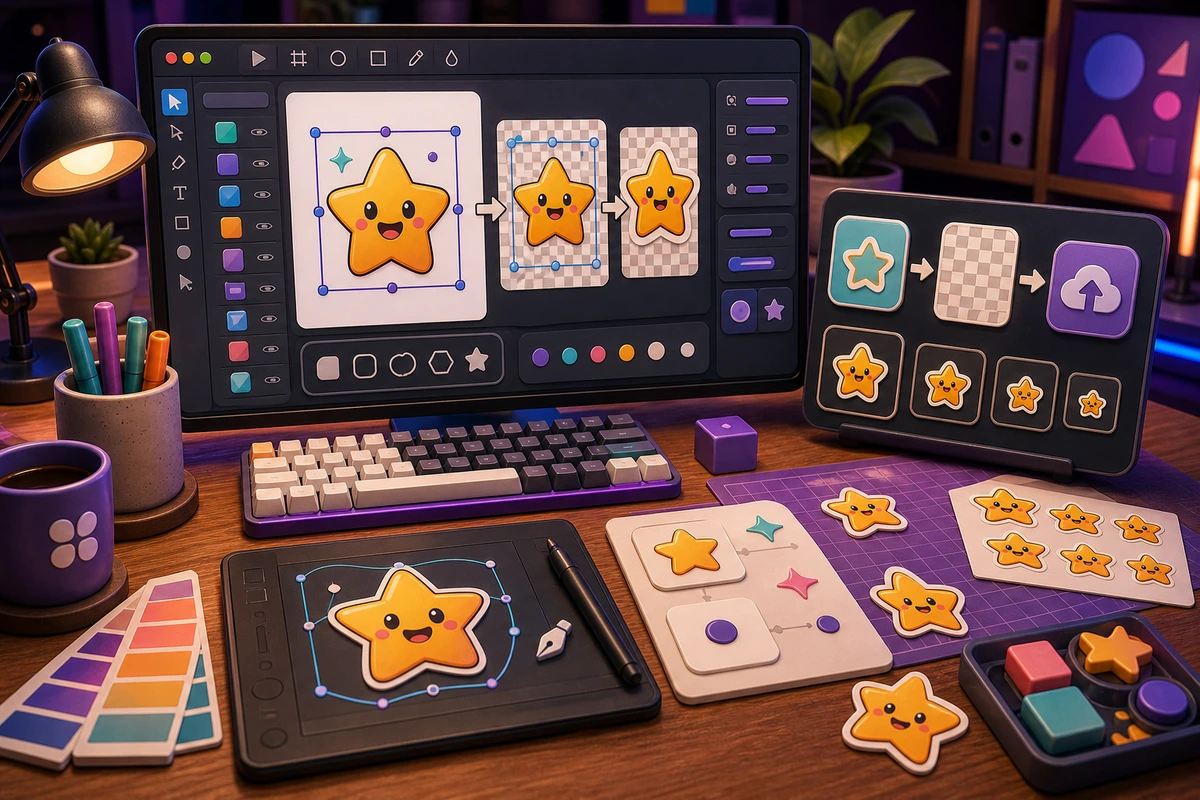
Figma to Custom Emoji Export Workflow
Prepare Figma exports for Slack and Discord emoji with square frames, transparent backgrounds, expanded strokes, and small-size checks.
Short answer
A Figma to custom emoji export workflow should be planned around repeatable chat moments, not decorative filler. Start with Dedicated 512 px square frame., Transparent background., Expanded strokes., Large central symbol., then add niche reactions only after the first set is getting used. Use a dedicated square frame, simplify strokes, expand tiny details, and export transparent PNGs before animation.
Who this is for
This guide is for design teams, product marketers, brand designers, and community managers using Figma as art.
Recommended starter set
Dedicated 512 px square frame.
Transparent background.
Expanded strokes.
Large central symbol.
Dark-theme preview.
PNG export for MakeEmoji.
Workflow
Step 1
Choose the real moments
Treat Figma as the source-of-truth for brand shape and color, then test the exported asset in real chat constraints. A smaller set tied to repeated behavior will outperform a large set of pretty reactions that nobody remembers to use.
Step 2
Create a shared visual rule
Use a dedicated square frame, simplify strokes, expand tiny details, and export transparent PNGs before animation. Keep one crop, outline weight, palette, and background approach so the pack feels intentional.
Step 3
Launch with usable names
Name exports by reaction state so design filenames and platform names stay aligned. Upload a first set, announce the names, and watch what people actually use before expanding.
Quality checklist
- Choose reactions that map to real Slack and Discord moments.
- Keep the subject large enough to read at chat size.
- Use one naming convention across the whole pack.
- Export a static fallback for any important animated reaction.
- Check thin strokes and small labels after resizing; they often disappear first.
Common mistakes
- Making the pack too broad before the first Slack and Discord upload.
- Letting tiny details carry the meaning.
- Using names only the creator understands.
- Skipping a final grid review before upload.
- Exporting from a busy product mockup frame.
- Keeping hairline strokes in tiny emoji.
- Using gradients that turn muddy after compression.
Next steps
FAQ
What should be in a figma to custom emoji export workflow?
Start with Dedicated 512 px square frame., Transparent background., Expanded strokes., Large central symbol.. Those cover the moments people are most likely to repeat. Add niche reactions only when the core set is already being used.
Should a figma to custom emoji export workflow use animation?
Use animation for status badges, launch moments, approvals, and celebrations. Keep status, moderation, and text-heavy reactions static unless motion makes the meaning clearer.
How do I get people to use the pack?
Name exports by reaction state so design filenames and platform names stay aligned. Announce the pack with the exact names, model the reactions in real conversations, and remove weak items after a usage review.