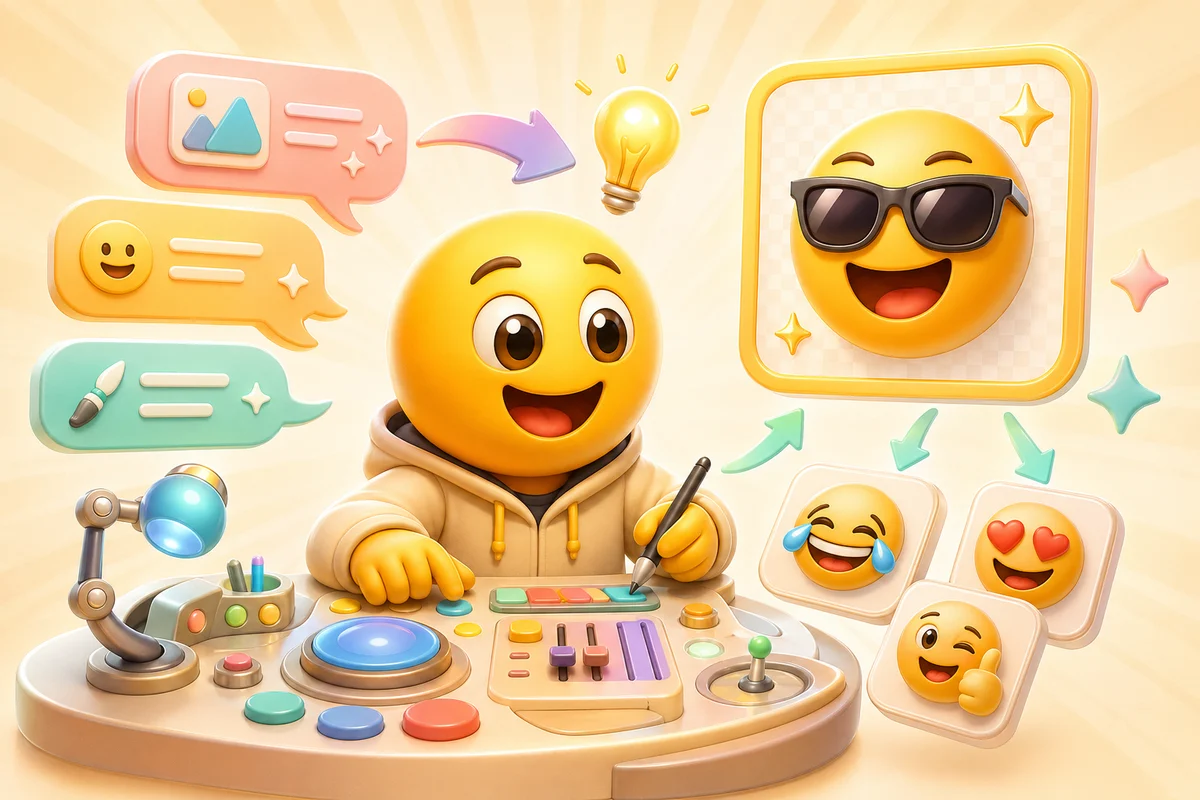
Emoji AI Studio Prompt Guide: 40 Prompts for Custom Emojis and Emotes
Use Emoji AI Studio prompts that create readable custom emoji, remix uploaded references, and set up better AI animated reactions for Discord, Slack, and Twitch.
Short answer
The best Emoji AI Studio prompts describe the source, expression, crop, platform, and output type in one clear sentence. Start with simple static art, then add animation direction only when motion helps the reaction read better in chat.
The prompt formula that works
A strong Studio prompt does not need to be long. It needs to be specific about the subject, the reaction, the style, and the final use case. Custom emojis are tiny, so clarity beats decorative detail.
Use this pattern: subject + reaction + visual treatment + platform constraint. For example, ask for a cheerful mascot head with a clean silhouette, transparent-background-friendly edges, and a readable Discord or Slack reaction crop.
- Name one main subject instead of describing a whole scene.
- Choose one reaction: laugh, cry, shock, hype, panic, approve, or celebrate.
- Mention tight emoji framing so the face or mascot fills the square.
- Ask for simple shapes and high contrast before adding extra details.
- Use animated direction only after the still art already works.
Prompt-to-emoji art
Studio is strongest when you need art before animation. Use it to create a mascot head, pet-like character, product reaction, or clean emoji base that can later be animated with Super Animation.
For prompt-to-emoji work, avoid asking for a full poster or sticker scene. The output should feel like a single chat token. If the art needs to become a pack, keep the same character, crop, and lighting across each prompt.
| Goal | Prompt direction | Why it works |
|---|---|---|
| Mascot | One friendly character head, clear eyes, clean outline | Mascots can support several reactions without changing identity |
| Team reaction | Simple approval, shipped, blocked, or thanks expression | Slack and Discord teams reuse utility reactions more than novelty art |
| Streamer emote | Face-forward avatar with exaggerated expression | Twitch emotes must read at very small sizes |
| Brand asset | Logo-adjacent mascot or badge with simple motion potential | Pure abstract logos often need classic motion instead of facial AI |
Remixing uploaded references
When you already have a real face, pet, logo, or mascot, Studio should preserve the recognizable parts and simplify everything that hurts emoji readability. The upload matters more than the prompt length.
Ask for cleanup, consistency, and emoji framing. Do not ask Studio to redesign a recognizable character unless that is the goal. For people paying for AI animation, the value is usually keeping the original identity while making it easier to animate and export.
Step 1
Upload the best source
Choose a close crop with one subject, visible expression, and simple edges.
Step 2
Ask for emoji framing
Tell Studio to make the subject larger, simplify background noise, and preserve the recognizable identity.
Step 3
Generate a clean still
Use the still result as the pack anchor before spending animation credits.
Step 4
Animate only the keepers
Run Super Animation on the versions that already read clearly as static emoji.
40 prompt starters
Use these as starting points, then replace the subject with your actual face, pet, mascot, logo, or community joke.
- A cheerful yellow mascot head saying yes with a big readable smile.
- A dramatic crying reaction from one clean mascot face, simple glossy emoji style.
- A shocked pet face reaction with wide eyes, tight square crop, clean background.
- A server mascot laughing hard, simple shapes, readable at Discord emoji size.
- A workspace mascot giving a calm thumbs-up, Slack reacji style, no text.
- A streamer avatar hype reaction with bold eyes, high contrast, clean silhouette.
- A logo-inspired mascot celebration reaction, friendly and brand-safe.
- A tiny panic reaction from one uploaded face, exaggerated expression, simple crop.
- A sleepy late-night coding reaction with one character head and soft highlights.
- A launch-day celebration emoji with confetti-like shapes but no readable text.
When to use more animation frames
Use 3-frame Standard for exploration and source testing. Choose 6-frame High or 12-frame Ultra only when the motion needs more frames.
Ultra can preserve up to 24 frames from longer animated sources. Improving the source image is separate from choosing a frame count.
Paid workflow
Credit packs are not live on production yet, so blog copy should point readers to Studio and Pro rather than promising one-time pack checkout. Standard uses credits, while Pro unlocks the High and Ultra frame counts plus Studio image creation.
Next steps
FAQ
What should I include in an Emoji AI Studio prompt?
Include the subject, reaction, crop, style, and destination. One clear subject and one clear emotion usually work better than a long scene description.
Can Studio make animated emojis from a prompt?
Yes. Studio can create art from a prompt and can also make animated outputs when you describe the motion you want.
Should I start with Studio or Super Animation?
Use Studio when you need to create or edit art. Use Super Animation when you already have a strong image and want fast preset AI motion.
What prompts are bad for emoji generation?
Prompts with full scenes, tiny characters, lots of text, or many competing objects usually make weak emojis because the result will not read clearly at chat size.
