How to Make Pixel Art Emojis That Don't Blur
Create crisp pixel art emojis that remain sharp at small sizes with proper scaling techniques.
You designed a beautiful emoji at 512×512 pixels. You scale it down to 32×32 and half the details vanish. The edges blur. The subtle shading becomes muddy. This is the scaling problem that ruins most emojis. Pixel art sidesteps this entirely by designing at the target size from the start. Every pixel is placed deliberately. Nothing is lost in translation because there's no translation—what you design is exactly what displays.
Why pixel art works perfectly for emojis
Emojis display at 24-32 pixels on most platforms. Discord shows them at 32×32, Slack at 24×24, Twitch around 28×28. Pixel art is designed at these exact dimensions. You're working at 32×32 or 16×16, not 512×512 scaled down. Every pixel you place is a pixel users see. There's no anti-aliasing, no interpolation, no detail loss. The design process matches the display reality.
Scaling is lossless with integer multiples. A 16×16 pixel art emoji scaled 2× becomes 32×32 perfectly—each original pixel becomes a 2×2 block. No blurriness, no artifacts. The crisp pixel aesthetic is preserved. Discord and Slack handle this automatically. Design at 16×16, they display at 32×32, it looks perfect. This predictability removes guesswork from emoji design.
The retro aesthetic has built-in appeal. Gaming communities especially love pixel art—it references their favorite games and shared cultural touchstones. But even non-gaming communities appreciate the distinctive look. Pixel art emojis stand out from standard smooth emojis. They signal intentional design choice rather than default options. The style itself communicates personality.
File sizes are naturally smaller. Pixel art uses limited color palettes (8-32 colors typically versus thousands) and small dimensions. A 32×32 pixel art emoji with 16 colors might be 2-5KB. The same concept as smooth vector art could be 50KB. For animated GIFs, pixel art compresses beautifully—limited colors and small dimensions mean tiny file sizes even with multiple frames.
Choosing your canvas size
16×16 pixels is the purist challenge. This is classic retro game resolution—think original Game Boy or early PC icons. You can fit a simple face, basic shapes, clear icons. That's it. No complex details, no subtle expressions, no elaborate compositions. But the constraint forces clarity. If your emoji reads at 16×16, it'll work everywhere. This size is perfect for icon-style emojis: objects, symbols, simple markers.
32×32 pixels is the sweet spot for detailed pixel art emojis. This matches Discord's display size perfectly. You can include eyes, mouth, facial features, and still have room for character. Expressions are clear. Objects have defining details. This is where most pixel art emojis live—enough resolution for personality, not so much that you're overwhelmed by pixel-pushing.
24×24 works when targeting Slack specifically or wanting a compromise. Slightly less room than 32×32 but still workable. The odd number (not power of 2) makes some designs slightly awkward—centered elements don't have a true center pixel. But for many emojis, this doesn't matter. If Slack is your primary platform, design at 24×24.
Larger than 32×32 has diminishing returns. Yes, you can work at 64×64 or 48×48 and have more detail. But platforms will scale it down anyway. That extra detail vanishes or, worse, creates visual noise. The advantage of pixel art is working at display resolution. Going larger abandons that advantage. Unless you specifically need showcase images, stick to 32×32 or smaller.
Color palette principles
Limited palettes aren't just aesthetic—they're practical. 8-16 colors for most emojis is plenty. More colors mean larger files and more decisions to make. Define your palette before starting. Pick 3-4 values (shades) of each main color, a few accent colors, and maybe a neutral (black, white, or gray). Stick to this palette across your emoji set. The restriction creates consistency and speeds workflow.
High contrast is mandatory at small sizes. Subtle color differences vanish at 32 pixels. Your carefully chosen slightly-darker-blue looks identical to your base blue at display size. Use obviously different values. Check your palette in grayscale—if colors look the same in grayscale, they're too close in value even if hues differ. You need light, medium, and dark values that are distinctly separate.
Outlines help definition tremendously. A 1-pixel dark outline around your emoji separates it from any background. Most successful pixel art emojis use outlines. Black is classic, but dark brown or dark gray work too. The outline doesn't need to be pure black—often a very dark value of your main color looks better. But it needs strong contrast with both your emoji and potential backgrounds.
Classic game palettes provide proven starting points. NES had 56 colors total. Game Boy had 4 shades of gray-green. PICO-8 uses 16 specific colors. These palettes worked for thousands of games precisely because they're balanced, readable, and versatile. Stealing from them isn't cheating—it's learning from masters. Lospec.com has hundreds of community-created palettes specifically for pixel art.
Tools for pixel art creation
Aseprite is the gold standard for pixel art software. It's designed specifically for pixel art and animation. The interface makes sense, the tools do what you expect, the workflow is optimized for pixel work. It costs $20 but it's worth every cent if you're serious about pixel art emojis. The animation features alone justify the price—frame management, onion skinning, preview, export all work perfectly.
Piskel is free and browser-based. No installation, no cost, reasonably capable. Good for trying pixel art without commitment. The interface is simpler than Aseprite, which means fewer features but less learning curve. For basic emoji creation, Piskel handles it fine. Export as PNG or GIF works. Limitations appear with complex animations or large projects, but for emoji work, it's solid.
Photoshop or GIMP can work but require specific setup. Disable anti-aliasing on all tools. Enable pixel grid (View > Show > Pixel Grid). Use pencil tool, not brush. Zoom to 800% or 1600% while working. These general image editors weren't designed for pixel art, so you're fighting against their default behaviors. But if you already own Photoshop and don't want to learn new software, it's possible.
Mobile apps like Pixel Studio work surprisingly well for emoji creation. Touch interface is intuitive for pixel placement. Zoom, draw, fill—all straightforward. The small canvas (32×32) actually suits mobile workflow. You won't create complex animations on mobile, but for static emojis or simple 2-frame animations, mobile apps are perfectly capable. Useful for emoji creation on the go.
Design workflow step by step
Start with silhouette in a single color. Block out the basic shape—a circle for a face, rectangle for an object, whatever your emoji is. This establishes proportions and makes sure your concept fits the canvas. At this stage, you're just claiming space. Is the head too big? Too small? Off-center? Fix it now with simple shape before adding detail. This silhouette should be recognizable as "face" or "object" even without any features.
Add core features with your base palette. For a face: eyes, mouth, maybe nose. For an object: the defining characteristics that make it that object. Use your middle values—not highlights or shadows yet, just the base colors. Place these carefully. Eyes being one pixel off can make an expression look completely different. At 32×32, every pixel matters. Get core features right before proceeding.
Apply shading with darker values of your base colors. Pick a light source direction (top-left is conventional). Add shadows where that light wouldn't hit. Don't overdo it—2 values (base and shadow) work for most elements. Maybe 3 values (base, shadow, deep shadow) for main areas. More than that and you're over-complicating. Shading should enhance form, not dominate the design. Subtle beats elaborate at small sizes.
Add highlights sparingly with lighter values. Wherever light hits directly, add a few pixels of highlight. Top of head, cheekbone, whatever makes sense for your light source. Don't highlight everything—selective highlights create focus. Often a single pixel or small cluster is enough. Too many highlights flatten the image rather than enhancing it. Less is more.
Refine pixel by pixel. Zoom to 800% or more. Look at every pixel critically. Are there awkward single pixels floating alone? Clusters that don't read clearly? Transitions that could be smoother? This is the detail pass where you perfect what you've created. Don't skip this—pixel art quality comes from careful pixel placement. Change one pixel, zoom out, check overall appearance, repeat.
Common mistakes to avoid
Trying to include too much detail clutters the design. At 32×32, you have 1024 pixels total. Don't try to show every button, every detail, every nuance. Pick the 2-3 features that define your subject and focus on those. Everything else is noise. The emoji that tries to show everything ends up showing nothing clearly. Simplify ruthlessly.
Inconsistent line weights make pixel art look amateurish. If your outline is 1 pixel in some places and 2 pixels in others, it looks wrong. Pick a line weight (almost always 1 pixel for emojis) and stick to it everywhere. Same with internal details—if you use 1-pixel lines for eyes, use 1-pixel lines for mouth. Consistency reads as intentional design. Inconsistency reads as mistake.
Poor value contrast causes elements to blend together. Your dark blue object on your slightly lighter blue background? Can't see it. Your brown hair on your tan face? Muddy. Always check value contrast, not just hue. Convert to grayscale to test. If you can't distinguish elements in grayscale, the contrast isn't strong enough. Fix it by using darker darks or lighter lights.
Bad manual anti-aliasing is worse than none. Some pixel artists try to smooth edges by adding intermediate color pixels. This works only if done expertly. When done poorly, it creates fuzzy edges that look worse than clean hard pixels. For emoji sizes, hard edges usually work better. Save anti-aliasing for larger pixel art where you have room to do it properly. At 32×32, keep edges clean.
Scaling and export
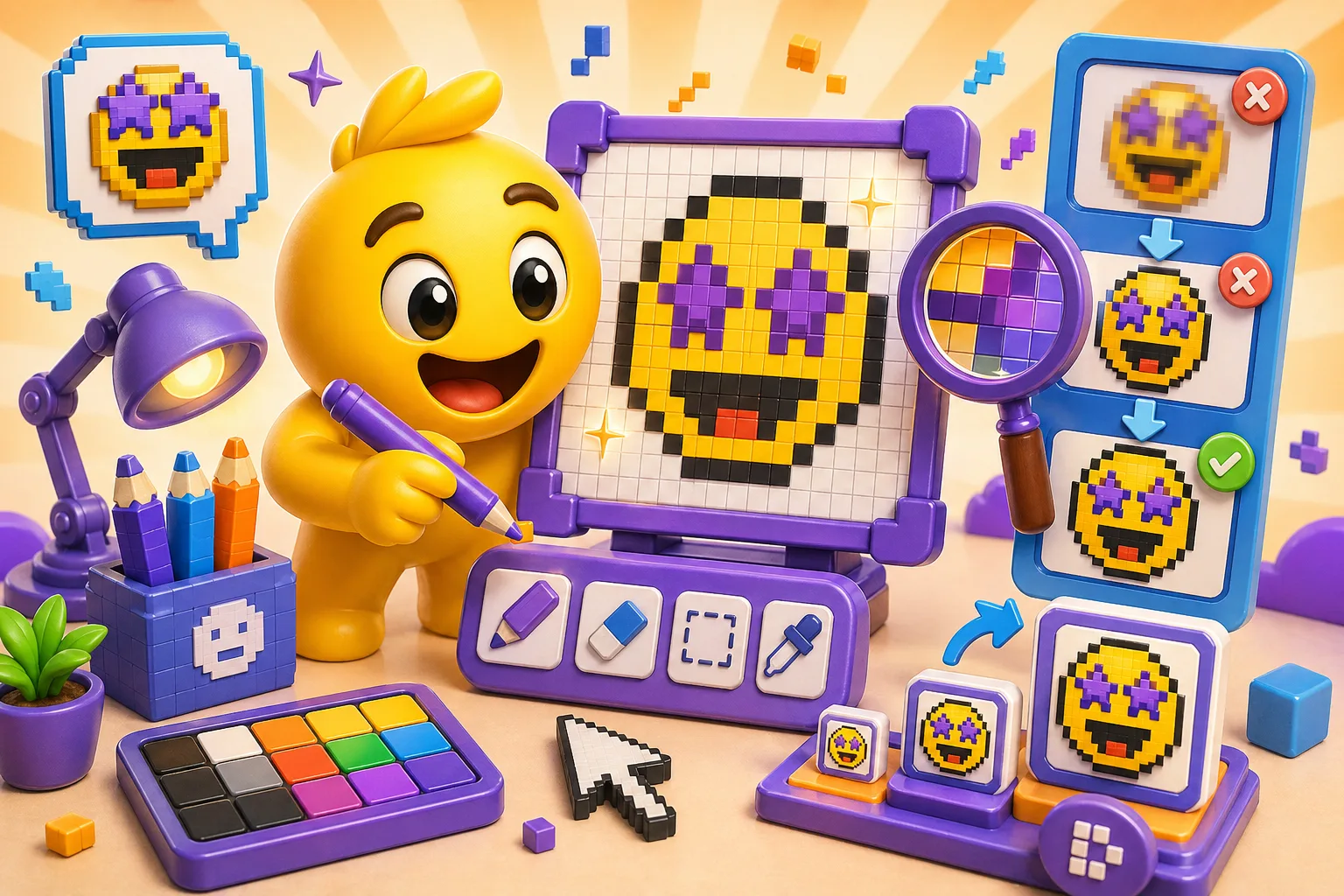
Use integer scaling only: 2×, 3×, 4×, never 1.5× or 2.7×. Non-integer scaling blurs pixels because the math doesn't work out evenly. One pixel becomes 1.5 pixels—what does that even mean? The software interpolates, creating blur. Integer scaling keeps every pixel crisp. Design at 16×16, export at 32×32 (2× scaling), looks perfect. Design at 32×32, export at 32×32 (1× scaling), also perfect.
Export at actual pixel dimensions, not upscaled. If you designed at 32×32, export at 32×32. Don't export at 320×320 thinking bigger is better. Platforms will scale as needed, and scaling up from your native resolution doesn't improve anything—it just makes file sizes larger. Let Discord or Slack handle display scaling. Your job is providing clean, correctly-sized source image.
Use "nearest neighbor" scaling if you must scale manually. In image editing software, this is the algorithm that keeps pixels hard instead of blending them. Photoshop calls it "Nearest Neighbor," GIMP calls it "None." Any other interpolation method (bicubic, bilinear, etc.) will blur your pixel art. When scaling, always choose nearest neighbor.
Test at actual size constantly. View your emoji at 100% zoom, not 800%. Your zoomed-in view is for editing, but actual size is what matters. Keep a small preview window open showing actual size while you work. What looks perfect zoomed in might be unreadable zoomed out. The zoomed-out view is truth.
Animation in pixel art
Frame-by-frame pixel art animation is manageable. Each frame is small—32×32 is only 1024 pixels. Drawing 4-6 frames manually is quick compared to animating complex vector art. Pixel art lends itself to simple animations: a blink (2 frames), a bounce (3-4 frames), a wave (4-6 frames). You don't need elaborate 30-frame animations. Simple motion reads clearly at emoji size.
Limited color palettes make GIFs tiny. Pixel art naturally uses 8-32 colors. GIF format handles this perfectly—it's designed for limited palettes. Your 4-frame animated pixel art emoji might be 5-10KB total. The same concept in smooth art could be 200KB+. This matters for Discord's 256KB limit and Slack's 128KB limit. Pixel art animations stay well under limits.
Loop timing is more important than frame count. A well-timed 2-frame animation looks better than a poorly-timed 8-frame animation. Experiment with frame duration. Typical emoji animations use 100-200ms per frame. Too fast (50ms) and it's epileptic. Too slow (500ms+) and it feels sluggish. Find the rhythm that makes your animation feel right.
First and last frames must connect smoothly for seamless loops. If your animation ends in a different position than it starts, the loop will jerk. Plan animations to return to start position, or design them to cycle continuously. Test your loop by watching it repeat 20 times. If the transition bothers you on loop 20, fix it. Loops are forever in chat—they need to work indefinitely.
Platform-specific considerations
Discord displays at 32×32 pixels on desktop, slightly smaller on mobile. Design at 32×32 or 16×16 (which doubles perfectly to 32×32). Discord's dark theme means dark pixel art can blend into the background. Add outlines or use brighter colors. Test your emoji on Discord's #36393f dark gray background. If it disappears, add contrast.
Slack uses 24×24 display size in most contexts. The odd number makes centering slightly awkward for even-sized designs. Design at 24×24 natively, or design at 16×16 and let Slack scale to 24×24 (1.5× isn't integer but looks okay for pixel art). Slack defaults to white/light backgrounds—test visibility on white. Outlines are even more important on Slack.
Twitch emote sizes vary: 28×28, 56×56, 112×112 are common. The 28×28 is between Discord and Slack. For Twitch, provide all three sizes rather than letting Twitch scale. This gives you control over how the emoji looks at each size. Design at 28×28, then manually scale to 56×56 and 112×112 using 2× and 4× nearest neighbor scaling.
Mobile displays everything smaller physically due to high pixel density. A 32×32 emoji on a 4K phone screen is physically smaller than on a 1080p monitor. This means your emoji needs to work even tinier than you thought. If details are hard to see on your monitor at 32×32, they're impossible on mobile. Simplify more than seems necessary.
Creating cohesive pixel art sets
Use the same canvas size for all emojis in a set. Don't mix 16×16 and 32×32. Pick one size and design everything at that size. This ensures visual consistency—all emojis have similar level of detail and similar weight in chat. Mixed sizes look unprofessional even if individually well-designed.
Share a color palette across the entire set. Define your 8-16 colors at the start and use only those colors for every emoji. This creates instant visual cohesion. Someone sees three emojis and immediately recognizes they're from the same set based on palette alone. Palette consistency is the easiest way to unify disparate designs.
Maintain consistent line weights and outline styles. If emoji one has 1-pixel black outlines, all emojis need 1-pixel black outlines. If you use no outlines on emoji one, use no outlines on the rest. Any deviation breaks the set's unity. Viewers notice inconsistency even if they can't articulate what's wrong. Consistency looks professional.
Match complexity levels across emojis. If your first emoji is simple with minimal shading, keep that simplicity throughout. If your first emoji has elaborate shading and details, maintain that complexity. Don't mix ultra-simple flat emojis with highly-detailed shaded emojis in the same set. Pick a complexity level and stick to it.
When pixel art makes sense versus when it doesn't
Gaming communities are perfect for pixel art emojis. The retro aesthetic matches gaming culture. Members recognize and appreciate the style. It feels native to gaming Discord servers or Twitch chats. If your community plays retro games or enjoys indie titles, pixel art emojis are ideal. The style reinforces community identity.
Professional or corporate contexts might find pixel art too casual. Business Slack workspace for Fortune 500 company? Smooth, minimal emojis probably fit better than pixel art. Pixel art signals playfulness and retro culture—sometimes that's perfect, sometimes it's wrong. Read your room. Would pixel art seem out of place? If yes, choose different style.
Small display sizes benefit enormously from pixel art. When emojis display at 24-32 pixels, pixel art is designed exactly for that. Other styles struggle at small sizes—pixel art thrives. If readability at tiny sizes is your priority, pixel art wins. The style is optimized for the constraints.
Complex realistic subjects don't work in pixel art at emoji scale. A photorealistic portrait? Not happening at 32×32 pixels. A detailed cityscape? Impossible. Pixel art excels at simple, iconic representations—faces, objects, symbols. If your subject requires detail and realism, choose different approach. Work within pixel art's strengths rather than fighting its limitations.
Learning resources and inspiration
Lospec.com hosts the largest collection of pixel art palettes. Browse by color count, find palettes designed for specific purposes (Game Boy, NES, fantasy, etc.). Downloading a proven palette removes one design decision and gives you a solid foundation. Many palettes include example art showing how colors work together. This is the first resource to check before starting pixel art emoji project.
PixelJoint community features thousands of pixel artists sharing work. Study emoji-sized pixel art there. How do experienced artists handle faces? How do they shade at small sizes? What tricks do they use for readability? Don't copy directly, but learn techniques. The difference between amateur and professional pixel art often comes down to techniques visible in community examples.
PICO-8 sprite sheets provide tons of 16×16 pixel art examples. PICO-8 is a fantasy console that limits developers to 16×16 sprites. This constraint forced thousands of developers to master small pixel art. Search for PICO-8 games, look at their sprite sheets, see how much expression and detail fits in 16×16. These are master classes in working within extreme constraints.
Retro games are the original pixel art emoji reference. Look at Final Fantasy VI character sprites. Chrono Trigger portraits. Pokemon sprites. These games communicated complex emotions and characters with pixel art at small sizes. The techniques used—outlines, limited palettes, clear expressions—translate directly to emoji design. Learn from decades of proven pixel art.
Pixel art emojis are designed at their display size, ensuring perfect clarity at 24-32 pixels. Use limited color palettes, consistent line weights, and simple compositions. Integer scaling preserves crispness, limited palettes compress beautifully, and the retro aesthetic appeals to gaming communities. Design at 16×16 or 32×32, work pixel by pixel, and create cohesive sets with shared palettes. Start creating pixel art emojis here →