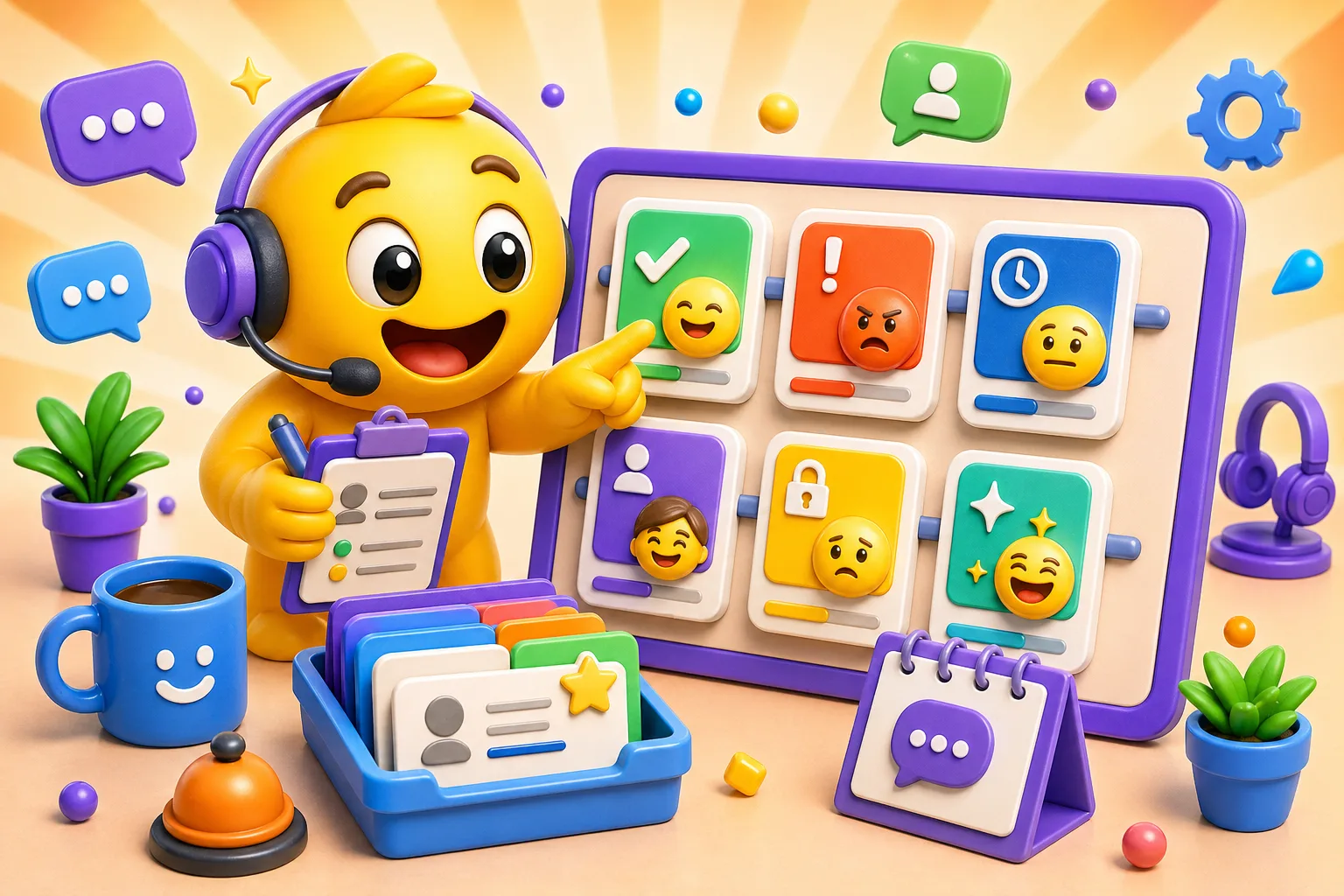
Customer Support Emojis for Help Desk Teams
Custom emoji pack for customer support: ticket status, priority levels, resolution tracking.
Your support team's Slack has 47 open tickets spread across three channels. Someone asks "what's the status on ticket 2847?" and three people check three different places before someone answers. Status updates get buried in conversation. Priority levels are ambiguous. A targeted custom emoji system turns ticket management into visual workflow that everyone reads at a glance.
Ticket status lifecycle emojis
New tickets need immediate visibility. An inbox icon, a "NEW" badge in red or orange, or a bell symbol marks tickets that haven't been claimed yet. This emoji appears when tickets first arrive and disappears when someone takes ownership. In busy support channels, this prevents tickets from getting lost in the noise. Name it :ticket_new: or :new: for quick typing.
Assigned or in-progress tickets show someone's actively working. A person icon, gears turning, or tools indicate investigation happening right now. This tells customers "we're on it" and tells team members "this ticket is claimed, don't duplicate effort." The emoji answers "who's handling this?" without requiring a status message. Use :in_progress: or :working:.
Waiting on customer response is different from waiting on internal teams. An hourglass, outbox icon, or question mark shows the ball is in the customer's court. This prevents tickets from looking abandoned when they're actually waiting for information. It also stops other team members from jumping in unnecessarily—the ticket isn't stuck, it's just paused. Name it :waiting_customer:.
Waiting on internal team uses a different visual. An escalation arrow, team icon, or engineering symbol shows the support team did their part and now product, engineering, or billing needs to act. This differentiates external waits from internal ones. Support can focus on tickets they can move forward while tracking which ones are blocked by other departments. Use :waiting_internal: or :escalated:.
Resolved tickets get a green checkmark, closed lock, or completion badge. This marks successful closure and creates a visual record of completed work. When scrolling through ticket history, green checkmarks provide instant confirmation that issues were solved. Some teams add a happy face to indicate not just "closed" but "customer satisfied." Call it :resolved: or :closed:.
Priority level markers
Critical issues (P0, SEV1, or whatever your team calls them) need maximum visibility. A fire emoji, red alarm, or urgent exclamation in a red circle makes these impossible to miss. These tickets demand immediate attention—everything stops until they're addressed. The emoji communicates severity without reading the whole ticket description. Use :p0:, :critical:, or :sev1: to match your team's terminology.
High priority (P1) tickets are urgent but not drop-everything critical. A yellow warning triangle, orange alert, or "HIGH" badge differentiates these from critical while keeping them visually prominent. These get handled quickly but not at the expense of critical issues. The color distinction (red for critical, yellow/orange for high) creates instant triage at a glance.
Medium priority (P2) makes up the bulk of most support queues. A blue information circle or neutral badge indicates normal workflow—important but not urgent. These tickets get handled in order based on SLA requirements and team capacity. The visual marker prevents them from being confused with higher priority work.
Low priority (P3) tickets can wait when higher priorities stack up. A green low-priority indicator or downward arrow shows these are "nice to handle but not urgent." Feature requests, minor bugs, or general questions often fall here. Having a distinct marker prevents them from getting lost while acknowledging they're not time-sensitive.
Color-coding priority levels creates an intuitive visual system. Red = critical, yellow/orange = high, blue = medium, green = low. This matches traffic light logic and natural associations. Someone unfamiliar with your emoji system can still guess priority based on color alone. Consistency across all priority emojis reinforces the system.
Issue category indicators
Technical bugs or issues get a wrench, tools, or literal bug icon. This immediately signals "something is broken" versus "customer has a question." It helps route tickets to team members with technical expertise and sets expectations that investigation might take time. Engineering can filter for these when planning bug fixes.
Billing questions use dollar signs, credit cards, or invoice icons. These often need accounting or finance team involvement, so marking them upfront speeds routing. Billing issues also have different SLAs in many organizations—money-related problems get faster response than general questions. The visual marker prioritizes accordingly.
Feature requests get lightbulbs, stars, or upward arrows. These aren't problems to solve—they're ideas to consider. Marking them distinctly prevents feature requests from being treated as bugs. They flow to product team for evaluation rather than support trying to "fix" them. The marker also helps track how many feature requests reference similar concepts.
Account access issues use keys, locks, or login symbols. These require security awareness—password resets, account recovery, permissions problems. The marker alerts team members to verify identity carefully before providing access. These tickets also tend to be urgent for customers but straightforward to resolve, so they get fast handling.
General questions get question marks or info icons. These are the catch-all for "how do I..." or "where can I find..." inquiries. Often the fastest tickets to resolve because they require explanation rather than investigation. The marker helps newer team members identify tickets they can confidently handle while building experience.
Customer sentiment tracking
Happy customers get smiley faces or positive indicators. When a ticket resolves smoothly and the customer expresses satisfaction, mark it. This creates a record of wins and helps identify what's working. It also boosts team morale—seeing happy customer emojis accumulate throughout the day reminds everyone their work matters.
Frustrated customers need careful handling. A concerned or worried emoji signals "this person is having a bad experience but isn't hostile yet." These customers need extra care and clear communication to prevent escalation. The marker alerts team members to slow down, over-explain, and check understanding rather than rushing to close the ticket.
Angry or escalated customers get red alert markers. Fire emoji, angry face, or urgent warning—whatever communicates "handle with extreme care." These situations require senior team members, manager involvement, or special protocols. The marker ensures junior team members don't accidentally make things worse by following standard procedures with a non-standard situation.
VIP or high-value customers might get crown, star, or premium badges. Enterprise clients, long-term customers, or accounts with special agreements get white-glove treatment. The marker ensures everyone knows to prioritize these tickets and escalate to appropriate team members. It's not about playing favorites—it's acknowledging some customers have different service agreements.
Neutral interactions don't need special markers but tracking sentiment overall helps identify patterns. If 60% of tickets are frustrated or angry, that's a product problem, not a support problem. The data from sentiment tracking becomes input for product improvements and process changes. Make sentiment marking part of resolution workflow, not an afterthought.
Response urgency separate from priority
Immediate response needed uses alarm or urgent timer icons. This might be a low-priority issue from a high-value customer, or a medium issue with an upcoming deadline. Urgency and priority aren't always the same—this marker captures the "needs response right now" dimension regardless of technical priority level.
Same-day response markers use clock or "today" calendar icons. The issue doesn't require instant action but needs acknowledgment before end of business. This helps team members plan their day—handle immediate tickets first, then work through same-day tickets, then address longer-term work.
Within 24-48 hours uses different calendar icon or multi-day clock. These tickets have SLA breathing room. They're tracked and won't be forgotten, but team members can focus on more urgent work first. The visual distinction prevents everything from feeling equally urgent, which reduces stress and improves decision-making.
Low urgency or can-wait markers give teams permission to deprioritize. A distant calendar, relaxed clock, or low-urgency badge signals "this is tracked but not time-sensitive." Feature requests, documentation improvements, or questions from free-tier users might fall here. The marker acknowledges the ticket without creating false urgency.
Internal communication shortcuts
The "need help" or "second opinion" emoji lets team members request assistance without @ mentioning specific people. A raised hand, SOS symbol, or help flag indicates "I'm stuck and need eyes on this." Other team members with capacity can jump in. This distributes expertise naturally rather than bottlenecking on senior members.
Escalation markers show a ticket moved up the chain. An upward arrow, manager icon, or red flag indicates senior involvement. This creates accountability—escalated tickets don't get forgotten because the emoji makes them visible. It also helps managers track what's being escalated and why, informing training and process improvements.
Knowledge base references use book, document, or link icons. When a ticket is answered by existing documentation, mark it. This tracks how often customers ask questions that are already documented. If the same doc gets referenced 50 times, maybe that information needs to be more discoverable. The data improves documentation strategy.
"Found the bug" or "reproduced" markers celebrate investigative wins. When a team member successfully reproduces a reported issue or identifies root cause, marking it creates visibility into progress. Engineering can filter for reproduced bugs when planning fixes. The marker also gives credit to the support person who did the hard diagnostic work.
Resolution type tracking
Fixed or solved uses wrench plus checkmark. The issue is genuinely resolved—the bug was fixed, the problem was solved, the customer can proceed. This is the gold standard resolution. Tracking these helps calculate actual resolution rates versus tickets that are just "closed" for other reasons.
Workaround provided shows a solution exists but isn't ideal. A detour arrow or alternate path icon indicates "we gave the customer a way to proceed but the underlying issue remains." This tracks known issues that need proper fixes. Product team can see how many workarounds exist for specific problems and prioritize accordingly.
Duplicate ticket markers prevent counting the same issue multiple times. A copy icon or duplicate badge shows this ticket is the same as another already being tracked. This is especially important for widespread issues where dozens of customers report the same bug. Marking duplicates early prevents wasted investigation.
Won't fix or declined uses an X or declined symbol. Not every issue gets resolved—some are working as designed, some are feature requests that don't align with product direction. Marking these creates honest data about closure reasons. It also helps communicate to customers that the ticket was considered, not ignored.
Referred elsewhere uses external link or handoff icon. Sometimes support determines the issue needs a different team, vendor, or partner. The customer was helped by being pointed in the right direction even if support didn't solve it directly. Tracking these shows how much time support spends on routing versus resolution.
Team coordination and availability
Handoff indicators show ownership transfer. When a ticket moves from one team member to another (shift changes, specialization needs), an arrow or pass icon marks the transition. This creates a paper trail of who touched the ticket when. If something goes wrong, you can track the full history without digging through message threads.
Break and away status emojis prevent confusion about availability. Coffee cup for break, phone for call, meeting icon for unavailable—these set expectations. When someone doesn't respond to @ mentions, their status emoji explains why. This reduces interruptions and lets people take real breaks without guilt.
Capacity markers help distribute workload fairly. A "full plate" emoji signals someone's at capacity, an "available" emoji invites new tickets, a warning emoji shows someone's near capacity. This creates transparency about workload that helps managers balance assignments and prevents burnout from uneven distribution.
Customer type and tier markers
Enterprise customers get building or corporate icons. These accounts have different SLAs, different support channels, often different product versions. The marker ensures everyone knows to handle these with enterprise processes—more formal communication, more documentation, more stakeholder awareness.
Small business customers use shop or small building icons. They're paying customers with professional needs but different scale than enterprise. Support approach splits the difference—more personal than enterprise, more professional than consumer. The marker guides tone and expectations.
Individual users or consumers get single person icons. These are typically the highest volume, most varied issues, fastest expected resolution. The marker indicates standard support protocols apply—no special escalation paths, normal SLAs, efficient handling over white-glove service.
Trial users might get a test tube or trial badge. These customers are evaluating whether to pay. Support quality during trial directly impacts conversion. The marker reminds team to be extra helpful and responsive—these interactions are essentially sales touches disguised as support.
Free versus paid tier badges help prioritize when capacity is limited. Paying customers get priority during high-volume periods. This isn't about ignoring free users—it's about honoring the commitment paying customers made. The marker makes priority visible and defensible.
Platform and product indicators
Mobile app issues get phone or mobile device icons. These often require different troubleshooting than web issues. App version matters, device OS matters, and mobile team members have specific expertise. The marker routes tickets to people who can actually help rather than web-focused team members guessing.
Web platform issues use browser or desktop icons. These might involve browser compatibility, screen resolution, or features that only exist on web. The marker helps technical team members know what environment to test in and what logs to check.
API problems get code brackets or developer icons. These tickets come from technical users, require technical responses, and often need engineering involvement. The marker ensures they get routed to team members comfortable with technical conversation and escalated to engineering when appropriate.
Integration issues use puzzle pieces or connection icons. Third-party integrations introduce variables outside your control—the other service's API, authentication, data sync timing. The marker helps frame investigation around integration points rather than assuming your product is at fault.
Integration with support tools
Automated emoji application works when you integrate Slack with your ticketing system. Zendesk, Freshdesk, Intercom, Help Scout—all have Slack integrations or webhooks. Configure them to auto-apply status emojis when ticket state changes. New ticket created? Auto-post with :ticket_new: emoji. Ticket assigned? Auto-update with :in_progress:. This removes manual work and ensures consistency.
Slack workflows can use emojis as triggers. When someone reacts with the escalation emoji, trigger a workflow that @mentions a manager and creates a note in your ticketing system. When someone applies the "needs help" emoji, post to a dedicated help-wanted channel. Emojis become UI buttons for automated actions.
Manual emoji application works for teams without technical integration setup. Establish standard operating procedures: when you claim a ticket, apply the in-progress emoji. When you're waiting on customer, apply the waiting emoji. When you resolve, apply the completed emoji. Consistency requires training and culture, but it works without any technical setup.
Reporting and analytics become possible when emoji usage is consistent. Export Slack messages, parse emoji usage, generate reports. How many tickets were critical? What percentage resolved within SLA? How many required escalation? The data exists in emoji markers if you extract it. This gives leadership visibility into support operations without complex dashboards.
Building your custom support emoji pack
Start with 10-15 core emojis covering ticket status and priority. Get these into daily use before expanding. The foundation needs to be solid—new, in progress, waiting, resolved, plus P0 through P3. These handle 80% of emoji needs. Add others after this foundation works.
Use clear, unambiguous names that match your team's vocabulary. If your team says "escalated," use :escalated: not :up:. If you say "critical," use :critical: not :p0:. Names should be instantly obvious to anyone on your team, including new hires.
Document what each emoji means in your team wiki or onboarding materials. A simple table with emoji name, what it represents, and when to use it prevents confusion. Update this document as you add new emojis or retire unused ones. Documentation makes the system accessible to new team members without requiring oral tradition.
Design emojis with high contrast and clear symbolism. At 22-32 pixels, subtle differences vanish. Bold colors, simple shapes, recognizable symbols. Priority colors should follow red-yellow-blue-green logic. Status markers should be distinct enough to tell apart at a glance. Test at actual size constantly during design.
Get team buy-in by involving them in the process. Survey what workflows need visual markers. Let team members propose emoji ideas. When people help create the system, they're more likely to use it consistently. Imposed-from-above emoji systems fail. Collaborative ones succeed.
Common mistakes that reduce effectiveness
Too many status options create decision paralysis. If you have eight different "waiting" emojis, nobody knows which to use. Consolidate ruthlessly. You need maybe three status categories: active, waiting, resolved. More granularity sounds useful but in practice just causes confusion and inconsistent application.
Unclear emoji meanings defeat the purpose. If people need to ask "what does this emoji mean?" every time they see it, you failed. The whole point is instant visual communication. Either redesign the emoji to be more obvious, rename it more clearly, or remove it and use something else. Obscure inside-reference emojis might be fun but they're not functional.
Inconsistent application ruins the data. If only half the team uses emojis and the other half doesn't, you can't trust the system. Ticket without an emoji—is it new and unclaimed, or did someone forget to mark it? Make emoji usage part of standard operating procedures, not optional nice-to-have behavior. Consistency requires culture and accountability.
Not training team on proper usage guarantees failure. During onboarding, spend 10 minutes on emoji system. What each emoji means, when to apply it, why it matters. For existing team, do a 15-minute lunch-and-learn. Show examples of proper usage. Answer questions. Without training, people will improvise their own meanings and your system falls apart.
Custom emoji systems transform support operations from text-heavy status updates into visual workflow management. Start with ticket status and priority emojis, expand based on team needs, and ensure consistent usage through training and documentation. When done right, emoji markers reduce communication overhead and increase coordination. Create your support team emoji pack here →