Best Tools for Making Animated Emojis (Free and Paid)
Compare the best emoji creation tools, including MakeEmoji's fast your own image for classic effects and AI Super Animation.
The tool you pick for making animated emojis makes the difference between spending 20 minutes or 2 hours on something that ends up 128 pixels wide. There's no single "best" tool—what matters is matching the right software to your style, budget, and skill level. Some tools excel at pixel art, others at smooth frame-by-frame animation, and some are just quick editors for tweaking what you already have. Or you can skip the learning curve entirely and use MakeEmoji to upload your image and turn it into an animated emoji in seconds.
The fastest option: MakeEmoji
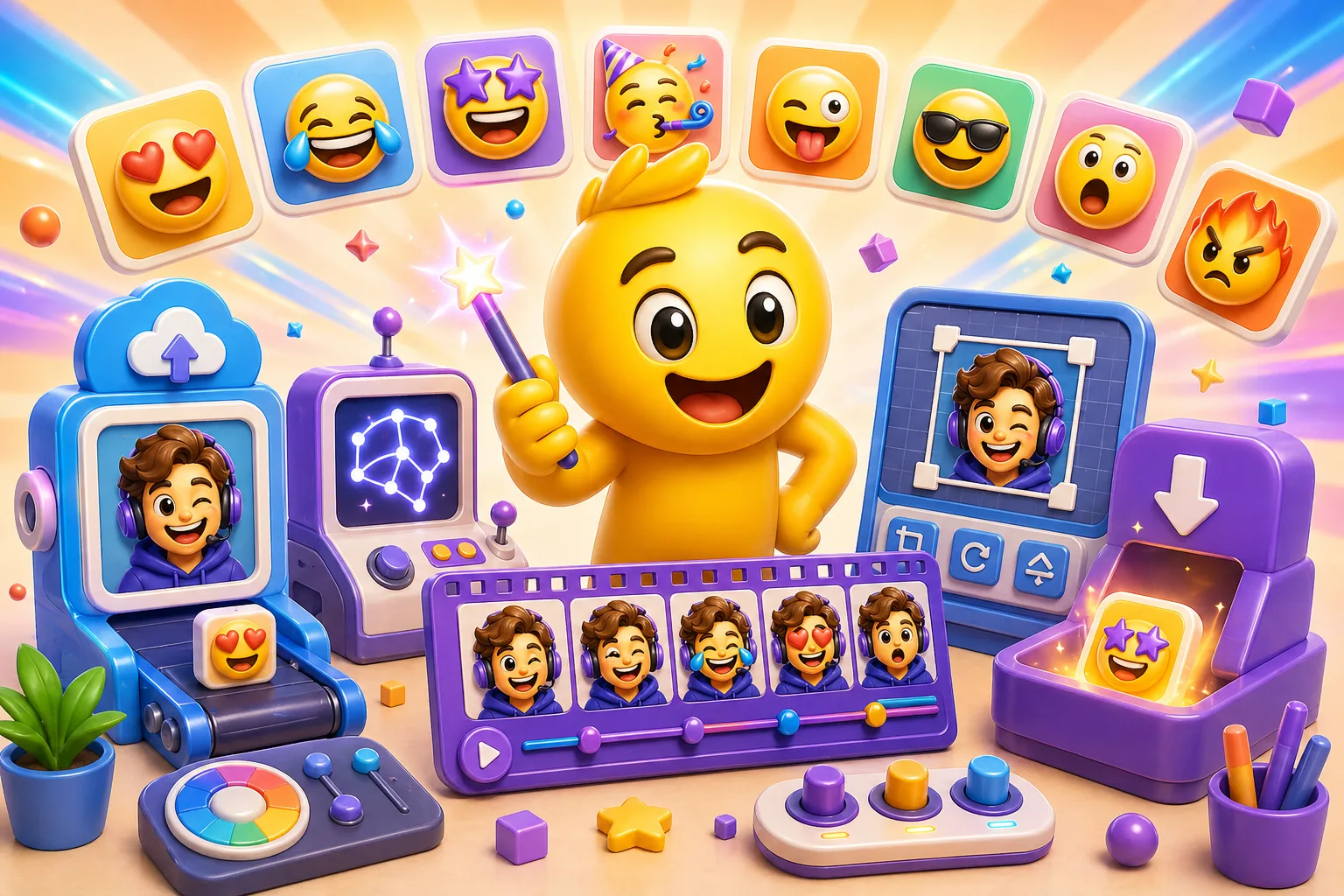
MakeEmoji lets you create custom animated emojis without design software, frame-by-frame drawing, or export headaches. Upload any image, and MakeEmoji turns it into a professional animated emoji with transparent background, optimized file size, and ready to upload to Discord, Slack, or Twitch. It handles all the technical details: proper dimensions, file size optimization, format conversion, and background removal. Perfect for creators who want results fast without becoming animation experts.
The advantage is speed and simplicity. While traditional tools require learning animation principles, frame-by-frame drawing, and file optimization, MakeEmoji gives you usable results in seconds. You can try free classic animation effects immediately, or run Super Animation when you want a more custom AI result from the same upload. This makes it ideal for testing ideas, creating seasonal content, or building large emoji collections without spending weeks in Photoshop.
MakeEmoji works best when you already have the subject you want to animate but lack the technical skills or time to create it manually. It is especially strong for reactions, celebrations, logos, mascot art, and meme images that need to move fast.
Professional desktop tools (paid)
Adobe Photoshop remains the industry standard if you're doing detailed illustration work or need to manipulate photos into emojis. The Timeline panel lets you build frame-by-frame animations and export directly to GIF with built-in optimization. You can control frame delays, loop settings, and color reduction all in one place. The subscription runs $20.99/month for just Photoshop or $54.99 for the full Creative Cloud suite. The learning curve is steep, but there are thousands of tutorials covering every possible technique. If you already know Photoshop, stick with it—no reason to learn something new just for emojis.
Adobe After Effects is overkill for most emoji work, but if you need smooth motion graphics with easing curves and complex effects, nothing else comes close. It's built for motion design, so things like bouncing, rotating, and morphing are way easier than manually drawing each frame. The problem is the workflow is slow for simple stuff, and you need Media Encoder to export to GIF. At $22.99/month (or included in Creative Cloud), it's expensive for occasional emoji creation. Best use case: you're already an After Effects user making motion graphics, and you want to port that style into emojis.
Aseprite costs $19.99 one-time and is made for pixel art and sprite animation. If you want that retro, pixel-perfect aesthetic, this is the tool. It has onion skinning (seeing previous/next frames while you draw), layer support, and a frame timeline that makes animation intuitive. The pixel art community is huge—tons of gamedev folks use this—so there are great tutorials and resources. Export to GIF, APNG, or sprite sheets. The downside is it's pixel-only, so if you want smooth vector-style or photorealistic emojis, look elsewhere.
Procreate on iPad ($12.99 one-time) has an Animation Assist feature that turns it into a surprisingly capable animation tool. If you already use Procreate for illustration, you can animate those drawings right in the same app. It's touch-friendly and portable, which is great for drawing on a couch or traveling. The catch is it's iPad-only, and GIF export requires a workaround (export as MP4, then convert elsewhere). Frame limits aren't a problem for emojis since you're usually working with 5-10 frames max anyway.
Free desktop alternatives
GIMP is the classic free Photoshop alternative, and it can do animation—you just build each frame as a layer, then export as GIF. It has all the filters, effects, and photo editing tools you'd expect from professional software. The UI is clunky compared to Photoshop, and the workflow for animation isn't as smooth, but if you're on a budget and need detailed editing capabilities, this is the answer. The learning curve is moderate to steep, and there are fewer tutorials compared to paid options.
Krita is another free option, focused more on digital painting and illustration. It has a dedicated animation workspace with a timeline, onion skinning, and proper frame management. If you're hand-drawing your emojis with brushes, Krita's tools feel more natural than GIMP. It exports to GIF or video formats. The tradeoff is it's heavier on system resources—it's a full painting suite, not a lightweight editor. Great for artists who want to animate their illustration style.
Blender's Grease Pencil is a weird outlier—it's 2D animation tools living inside 3D software. Completely free and professional-grade, you can do vector-style animations with clean lines and smooth motion. The problem is Blender is a massive, complex program built for 3D modeling and animation. Using it just for 2D emoji work is like using a semi-truck to get groceries. Technically capable, practically overkill. Only worth it if you're already a Blender user.
Online and browser-based tools
Ezgif.com is the MVP of quick emoji edits. It's not for creating from scratch—you upload existing images or GIFs, then edit, optimize, resize, adjust frame timing, or add effects. No account needed, totally free, and you can optimize file sizes to meet platform limits (Discord's 256KB, Slack's 128KB). This should be bookmarked if you're making emojis regularly. It won't replace your main creation tool, but it'll save you tons of time on finishing touches.
Canva has a free tier and a Pro subscription at $12.99/month. It's drag-and-drop design with animation features, but the animation is more like "make this element fade in" rather than true frame-by-frame control. Good for simple motion like bouncing text, sliding elements, or basic effects. Tons of templates and stock graphics. The workflow for detailed frame-by-frame animation is clunky, but if you want to throw together a simple animated emoji in 10 minutes using their library, it works. Exports as GIF or MP4.
Pixilart is a free, browser-based pixel art editor with an animation timeline. You can make quick pixel emojis without installing anything, and there's a community where people share their work. The learning curve is easy—if you've ever used MS Paint, you can use this. Export straight to GIF. It's less powerful than Aseprite but way more accessible. Good for testing if you even like pixel art style before buying dedicated software.
Piskel is similar—another free browser-based pixel art tool with animation support. Real-time preview, onion skinning, and export to GIF, APNG, or sprite sheets. The interface is clean and the learning curve is minimal. Again, pixel-only, but that's the whole point. If you want to make a bouncing pixel heart emoji right now without installing anything, open Piskel and go.
Mobile options
FlipaClip is free with ads (or $5.99 for Pro) and does frame-by-frame animation on your phone or tablet. It has onion skinning, layers, and exports to GIF or video. The learning curve is easy, and if you have a stylus, it's surprisingly functional. The obvious problem is you're drawing on a phone screen, which is cramped. Better on a tablet. Good for sketch-style emojis or if you just want to animate on the go.
Animation Desk costs $4.99 on iOS and Android and is basically a mobile animation studio. More features than FlipaClip, better tools for smooth motion, and solid GIF export. If you're serious about mobile emoji creation and have a tablet with a stylus, this is worth the five bucks. Still limited compared to desktop, but functional.
Which tool should you actually pick?
If you want professional animated emojis fast without learning complex software, start with MakeEmoji. Upload your image, use classic effects or Super Animation, and let the app handle optimization and background removal. Perfect for most use cases and ideal if you value speed over manual control.
If you're a complete beginner who wants to learn animation from scratch, start with Canva or Pixilart. They're forgiving, easy to learn, and you can make something decent in your first session. If it turns out you hate making emojis, you've lost zero dollars and 30 minutes.
If you want pixel art style specifically, Aseprite is worth the $20 if you're serious, or try Piskel for free if you just want to experiment. Pixel art has a low barrier to entry—you're placing individual pixels, not drawing complex shapes—so it's actually easier than illustration-based animation for a lot of people.
If you have an iPad and already use it for art, Procreate is a no-brainer. You're working with tools you know, and the Animation Assist feature is built right in. The $13 one-time cost is cheaper than a month of Adobe subscriptions.
If you're on a budget but want professional features and don't mind a learning curve, GIMP or Krita will get you there. They're full-featured and completely free. GIMP if you're doing photo manipulation or detailed editing, Krita if you're painting and illustrating.
If you already know Photoshop or After Effects from work or other projects, just use those. The subscription is expensive if you're only making emojis, but if you're already paying for it, leverage what you know.
If you just need to tweak existing GIFs—resize them, change timing, optimize file size, add a frame—bookmark Ezgif.com and use it for quick edits. It's not a creation tool, but it'll save you hours over time.
What matters more than the tool
Honestly, the tool is maybe 20% of what makes a good emoji. Understanding basic animation principles—timing, anticipation, follow-through—makes way more difference than whether you're using a $20 app or a $50/month subscription. A simple 3-frame blink animation done well beats a 15-frame complex animation that's cluttered and unclear.
Emojis are tiny. At 128x128 pixels or smaller, detail vanishes. Whatever tool you use, zoom out and look at your emoji at actual size constantly. That intricate shading you spent 20 minutes on? Probably invisible at emoji size. Keep it simple.
File size optimization matters more than you'd think. Most tools export bloated GIFs by default—way over platform limits. Discord allows 256KB, Slack allows 128KB, Twitch allows 1MB. If your emoji is 500KB, nobody can upload it. Use Ezgif or your tool's optimization settings to compress colors and trim frame timing.
Platform requirements are non-negotiable. Discord, Slack, and Twitch all have different size limits and sometimes different rules about dimensions or animation length. Check before you spend an hour animating something that won't upload.
Getting started workflow
Pick a tool from the recommendations above based on your budget and desired style. Start with super simple animations—3 to 5 frames max. A bouncing ball, a blinking face, a spinning arrow. Don't try to animate a walking character with smooth motion and detailed shading on your first emoji. You'll burn out and quit.
Work at 128x128 or 256x256 pixels. Bigger than that and you're wasting time on detail that'll get scaled down. Smaller and you'll struggle to fit readable content. Export as GIF—it's still the most compatible format for emojis across platforms.
If your file size is too big, run it through Ezgif's optimizer. You can usually cut 50-70% of the file size by reducing colors and adjusting dithering without visible quality loss at emoji scale.
Test in the actual platform before making ten more emojis. Upload your first one to Discord or Slack or wherever you're using it, see how it looks in chat, check if the timing feels right. You'll learn more from one real test than from staring at the animation in your editor for 20 minutes.
The best tool is the one you'll actually use. If you want professional animated emojis without the learning curve, try MakeEmoji to turn your image into a custom animated emoji in seconds →No software downloads, no animation skills required. Upload the source image you already have and get a ready-to-use emoji optimized for Discord, Slack, or Twitch. For manual creation, start simple with free tools, learn the basics, then level up to professional software if you need more control.